CarPlay is more than a dashboard shortcut. It puts iPhone apps on a car’s screen with little setup, bringing Apple Maps, Apple Music, Spotify and Waze into one place. The useful tricks sit beyond the obvious icons — assuming iOS 27 does not decide to rearrange your navigation banners.
Five CarPlay features worth using
1. SharePlay turns the car into a group playlist. SharePlay has been available in CarPlay since iOS 17, and it lets passengers help control music through Apple Music. Once the driver starts playing something, nearby passengers receive a notification asking whether they want to join the session.
Passengers can add songs to the queue from their phones, while Android users can join through a browser. If the notification does not appear, the driver can tap the SharePlay button on CarPlay’s Now Playing screen to reveal a QR code, which other passengers can scan. SharePlay only works with Apple Music, but only the driver needs a subscription; everyone else needs a phone with Bluetooth turned on and the latest software.
If the driver does not subscribe to Apple Music but another passenger does, you can switch phones in CarPlay. It is a small feature, but it solves the traditional road-trip problem where one person becomes the unpaid disc jockey.
2. Siri AI can handle more useful requests. Siri was the only voice assistant allowed in CarPlay for some time, earning a reputation for not working very well. iOS 27 and Siri AI changed that, provided you have an Apple Intelligence-compatible iPhone.
Siri AI can help with tasks such as getting directions to an address someone sent or playing a song a friend suggested. Press and hold the Home button on the CarPlay screen, or say “Hey Siri” in supported vehicles.
Starting with iOS 26.4, and with improvements in iOS 27, Apple also allows other AI assistant apps in CarPlay. Apps such as ChatGPT and Gemini mirror from your iPhone and should appear on the CarPlay Home Screen. Their limits are clear: they are voice-only, cannot control other apps, cannot play songs or make calls, and cannot become the default voice assistant. Press the voice command button on the steering wheel and Siri still answers.
3. Paying for fuel can happen from the dashboard. CarPlay has supported gas payments since iOS 16, letting drivers pay from the car’s screen without taking out a wallet or tapping an iPhone on a card reader. The feature works with only a few gas station chains in the US, including Chevron and Texaco.
First, install the gas station app on your iPhone, create an account and add a payment method. At the station, open the app in CarPlay, select your pump and fill up when the app tells you to; the charge goes to the payment method saved on the iPhone. EV drivers can use charging station apps too, though not every charging station supports mobile payments.
4. CarPlay can help before and after the drive. It can order food or a drink for pickup before you leave, without requiring you to pick up your phone. It can also remember where you parked, a feature with more practical value than another decorative dashboard widget.
For EV drivers, CarPlay can plan routes that include charging stations. Those features make the system useful at both ends of a trip: finding a place to stop, then helping you locate the car when the errand is over.
5. An Apple Watch can add turn alerts. With haptic feedback active, the Apple Watch taps your wrist when a turn is imminent, matching CarPlay’s audio and visual alerts. You can choose different vibration patterns for left and right turns.
These alerts should be on by default. To check or disable them, open the Watch app on the iPhone, select My Watch, then Apps and Maps, and adjust the alerts for Driving with CarPlay. Driving, walking and cycling alerts can be changed there as well.
The catch: iOS 27 has made navigation messy
Apple Watch integration does not mean the watch can run CarPlay by itself. Even the Apple Watch Ultra 4 lacks the necessary horsepower, CarPlay would drain its battery, and Apple Watches have no USB ports, leaving wireless CarPlay as the best possible option.
The watch can provide directions through the watchOS version of Apple Maps. Without the iPhone, you need offline maps or a watch with an active cellular plan, and many carriers charge extra for smartwatch coverage. Google Maps works on an Apple Watch, but its directions need the iPhone, and watchOS has no offline-map option.
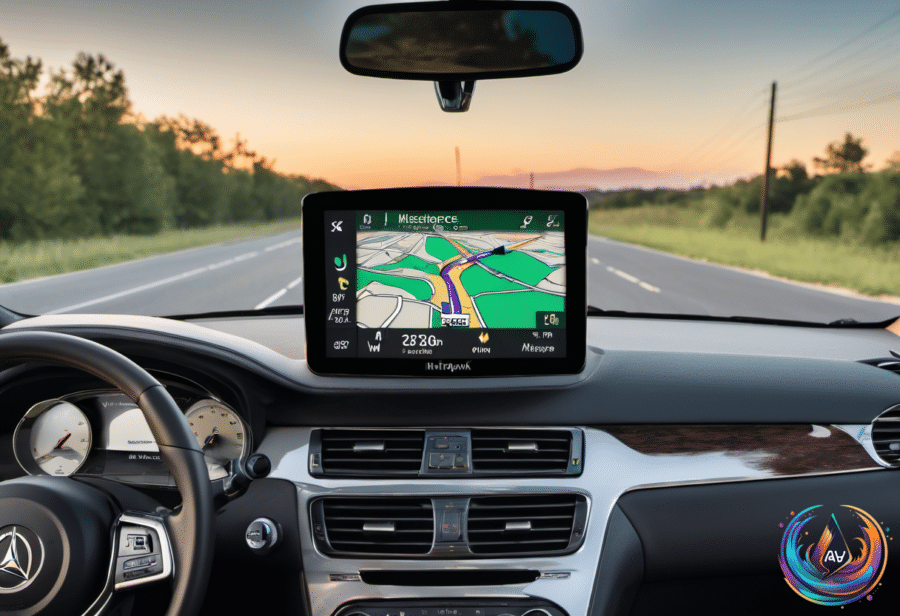
The larger problem sits in CarPlay’s navigation display. After iOS 27, guidance banners from Google Maps and Waze can overlap the map, making turn-by-turn directions difficult or nearly impossible to follow. Drivers have complained on Reddit, and an Apple engineer described the issue as known in iOS 27.
Third-party navigation apps cannot design their CarPlay interface from scratch. They send information to iOS, which renders the next-turn and ETA cards; the system should move the map aside when those cards appear, but that safe-area behavior appears to be failing. Apple Maps avoids the bug because Apple’s native app uses its own CarPlay interface.
The problem hits compact multimedia units harder because smaller screens leave less room for the map. Updating Google Maps or Waze, reinstalling them or re-pairing the car will not solve an iOS problem, though those steps can help when an app does not appear in CarPlay at all.
If an app is missing, go to Settings > General > CarPlay on the iPhone, choose the car, tap Customize and confirm the app is enabled. You can also open Settings on the CarPlay screen, select Display and turn off Smart Display Zoom; some drivers say that makes the banners smaller, but it does not provide a permanent fix and does not work in every vehicle.
Until Apple fixes the issue, voice guidance is the safer fallback. Using the phone’s screen is another option, and Apple Maps may be worth trying in the meantime — an awkward recommendation for a problem created by Apple’s own update.
Based on
- 5 cool things CarPlay could be useful for — engadget.com
- 4 Random Apps You Might Not Realize Work With Android Auto — engadget.com
- This Helpful Apple Watch Feature Works Seamlessly With Apple CarPlay — engadget.com
- iOS 27 Could Be Messing Up Your CarPlay Experience With Google Maps And Waze — engadget.com
- 5 Different Types Of Gadgets And Accessories You’ll Want In Your Car — engadget.com