Sleep is the daily default. macOS offers two main options when you’re done using your Mac or MacBook: sleep and shutdown. The better choice depends on whether you want instant access, zero power use, or a clean reset.
Shutting down your Mac is like turning off any other computer. Every app closes, the operating system shuts down, and RAM is cleared, so the machine starts from a clean state the next time you open the lid or press the power button.
Once fully shut down, the system is not drawing any power. That makes shutdown the clear choice for long periods without use, though closing the lid during shutdown can cause the MacBook to start more slowly next time.
macOS adds a small pause before committing to the decision. Clicking Shut Down from the Apple menu starts a one-minute countdown, giving you time to cancel; holding the Option key while clicking Shut Down bypasses that countdown. Restarting is different because it does not fully power off the machine’s components.
If the system stops responding, pressing and holding the Touch ID button or Power button on a MacBook can force a shutdown. It is a blunt tool, but an unresponsive computer has already abandoned subtlety.
Why sleep makes more sense for daily use
Putting a Mac to sleep usually means closing the lid or selecting Sleep from the Apple menu. The session stays in memory, allowing you to resume quickly without reopening every app and document.
Modern Apple silicon MacBooks use less than one percent of battery per hour while asleep. Your MacBook will automatically go to sleep if you don’t use it for a while, and you can adjust those timings in System Settings.
Sleep does not mean every process stops. Power Nap can grab emails and sync Calendar data, while macOS can run intensive activities such as Time Machine backups when the Mac is plugged in. When the battery becomes critically low in sleep mode, macOS hibernates by saving the session to disk and shutting down.
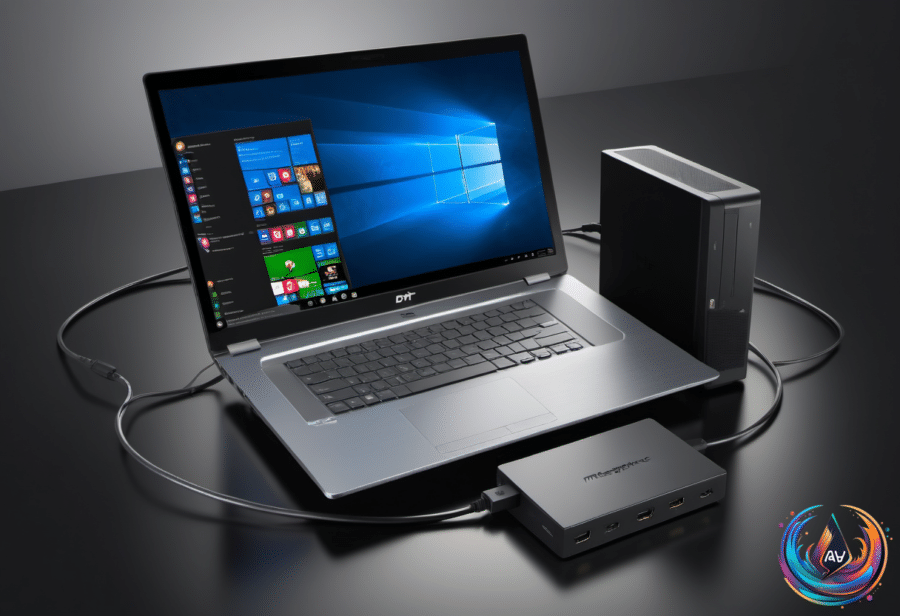
External drives and hubs can change the calculation. Unplug them if the MacBook drains too much battery during sleep, because a supposedly resting laptop with a collection of accessories attached is still doing more work than advertised.
Smart TVs follow a similar compromise
Smart TVs are designed to enter deep sleep or standby rather than shut down completely. Standby consumes a tiny amount of power but allows faster start-up, lets the TV update its software, and supports automatic compensation cycles on OLED TVs that reduce burn-in risk.
Most TVs consume no more than one watt in standby, even when connected to a network. Under ENERGY STAR standards, one watt used across a year adds about 9 KWh of energy and costs about $1.50 in the US.
That small cost does not make standby useless, but unplugging the TV during extended absences avoids wasting those small amounts of standby power. Shutting down or unplugging the TV immediately after viewing can prevent panel maintenance processes from running, especially on OLED models.
Rebooting a TV can clear background processes and improve responsiveness. On some TVs, holding down the power button on the remote brings up options to shut down or restart, so the device may offer more control than its single button suggests.
Before an old laptop leaves your hands
Sleep and shutdown handle daily use. Disposal requires a different priority: backing up data before getting rid of an old laptop is crucial for protecting private information, and backing up is the important first step even before transferring files to a new laptop.
Windows Backup can send files to OneDrive or a local drive, though free Microsoft accounts provide only 5GB of storage. macOS uses Time Machine with a USB drive and iCloud for some data, which also provides 5GB of free storage; third-party backup software and cloud services can supplement those built-in options.
After the backup, sign out of all accounts and de-authorize software licenses. The goal is to protect private information and prepare the device for a new owner, if applicable—not hand over your digital life with the charger.
Windows 11 includes a reset option under Settings > System > Recovery > Reset PC, with choices to remove everything and securely overwrite the drive. Windows 10 uses Settings > Update & security > Recovery, while Windows 8.1 uses Settings > Change PC settings > Update and recovery > Recovery.
Windows 7 requires bootable media or third-party tools to erase data. macOS Monterey or later offers Erase All Contents and Settings under System Settings > General > Transfer or Reset, while older Macs require signing out of iCloud before using Recovery Mode to erase and reinstall macOS.
For daily MacBook use, sleep offers speed and low battery drain. Shutdown removes power and clears the session, making it better for long breaks, troubleshooting, or storage. The sensible routine is simple: sleep between work sessions, shut down when the machine will sit unused, and erase everything before it becomes someone else’s computer.
Based on