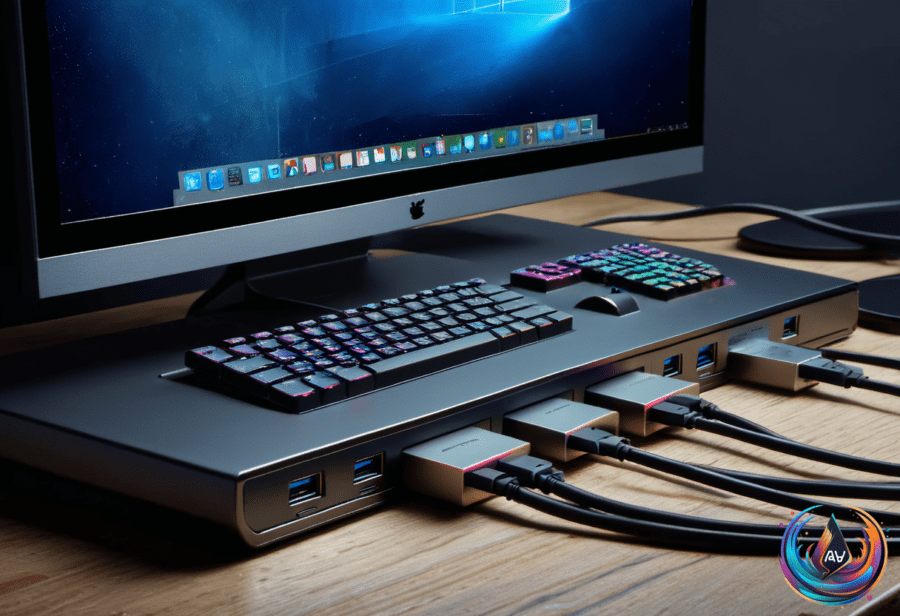
Computers today come with a wide range of USB ports. You might find just one or over a dozen on a single machine. This variety can make it tricky to know where to plug in your mouse and keyboard.
Your keyboard and mouse usually work just fine on any open USB 2.0 port. These input devices need very little power and data to function properly. So, they don’t require the fastest or most powerful ports.
Choosing the wrong USB ports matters most when connecting devices that demand a lot of bandwidth or power. High-speed ports are better saved for solid-state drives or other bandwidth-heavy gadgets. As Max Miller puts it, “Save your high-speed USB ports for SSDs and bandwidth-hungry devices.”
If you use a USB-C hub to connect peripherals, it’s best to plug your mouse and keyboard into the slower ports on that hub. This way, faster ports stay free for other devices. Remember, USB-C only refers to the shape of the connector. It doesn’t guarantee speed or power.
USB-C ports can support different standards, from USB 2.0 all the way up to USB4. So, a USB-C port might be slow or very fast, depending on the device and setup. If your keyboard or mouse connects via USB-C, pairing it with a USB-C to USB-A cable can work well.
What About Keyboards With USB Hubs?
Some keyboards come with their own built-in USB hub, often with USB 3.x ports. If your keyboard has this feature, connect it to a high-powered port on your computer. This gives the hub enough power to support devices plugged into it without slowing down.
High-powered USB ports handle more energy and data. That’s important when your keyboard’s hub powers other devices. Otherwise, you might face slower speeds or unstable connections.
Understanding USB4 and Charging Speeds
USB4 cables can handle huge amounts of bandwidth. A quality USB4 cable costs between $20 and $60. It can support speeds up to 80 Gbps symmetric or even 120/40 Gbps asymmetric with the latest USB4 Version 2 standard. This allows for fast data transfer and charging.
Thunderbolt 4 and 5 use the same USB-C connector type as USB4. But these are Intel standards with their own rules and speeds. Keep in mind, a USB-C port might support anything from slow USB 2.0 speeds up to the fastest USB4 or Thunderbolt speeds.
Power delivery varies too. Apple’s newest devices show this well. The iPhone 17 series charges at up to 40 watts. The iPad 11th Generation pushes 45 watts, while the M5 iPad Pro can charge at 60 watts. Larger devices have bigger batteries and can handle faster charging.
Battery size impacts charging needs. For example, the iPhone 17 has a 3,692mAh battery, while the iPhone 17 Pro Max holds 5,088mAh. The base model iPad released in 2025 has a 7,698mAh battery. The 13-inch M5 iPad Pro goes up to 10,290mAh.
Charging speed affects battery life too. Max Miller advises that “Getting the most out of your iPhone or iPad’s battery is about more than keeping an eye on how much power your apps consume. Your charging speed can also have an effect on your battery’s longevity.”
Apple no longer provides chargers with new iPhones. Older models like the iPhone 11 came with a 5W charger, while the iPhone 11 Pro included an 18W unit. This shift means you might need to buy better chargers or cables separately to reach those faster charging speeds.
In short, plug your mouse and keyboard into slower USB 2.0 ports when possible. Save the faster ports for devices that need more speed or power. If using USB-C, remember its speed depends on the device and cable. And if your keyboard has a hub, connect it to a high-powered port.
Choosing the right USB port keeps your setup running smoothly. It also helps you get the best charging speeds for your devices. A little care with ports goes a long way.
Based on
- Which USB port should you use for your mouse and keyboard? — engadget.com
- USB4 Cables: When And Why It’s Worth Paying More — engadget.com
- A USB-C Port Isn’t A Guarantee Of High Speeds: Here’s Why — engadget.com
- What’s The Fastest Charging Speed Your iPad Or iPhone Port Can Handle? — engadget.com
- You Can Upgrade Your Workspace For Under $15 With This Laptop Stand — ctvnews.ca