The Ethernet ports on the back of a router can look interchangeable, but they do not always perform the same job. One port may connect the router to your modem or fiber terminal, while the others connect wired devices inside your network.
The easiest way to avoid confusion is to identify WAN and LAN first. Speed labels matter after that. Once you know which port connects to the outside connection and which ports serve your devices, choosing the right cable or adding more connections becomes much easier.
WAN and LAN ports have different jobs
The port that connects to your modem or optical network terminal is called the WAN or Internet port. If your router connects to a separate modem or fiber terminal, the Ethernet cable from that device normally plugs into this port. This connection brings the internet service into the router.
The other Ethernet connections are generally LAN ports. They connect wired devices directly to the router, such as devices that need a physical Ethernet connection. Four LAN ports do not give the router four separate internet connections; they let you connect up to four wired devices directly.
That distinction matters because the number of LAN ports you need depends on how many devices you want to wire directly to the router. A router with four LAN ports may be enough for one setup, while another arrangement may need more connections.
Some routers make the labels less clear by using ports marked WAN/LAN. These ports can perform either job. Other models use auto-sensing Ethernet ports instead of a dedicated WAN jack, allowing the port to determine how it should function.
What the speed labels mean
After identifying the port’s role, check its speed rating. Some routers mark ports with labels such as 1G, 2.5G, 5G, and 10G. These labels indicate maximum link speeds of 1Gbps, 2.5Gbps, 5Gbps, and 10Gbps.
A manual or specification sheet may use Ethernet standards instead. The labels 1000BASE-T, 2.5GBASE-T, and 10GBASE-T refer to speeds of 1Gbps, 2.5Gbps, and 10Gbps. They describe the Ethernet standard supported by the port.
A 10Gbps port does not give every connected device a 10Gbps connection. The hardware at both ends must support the faster speed. Copper Ethernet hardware uses auto-negotiation to determine a link configuration supported by both ends, so the connection depends on what the router port and the connected device can handle.
The cable also matters. Cable categories such as Cat5e, Cat6, and Cat6A are cable types, not router port speeds. The cable category, quality, length, and installation can affect which link configuration the connection uses.
What to use when LAN ports run out
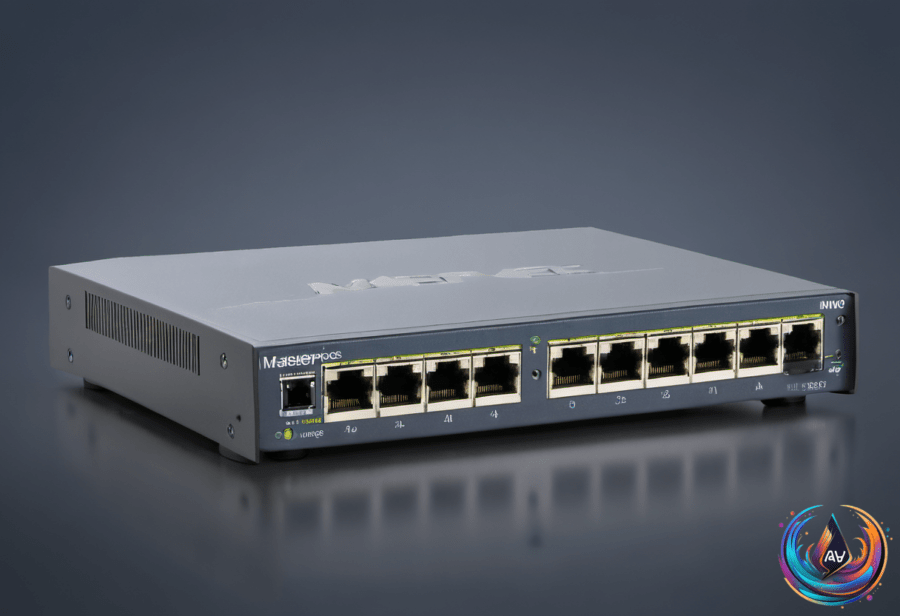
If the router does not have enough LAN ports, an Ethernet switch can add more connections. Switches offer anywhere from a handful to dozens of RJ45 ports, which gives them more room for future expansion than a simple port arrangement.
Network switches also support Gigabit Ethernet or higher speeds. Higher-end models can offer 2.5Gbps ports, and enterprise-grade models can add 10Gbps ports. A 2.5Gbps switch offers a middle ground for a setup that needs more speed than Gigabit Ethernet and room to keep using the switch into the future.
For a home setting, a simple, unmanaged switch from brands like Netgear and TP-Link is sufficient for connecting multiple devices. An unmanaged switch avoids the extra controls found on more advanced equipment while providing additional RJ45 connections.
Why Ethernet splitters are different
An Ethernet splitter may look like an easy alternative to a switch, but passive splitters work in a different way. They do not contain hardware capable of distributing network traffic between connected devices. Instead, they rearrange the wiring so each device gets two twisted pairs from an Ethernet cable.
Passive splitters can carry only 10/100Mbps Ethernet connections. They also require two devices at each end of the cable run: one splitter near the router or switch and another near the connected devices. Using only one splitter does not provide the full setup needed for this arrangement.
Active or powered Ethernet splitters contain networking hardware that can manage traffic between multiple RJ45 ports. They have a power input and can support Gigabit speeds and beyond, while passive splitters cannot.
Active splitters can take advantage of full bandwidth, but devices sharing the upstream connection also share the available bandwidth. That shared connection reduces the bandwidth available to each device when multiple devices use it at the same time.
For most home setups, a switch is the more flexible way to add wired connections. A passive splitter is limited to 10/100Mbps and needs a second splitter, while an active splitter adds hardware, power, and shared-bandwidth considerations. A switch provides multiple RJ45 ports and supports Gigabit Ethernet or higher speeds, making it the straightforward choice when a router’s LAN ports run out.
Based on