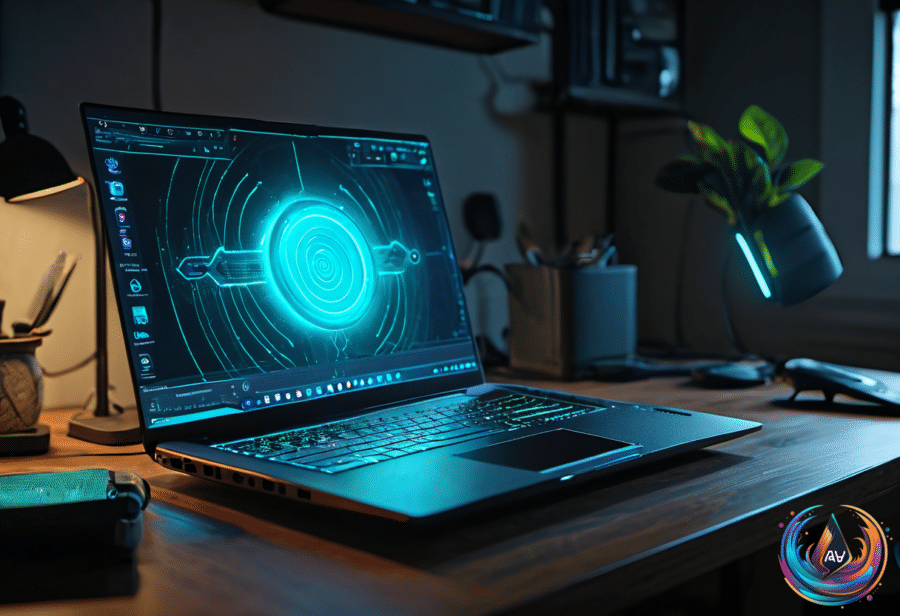
Your laptop is never truly doing nothing. Laptops generate heat even when they are not running demanding software, and energy-efficient models still produce some level of it.
Fans should start when you push the machine with something like gaming, then quiet down when the workload ends. They may not stop completely, though, because adjustable fan speeds are designed to keep temperatures under control without turning the laptop into a tiny aircraft.
Hearing the fans after closing every app does not prove something is broken. Background apps and processes keep working under the hood, creating demands on the processor, RAM, and storage; more power means more calls for the fan to spin.
Windows Update can create activity, as can search indexing, which catalogs files for later searches. Microsoft says the initial indexing process can take a few hours, so a quiet desktop does not always mean a quiet computer.
Start with startup apps. Press Ctrl + Shift + Esc to open Task Manager, select Startup apps, and disable anything non-essential. Dell recommends this approach because reducing CPU load can prevent fans from spinning up without a clear reason.
Power settings can also change the noise. In Windows, open Settings > System > Power & battery > Power mode and choose between energy efficiency, performance, or a balance between them. The performance option prioritizes speed over saving power, which can raise power consumption, heat, and fan activity—especially when the laptop is plugged in.
A laptop maker’s control app may override Windows settings. Some Dell laptops include an ultra performance mode that raises processing power and fan speeds, while quiet mode reverses that tradeoff by reducing performance and allowing temperatures to rise during use.
Room temperature and laptop placement matter too. Apple says higher ambient temperatures make fans start sooner and run faster, while a bed can restrict airflow; a hard, flat desk gives the vents more space to work. Dust and debris clogging the case can also force the fans to work harder, so the first task is deciding whether the noise is normal before reaching for a fix.
Closing the lid is a heat decision
Keeping a laptop open or closed offers no huge advantage or disadvantage in every case. Closing it reduces wear from opening and closing, protects the keyboard, keeps dust away from the screen and keys, and draws much less power with the screen off.
Opening the lid can improve heat management because many laptops push heat through the keyboard area. The Razer Blade 16, for example, vents air from the top of the keyboard, and some laptops lift away from the desk when opened so more air can move across hot components.
A fanless MacBook Air or another thin, low-power machine can stay closed all day. Gaming laptops and workstations that run hot should stay open, with clear vents and room around the chassis; a stand can help tilt a gaming laptop and improve airflow.
For a closed setup, connect the power adapter and open Control Panel, then find Choose what closing the lid does. Set both lid options to Do nothing, or Windows will put the laptop to sleep. A docking station can carry the keyboard, mouse, network cable, HDMI, and audio through one cable while holding the laptop tilted.
Overnight work such as a render, a large download, or a light-to-medium home-server task can run with the lid shut if the vents stay clear. Heavy loads are different. A cooling pad offers limited temperature reduction and does not cool the gap between the screen and body, so leaving the lid slightly open can be the better compromise.
Check the battery before it checks out
Windows includes Powercfg, a tool for monitoring and maintaining computer energy and system settings. On a laptop, it can expose battery problems that range from slow charging to random shutdowns or a bulging case caused by a swollen battery.
Press Win+X and choose Terminal (Admin). You can also press Win+R, type cmd, and press Enter. Run powercfg /batteryreport for an HTML report showing the laptop’s current status, then compare full charge capacity with design capacity. Dell says anything below 40 percent needs replacement.
powercfg /energy runs a 60-second check of battery and laptop efficiency, then saves another HTML report. It can identify apps and devices that need reconfiguration because they drain power.
For long-term storage, back up your data, shut down the laptop, disconnect AC power, and charge the battery to about 50 percent. Store it in a temperature-controlled, dry place away from a furnace or radiator, with nothing heavy on top. Recharge it to about 50 percent every six months, clean the screen and keyboard, and use a case or the original packaging if available.
Camera and microphone failures often have less exotic causes. Check lens blinds, mute switches, cables, input selections, and app permissions. In Windows 11, camera controls live at Settings > Bluetooth & devices > Camera, while microphone input is under Settings > System > Sound; Windows also manages permissions under Settings > Privacy & security > Camera or Microphone.
On a Mac, camera controls are app-based, and microphone input is under Apple menu > System Settings > Sound > Input. Permission controls are under Apple menu > System Settings > Security & Privacy. Relaunch the app after granting access, and check the prompt before joining a Zoom meeting.
If the camera or microphone still fails, install updates through Windows Update or Apple menu > System Settings > General > Software Update. Windows separates driver releases, while macOS bundles them into new versions. As a last measure, open Device Manager, expand Cameras or Audio inputs and outputs, uninstall the device from its Driver tab, and reboot so Windows can reinstall it.
Based on
- Why your laptop fans spin up even when you’re not doing anything — engadget.com
- The Pros And Cons Of Using Your Laptop With The Lid Closed — engadget.com
- This Built-In Windows Tool Can Diagnose Your PC’s Battery Health — engadget.com
- The Safest Way To Store Your Laptop For A Long Period Of Time — engadget.com
- Common Reasons Your PC’s Camera And Microphone Aren’t Working — engadget.com