Android Auto is popular because it works across a huge range of phones and cars. Over 250 million cars use it worldwide, and the platform supports more than 500 vehicles. That reach makes connection problems especially irritating—compatibility should be simple by now, but cars and phones remain an awkward pair.
Start with the basics: check the Android version on the phone. Android Auto supports almost all Android smartphones sold since 2018 running Android 9 or later, and most wired connections work with Android 9 or higher. Android 10 was the first Android version to include Auto pre-installed, so older software may need closer attention.
Wireless Android Auto has stricter requirements. It only works on phones running Android 11 or later, and the phone must support Wi-Fi connections using the 5 GHz band. A phone can meet the wired requirement and still fail to connect wirelessly—because apparently one connection method was not enough to make this confusing.
Fix the connection before blaming the car
The USB cable matters when using a wired connection. A cheap cable designed only for charging can prevent Android Auto from working properly, so a cable that transfers data is necessary for the wired setup. The problem may look like a software failure when the real culprit is a piece of wire with one job.
VPN connections can also interfere with Android Auto connectivity. Users who need a VPN can use split tunneling to bypass the issue, allowing Android Auto to connect without removing the VPN from the phone.
If the connection still fails, remove the car from the phone’s connected devices list and reconnect it. Clearing Android Auto’s app cache can resolve some issues as well, while checking the app’s permissions may expose another problem—Android Auto may need access to contacts to work properly.
Keep Android Auto updated, along with Google Play Services. Those updates include bug fixes, and skipping them leaves the phone running an older version while the car connection tries to behave like a finished product.
Check the operating system and the car
Android Auto is not guaranteed to work with every phone or car because compatibility issues remain. That matters for custom Android operating systems: GrapheneOS does not include Android Auto by default, while CalyxOS supports it with release 6.4.2 and later.
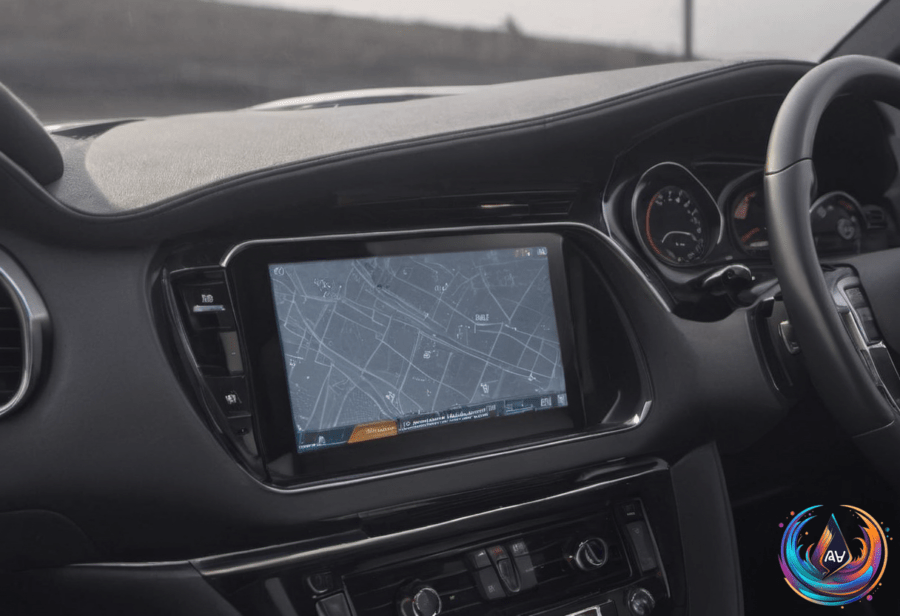
Android Auto and Android Automotive OS also solve different problems. Android Auto displays a specialized interface from the phone on the car’s screen, so the phone remains central to the experience. Android Automotive OS operates directly on the car’s hardware and does not require a phone.
Android Automotive OS is open source, while Google built-in relies on a licensed collection of Google Automotive Services. Rivian supports Android Automotive OS, and Polestar also supports the platform; in 2020, the Polestar 2 became the first production car to feature Android Automotive OS.
That distinction helps explain why troubleshooting varies between vehicles. Android Auto depends on the phone, its Android version, permissions, updates, USB cable, Wi-Fi hardware, and network setup. Android Automotive OS runs on the vehicle itself, so it follows a different support model entirely.
For Android Auto users, the practical checklist is short: use a compatible phone, confirm the Android version, use a proper data cable for wired connections, check 5 GHz Wi-Fi for wireless use, review permissions, clear the cache, remove and reconnect the car, and update Android Auto with Google Play Services. The platform has a surprisingly large number of settings and features. It also has enough compatibility conditions to keep that list employed.
Based on