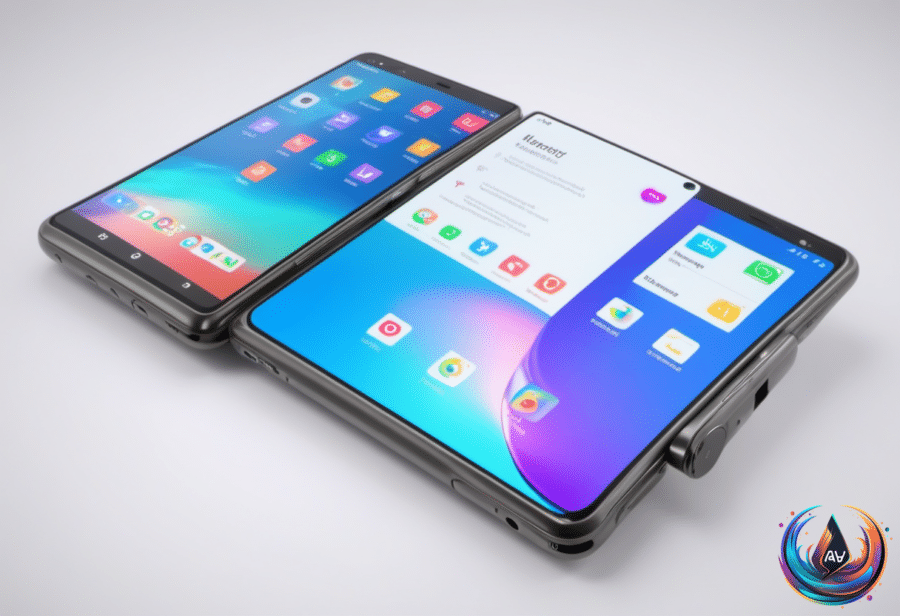
The Galaxy Z Fold 8 is built to move between displays, but some apps are not keeping up with the phone’s inner screen. A few setting changes can reshape those apps, restore a better layout, and make the foldable experience feel far more seamless.
Samsung unveiled the Galaxy Z Fold 8 at its Unpacked event in July, bringing App Continuity into the spotlight. The feature lets you switch between displays without interruption, yet some owners are experiencing apps that do not scale correctly when they open on the larger inner screen. The solution starts with the display settings, not with replacing the app.
Fix App Scaling on the Inner Screen
The Galaxy Z Fold 8 lets you choose how an app fills its display through the aspect ratio settings. Open Settings > Display > Aspect ratio, then select the app that needs a different layout. From there, you can choose between full screen, 4:3, and 16:9.
- Full screen: Uses the available display area for the app.
- 4:3: Provides a squarer layout that fits the main screen’s proportions.
- 16:9: Uses a wider display shape for apps that work best with that ratio.
That choice matters because the Galaxy Z Fold 8’s main screen uses a 4:3 ratio. Engadget’s review praised that layout for reducing letterboxing compared with previous models, so 4:3 may offer a cleaner fit for apps that leave empty space around their content.
Changing the ratio can also require one extra step. “Apps you have running in the background might need to restart once you’ve changed their aspect ratio.” Close and reopen the affected app after applying the setting so the new layout can take effect.
You can also set a default aspect ratio without opening the main Settings menu. Press and hold the app icon, tap the info button, and select App aspect ratios. This gives you a direct way to adjust the app’s default behavior when one program continues to open with an awkward layout.
Keep Auto Blocker Under Control
The Galaxy Z Fold 8’s screen settings are one part of the experience. Samsung Galaxy devices also include Auto Blocker, a built-in security feature for devices using One UI 6 or higher. Devices that ship with One UI 6.1.1 or later have Auto Blocker enabled by default.
“Auto Blocker filters out apps, USB commands and messages that could put your device at risk.” That protection covers several routes into a Galaxy device, giving users a security layer that works beyond the apps visible on the screen.
Samsung also offers a Maximum restrictions mode. It adds safeguards such as blocking device admin apps and work profiles, creating a stricter setup for users who want more control over what can operate on the phone.
If you need to disable Auto Blocker, go to Settings > Security and privacy > Auto Blocker, then toggle it off. Phones running One UI 8.5 or later include an option to turn Auto Blocker back on after 30 minutes of being disabled.
Samsung recommends keeping Auto Blocker on, and for most users, that’s sound advice. Turning it off removes an additional layer of security, although protections such as Google Play Protect remain available.
Make Room Without Losing the Bigger Picture
Display behavior and security settings are easier to manage when the phone has enough storage space for the apps you use. Android phones include Auto Archive, which can free up “nearly 60 percent of an app’s storage space”.
That figure gives the Galaxy Z Fold 8 another way to stay manageable as apps occupy more room. The phone’s larger inner display may encourage more app use, while Auto Blocker and its security options help control what apps and other commands can do on the device.
The most useful approach is to handle each issue with the setting designed for it: adjust an app’s aspect ratio when its inner-screen layout looks wrong, restart the app after making the change, keep Auto Blocker enabled unless there is a clear reason to disable it, and use Auto Archive when app storage starts to crowd the phone.
The Galaxy Z Fold 8 is designed to make two displays feel like one continuous workspace. With App Continuity, adjustable ratios, built-in security, and an option that can free nearly 60 percent of an app’s storage space, its settings give owners direct control over how that experience evolves.
Based on