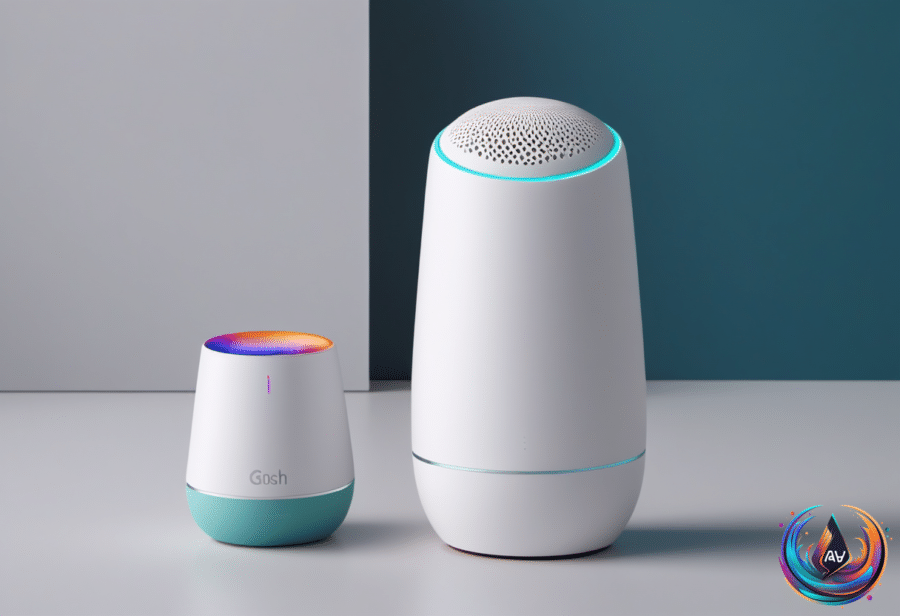
Alexa’s light ring is an information hub. Alexa devices are designed to listen for wake words, and their lights show different statuses when the device receives a request, needs attention, or changes state. With over 600 million Alexa-enabled devices purchased worldwide since its initial release, these signals are no minor interface detail.
A yellow light is the notification signal. When the light appears in slow bursts every few seconds, Alexa has a message or notification to share. “A yellow light emanating in slow bursts every few seconds means that Alexa has a message or notification it would like to share with you,” Alec Hively wrote.
The yellow notification system arrived in 2017. On an Echo device, a flashing yellow ring indicates that Alexa has a notification or message waiting, which is a polite way for a glowing cylinder to demand attention without saying anything at all.
You can clear the yellow notification by asking Alexa about your notifications or messages. The device does not require a separate control for this status; the request itself handles the cleanup.
What Alexa’s Other Lights Mean
The cyan light indicates that Alexa is listening and processing a request. The teal-blue light signals that Alexa is waiting for a command, separating the act of hearing and handling a request from the moment before a command arrives.
A red ring shows that a key functionality is turned off, such as the microphone being disconnected. That light marks a disabled function rather than a waiting message, so the color carries a different meaning from the yellow notification ring.
A bright orange light indicates that the device is in setup mode or trying to connect to the internet. This status points to the device’s connection or configuration, not a message waiting for a response.
A pulsing green light means there is an incoming call or an active Drop In session. A brief purple flash indicates that the device is in Do Not Disturb mode, giving the light ring another status tied to how Alexa handles interruptions.
A white light shows the volume level when it is adjusted. Unlike the yellow, green, or red signals, the white light communicates a changing setting rather than a notification, call, connection problem, or disabled function.
Listening, Notifications, and Control
The light system makes Alexa’s activity visible through color and motion. Cyan identifies listening and processing, teal-blue marks the wait for a command, and yellow signals a message or notification that still needs attention.
That distinction matters because Alexa devices are built to listen for wake words, while the lights communicate what follows. The colors do not all describe the same action: some show device activity, some show settings, and others signal a message or incoming communication.
Alec Hively called the Echo light ring “a valuable information hub.” The description fits because the ring turns otherwise silent device states into signals users can read without opening another control or searching through settings.
The result is a small visual language with a limited set of signals: yellow for notifications, cyan for listening and processing, teal-blue for waiting, red for a disabled key function, orange for setup or internet connection, green for calls or Drop In, purple for Do Not Disturb, and white for volume.
Alexa’s lights are not decoration. They show when the device is listening, waiting, connecting, receiving communication, limiting interruptions, adjusting volume, or holding a notification. The system is simple once the colors are known — although memorizing a glowing ring’s vocabulary remains a very modern household chore.
Based on