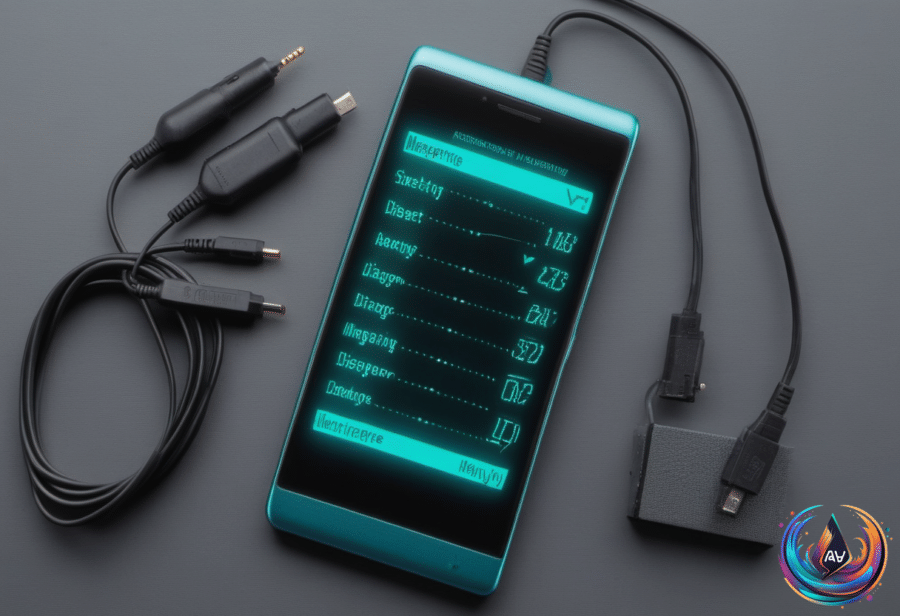
Your Galaxy can test itself. Samsung includes a diagnostics suite in Device care, giving owners a way to check hardware and connections without relying on a separate app or repair visit. The feature is available on Galaxy devices running Android 12 or later and can also be accessed through Samsung Members.
The checks cover the parts most likely to cause trouble: the touch screen, cameras, microphones, speakers, physical buttons, sensors, Wi-Fi, mobile network, Bluetooth, SIM card, NFC, USB connection, charging, and fingerprint reader. The exact list depends on the Galaxy model, because Samsung reserves extra checks for devices with features such as an S Pen or wireless charging.
Some tests run automatically. Others ask you to tap the screen, press a button, connect something, or confirm what you see and hear. A Galaxy S26 Ultra diagnostic test includes 22 checks to complete, which is a respectable amount of poking and prodding for a phone that would prefer to pretend nothing is wrong.
What the results actually tell you
Battery status is likely the most useful result. Samsung rates it as Normal, Weak, or Bad, giving owners a simple signal about whether the battery remains in serviceable condition or has become a likely source of frustration.
Weak indicates that battery efficiency may have decreased due to long-term use or environmental conditions. Bad means battery life has significantly degraded, and Samsung recommends getting service advice. Repeated failed diagnostic tests or a Bad battery result are clear reasons to consider servicing the phone.
A failed test may also produce troubleshooting suggestions or a related FAQ. That makes the diagnostic tool more useful than a bare pass-or-fail label, although the advice does not turn the phone into a repair shop. It tells you where to look next.
Passing every check does not guarantee that the phone will feel fast. A healthy Galaxy can still feel slow, because diagnostics do not measure the device’s overall speed or processor performance.
A benchmark such as Geekbench measures processor performance, but Samsung’s support guidance does not specify a score that makes a three-year-old Galaxy too slow. If diagnostics pass, outdated software, background apps, insufficient memory, or temporary errors may explain the sluggish behavior.
Storage can also matter. Android phones can have problems when less than 10 percent of their storage is free, so a phone with healthy hardware may still struggle when its available space falls below that point. The diagnostic result is a clue, not a verdict on every part of the user experience.
The triangle symbol has its own explanation
Not every Galaxy warning symbol points to failing hardware. A triangle-shaped indicator can mean that Data Saver is active, an error warning is present, or cellular roaming is enabled.
When the symbol represents Data Saver, it means the phone is protecting its data allowance. Data Saver is off by default, so many Galaxy users may never see it until they enable the feature or encounter its indicator.
Samsung’s Data Saver mode is neither good nor bad. When active, apps cannot access the internet in the background; only the currently active app can do so. Background processes such as uploading video will not take place, and apps cannot download updates, sync data, fetch new content, or receive alerts and notifications.
The trade-off is clear: Data Saver limits background connections, which also nurses battery life. Users can give specific apps permission to continue working in the background while Data Saver remains on, preserving key functions without opening the floodgates for every app installed on the phone.
That combination of diagnostics and status indicators gives Galaxy owners two useful forms of information: whether the hardware passes its checks and whether a setting is changing the phone’s behavior. For repairs, Samsung’s Maintenance mode can hide personal data during service, adding a privacy safeguard before the device leaves your hands.
Based on