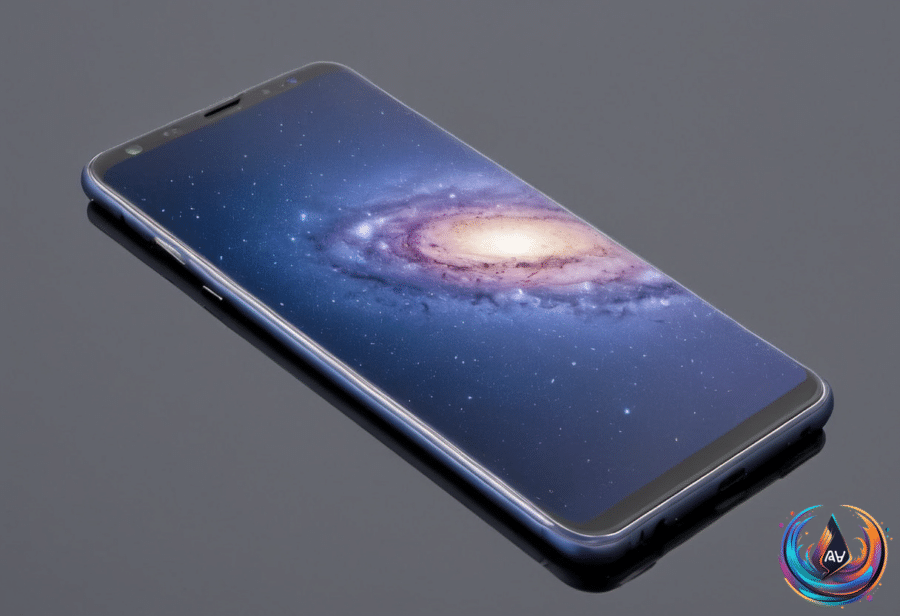
Samsung can clean up your screenshots. A small One UI toggle removes the status bar and navigation bar, leaving behind an image without the clock, battery information, network status, or other icons cluttering the top edge. The setting takes seconds to enable, requires no extra app, and is buried where many users will never look.
Open the Settings app, go to Advanced features, select Screenshots and screen recorder, then turn on Hide status and navigation bars. Every screenshot taken afterward will exclude both bars, whether you use the classic volume down plus power button combination or the hand-swiping gesture.
The feature does not expand the image to fill the space left behind. It crops those elements out, which changes the aspect ratio and may affect how screenshots fit into a template or combo image. If you need the time or battery information visible again, return to the same setting and switch it off.
The result is less useful for proving that you captured something at 2AM, but it looks cleaner in tutorials, work presentations, and step-by-step guides. It also helps when you are showing someone how to change a setting, sharing a comment on Instagram, or posting a new Duolingo costume without making your status icons part of the composition. It just looks better.
You can also set a double press of the side button on a Galaxy phone to open Samsung Capture. That will not fix a badly arranged template, but it does reduce the friction between seeing something worth saving and saving it.
The display controls Samsung leaves for you to discover
Samsung lets users adjust display resolution, refresh rate, color, brightness, and screen behavior, though the company does not do much to advertise those options. On devices such as the Galaxy S26+, Galaxy S26 Ultra, and Fold Z 8, the display arrives at 1080p even though it can reach a higher resolution, while the screen supports 120Hz but ships at half that rate.
To change those settings, open Settings, choose Display, then Motion smoothness and select Adaptive before tapping Apply. Return to Display, open Screen resolution, choose the rightmost option with the highest resolution available, and tap Apply. Both settings use extra battery, because physics remains stubbornly employed.
Samsung defaults to Vivid mode, which boosts sharpness and saturation but sacrifices accuracy. Natural produces a more true-to-life image, while Vivid mode on newer Galaxy devices offers a white balance slider, red, green, and blue controls, plus a Vividness slider.
For bright conditions, disable Adaptive brightness from the Quick Panel by holding the brightness slider, then enable Extra brightness. For dark rooms, open Settings, go to Accessibility, choose Vision enhancements, and enable Extra dim; an Extra dim shortcut can add the control to the Quick Panel.
Samsung also provides Eye comfort shield for blue-light filtering and Adaptive Color Tone, which adjusts color temperature and brightness based on the environment. Eye comfort shield supports Adaptive and Custom temperature modes, schedules, and intensity controls.
The other hidden shortcuts worth knowing
Good Lock adds more display controls through its Display Assistant module, available from the Galaxy Store or Google Play. Its Quick Panel controls include Keep screen on, represented by a downward-facing lamp icon and keeping the display awake for half an hour, and Screen Curtain, which turns off the screen while the phone continues running a task such as exporting a long 4K video edit.
Video brightness can increase luminance and vibrance for supported apps, including Netflix, Disney+, TikTok, YouTube, Samsung’s video player, and VLC. Super HDR uses Google’s Ultra HDR format and a gain map to improve photos, but it is unavailable on the Galaxy S23 Ultra because the feature arrived with the S24 series and depends on hardware.
Three different Galaxy icons can resemble a clock. An alarm from Samsung’s Clock app is the most likely explanation; disable or delete active alarms from the Alarm tab to remove it. A rounded square with a clock inside indicates an available software update, while the Light performance profile indicator marks a mode that lowers processing speed to save battery and disables itself when a game starts.
Samsung is also testing a camera mode called Vision in One UI 9.5 Beta 1. Code strings suggest it could summarize what the camera sees, show keywords, extract text, send questions to Gemini, and hand translation to Samsung’s AI Vision app, which is built on Bixby Vision. Samsung has not announced the feature; if it launches, it will likely arrive with the Galaxy S27 lineup early next year.
Finally, Android does not require a foldable for split-screen multitasking. Since Android 7.0 Nougat, users have been able to open the recent apps switcher, tap an app icon, choose Split Screen, and select a second app; dragging the divider adjusts the space each receives. Most slab-style phones support two apps, while floating-window features can add another layer.
Apps that reject split screen may respond to Force activities to be resizable in Developer Options. Enable that menu by going to Settings, opening About, and tapping Build Number seven times, but leave unfamiliar settings alone afterward. Hidden menus are not dangerous by default—until curiosity starts editing the operating system.
Based on
- The overlooked Samsung One UI setting that cleans up your screenshots — engadget.com
- These Settings Can Adjust Your Samsung Phone’s Display To Your Liking — engadget.com
- What The Little Clock Icon At The Top Of Your Samsung Phone Means — engadget.com
- Samsung Is Reportedly Giving Its Camera App An AI Mode — engadget.com
- You Don’t Need A Foldable Phone To Use Split Screen On Android — engadget.com