Bad Wi-Fi can begin with a USB gadget. Most wireless devices use the 2.4GHz frequency, a crowded slice of the spectrum where signals interfere with one another and with devices such as microwave ovens. The result is a network that can feel broken even when the internet connection itself is working.
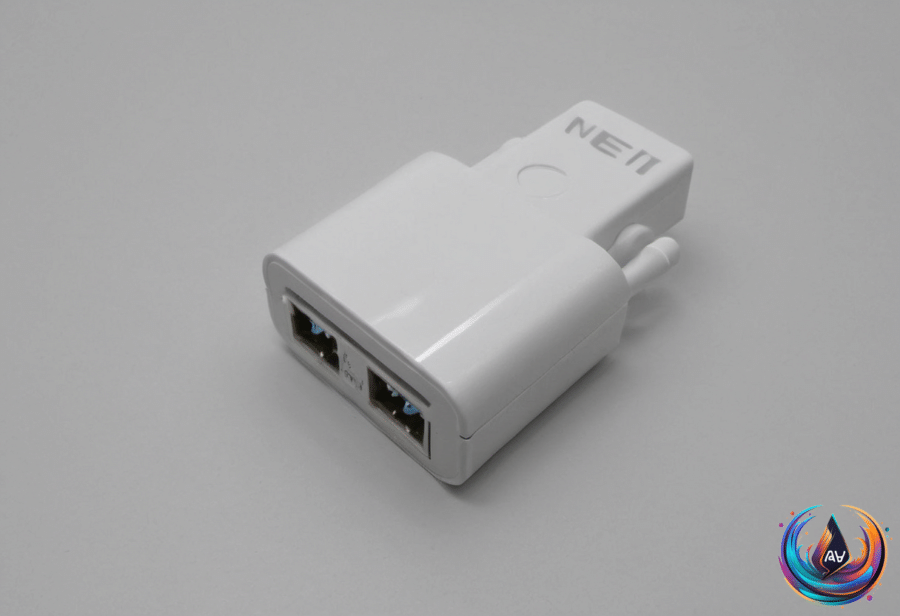
USB 3.0 adds another source of trouble. It creates electromagnetic radiation spanning 2.4 GHz to 2.5 GHz, which overlaps the bands used by wireless networks. A USB dongle plugged beside a computer or router can therefore add noise to an already crowded connection.
Using a USB Extension Cable can reduce that noise by moving the USB dongle farther from the port. It is a modest fix, but so is moving a loud object away from a microphone. Sometimes the glamorous solution is a cable.
Jonny Evans describes the 2.4GHz band as a crowd where “Signals get in each other’s way, push each other about, and some never make it through the crowd.” The band is split into channels usually numbered 1 to 11, giving nearby wireless devices multiple places to operate—but not an unlimited supply of quiet space.
Router placement still matters
USB interference is only one possible cause of poor Wi-Fi. Bad router placement, overlapping Wi-Fi channels, and large file uploads or downloads can all damage network performance. A Wi-Fi 7 network can also feel slower when signals struggle to pass through walls and default to the congested 2.4GHz band.
Rebooting the router can help. As Evans puts it, “Rebooting a router clears its cache, forcing it to choose the least noisy channel to use.” That does not change the laws of radio, but it can help the router select a less noisy channel after the restart.
Ethernet can solve a different set of problems by moving more work away from Wi-Fi. Ethernet cables can transmit power, video, and audio; with HDMI extenders, they can carry video over long distances, while the right adapters let them carry multiple channels of analog audio.
Power over Ethernet, or PoE, allows an Ethernet cable to carry both data and power. That makes it useful for security cameras and Wi-Fi access points located away from an outlet. Will Shanklin summarizes the point plainly: “Ethernet cables can do more than just connect devices to your router. They can also carry video, audio and power.”
Extenders trade speed for reach
Wi-Fi extenders remain a common answer for rooms that cannot pick up a strong signal from the router. Thomas Godwin calls an extender “generally the cheapest fix for rooms that can’t pick up a strong Wi-Fi connection from your router.” Cheap, however, does not mean miraculous.
An extender cannot create a strong signal from a weak one, and it often trades speed for distance. Most extenders use the same band to receive and transmit data, which can reduce speed by up to half. The device reaches farther, but the connection may carry less traffic while doing so.
Placement decides whether an extender helps or simply relocates the disappointment. The worst place to put one is in a dead zone or behind metal objects; line of sight with the router is best. An extender needs a usable connection before it can pass that connection onward.
Mesh Wi-Fi systems take a different approach by using a single network name, or SSID, across the network and allowing satellite nodes to extend coverage. Those nodes still require a good link to each other, and wireless backhaul can reduce speeds. Running Ethernet between satellite nodes improves network capacity and speed, turning the backhaul into a wired connection instead of another wireless bottleneck.
The practical order is simple: move USB dongles away from USB 3.0 ports, check router placement, reboot the router, and avoid placing extenders in dead zones. If distance remains the problem, Ethernet, PoE, or a mesh system with wired links can address it without asking a crowded 2.4GHz band to perform another miracle.
Based on