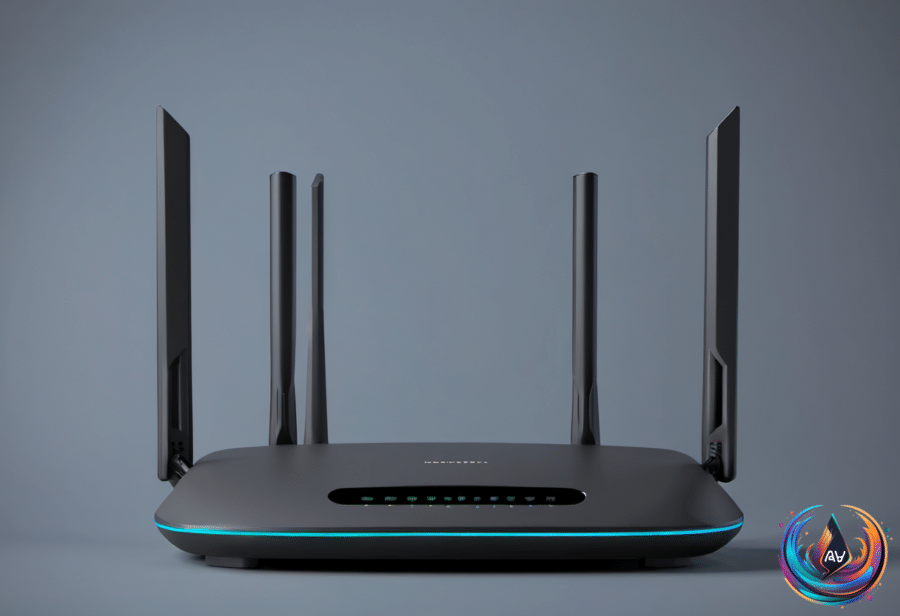
Your Wi-Fi can disappear without warning even when your internet connection is working perfectly. A dual-band router may drop its 5GHz network, send phones and laptops down to the slower 2.4GHz band, and leave video calls stuttering before returning on a different channel.
That sudden shift may show up in your router’s event log as “RADAR.” It is not a random failure. It is Dynamic Frequency Selection, or DFS, working exactly as designed.
Why Radar Can Move Your Router
ASUS says DFS lets a router give way to military radar, satellite communication, and weather radar that have priority across large parts of the 5GHz band. In the United States, Federal Communications Commission rules require a router to listen for radar on a shared channel for 60 seconds before transmitting.
If the router hears radar during operation, it must stop using that channel within 10 seconds and stay off it for at least 30 minutes. DFS remains switched on by default because the FCC requires that setting in the shared bands.
The radar most likely to affect a US home network is not military radar. It is the weather radar used near airports. The Federal Aviation Administration runs 45 Terminal Doppler Weather Radar systems protecting 46 of the country’s busiest airports, including airports such as JFK, O’Hare, Dallas, and Denver.
These systems detect wind shear, a sudden change in wind speed and direction that has caused aviation accidents during approach and departure. They transmit between 5600 and 5650 MHz, right in the middle of the 5GHz Wi-Fi band. The FAA says no wind shear accident has occurred at a TDWR-protected airport since the system was commissioned in 1994.
In early 2009, the FAA began detecting interference from unlicensed 5GHz equipment, prompting a joint investigation with the National Telecommunications and Information Administration. Enforcement followed. In August 2019, the FCC proposed $25,000 fines against Boom Solutions, Integra Wireless, and WinPR after equipment interfered with weather radar at San Juan International Airport in Puerto Rico; the FCC said each company had turned DFS off. WinPR’s penalty was confirmed that November, and Boom Solutions’ was confirmed in early 2020.
What Happens During a Radar Event
The required listening period also explains why 5GHz can take longer than 2.4GHz to return after a router restart. ASUS says the wait can last from one to 10 minutes, depending on the country. In Europe, the ETSI standard requires a 10-minute check on channels that overlap the 5600 to 5650 MHz weather radar slot.
During a radar event, routers handle the disruption in different ways. FRITZ! says its routers steer connected devices to 2.4GHz “seamlessly” when they support the 802.11k and 802.11v roaming standards, while older devices may lose the connection briefly. ASUS also says a radar hit on a 160 MHz channel can push the router down to 80 MHz.
A fixed channel creates another trap: once the router moves away, it will not move back when the radar disappears. DFS channels are legal, enabled out of the box, and make up most of the 5GHz band, so using them is not a mistake. In the United States, only channels 36 to 48 and 149 to 165 are radar-free.
If radar is detected continuously or every hour, FRITZ! recommends pinning the router to channels 36 to 48. ASUS also provides instructions for disabling automatic DFS channels and advises users to untick 160 MHz channel bandwidth. That choice can improve stability, but it removes access to the fastest 5GHz connection the router can offer because the widest channels need radar-shared spectrum.
Build a Network That Can Survive More Than Radar
Radar is not the only reason a home network can wobble. Routers generate heat through their processors, memory, wireless radios, and power management modules. Modern models often use a system on a chip, such as Broadcom’s BCM6765 SoC, and higher data demands place more pressure on the CPU.
A warm router is normal. A router that feels uncomfortably hot and suffers connection issues, speed changes, freezes, shutdowns, band switching, or reduced range needs attention. Overheating can trigger CPU throttling, damage internal components, and leave the device unusable.
- Move the router into a well-ventilated area and keep it away from direct sunlight, computers, and consoles.
- Do not place it inside a closed space or surround it with objects that block airflow.
- Clean dust and debris from the vents.
- Update the firmware because updates can address stability, performance, and overheating anomalies.
- If the problem continues, replace the power adapter with one rated for the router.
Router choice matters too, but the most expensive model is not automatically the best fit. Netgear’s Nighthawk RS700S is rated for up to 19Gbps, includes two 10Gbps ports and eight antennas, and costs more than $500. A budget router from Netgear or TP-Link can cost under $100 and handle most homes.
The FCC’s broadband benchmark is 100Mbps down and 20Mbps up. A router cannot make an internet plan faster, so buying a model that transfers more data than your provider delivers creates a ceiling you may never reach. Look for Gigabit Ethernet ports, parental controls, Wi-Fi 6 or better, and enough range for your home.
Wi-Fi 7 adds 320MHz channels in the 6GHz band, and the Wi-Fi Alliance says it doubles throughput compared with Wi-Fi 6. Your devices need Wi-Fi 7 to use those speeds, though, and many phones and laptops do not support it. In a larger home, a mesh kit or second access point may help more than a pricier single router.
Smart homes add another challenge. Wi-Fi 5 may handle only 10 to 25 simultaneous devices, perhaps 30 if you are lucky. Automatic band steering can also place a phone on 5 or 6GHz, making some accessories hard to set up. Separate 2.4GHz and 5GHz network names can help, while Thread, Zigbee, and Z-Wave can reduce the burden on Wi-Fi.
Power outages demand a final fallback. A cable setup needs a modem and router, or one gateway device. Fiber needs a router and an optical network terminal, or ONT. A UPS can keep networking equipment online for one hour or longer for well under $100, while compatible battery inverters from DeWalt, Milwaukee, or Ryobi can cost as little as $30 for third-party models.
Test the backup before an outage arrives, and connect only networking equipment. If the provider’s connection also fails, the answer is a phone hotspot or mobile hotspot device. A resilient home network is not about eliminating every interruption; it is about knowing whether radar, heat, device limits, or lost power caused the break—and having the right fix ready.
Based on
- Military radar can make your router switch Wi-Fi channels – here’s why — engadget.com
- Is Your Router Overheating? Here’s How To Keep It Cool And Working Safely — engadget.com
- Why You Don’t Really Need An Expensive, High-End Router — engadget.com
- What To Do If Your Smart Home Devices Keep Disconnecting From Wi-Fi — engadget.com
- You Can Easily Keep Your Home Network Running During A Power Outage — Here’s How — engadget.com