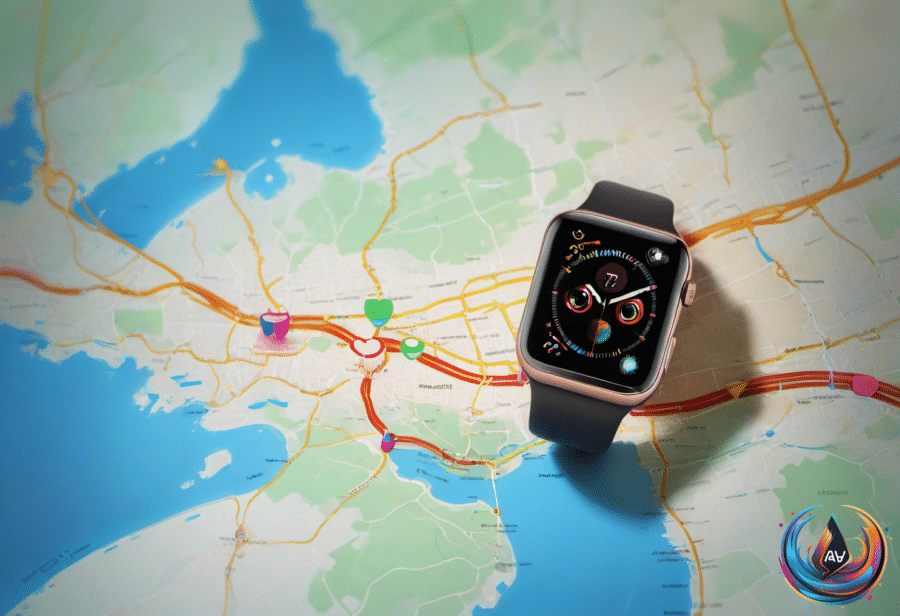
Your Apple Watch can handle directions, texts, lights and naps with a little setup. The useful part is that many of these tasks can start with a single tap instead of a series of tiny commands on your wrist.
Shortcuts are made in the Shortcuts app on your iPhone, then sent to the watch by turning on Show on Apple Watch in each shortcut’s settings. Once they are ready, you can run them from the Shortcuts app, a watch face complication or a Smart Stack widget. If you have an Ultra, the Action button can launch one too.
Five shortcuts worth setting up
1. Get directions home
A Get Me Home shortcut saves you from dictating your full address into a tiny screen, especially when it is late, raining and you are trying to leave somewhere unfamiliar. Open Shortcuts on your iPhone, tap the plus button and search for the Open Directions action.
Tap the destination field, choose Location and select your saved home address. You can choose walking, driving or public transit directions, along with your preferred maps app. To make the shortcut easier to recognize, tap the title at the top, choose Rename, then select a house icon and a color.
Next, tap the information button, open Details and turn on Show on Apple Watch. To place it on your watch face, touch and hold the face, tap Edit, swipe to the complications screen, choose a slot, scroll to Shortcuts and select Get Me Home. A circular slot on a face such as Modular works well for this shortcut.
iOS 26.4 added multi-stop driving directions to the same action, giving this shortcut more flexibility when your trip home includes extra stops.
2. Send your travel time to someone
Your Watch can text your better half an estimated arrival time as you leave work. Start a new shortcut and search for Get Travel Time in the search bar at the bottom of the screen, then set the destination to your saved home address.
Add a Text action and write “Leaving now, home in” followed by the Travel Time variable. Add the Send Message action, choose the person or people who should receive it, then turn on Show on Apple Watch and add the shortcut as a complication or Smart Stack widget. Since iOS 27, recipients can include groups as well as individual people.
Run the shortcut on your iPhone once before relying on it. The first run asks for permission to use your location and send messages. If you would rather avoid tapping anything, turn it into an automation that runs when you leave a saved location, such as your workplace. In iOS 27, that trigger lives inside the shortcut and syncs across your other devices.
3. Turn off the lights at bedtime
If you have an Apple Home setup, the easiest way to build this shortcut is to create a scene in the Home app on your iPhone first. Give the scene a name such as “Good Night,” then use the shortcut to run it from your watch face.
This is useful for the lights you always leave on downstairs. Once the shortcut is ready, one silent tap can handle the task without reaching for your phone or calling out, “Hey Siri, turn off the lights!”
4. Start a 20-minute nap
Your Watch can put you down for a 20-minute nap without disturbing you. A shortcut can bring the nap task to your wrist, where it is easier to start when you are ready to rest.
The same setup rules apply: create the shortcut in the Shortcuts app, enable Show on Apple Watch and place it in a complication or Smart Stack widget. A watch-based shortcut can also keep the process simple when you do not want to search through apps.
5. Keep the display dark while driving
Your Watch can keep its screen dark while you are driving. Adding this shortcut to a complication or widget gives you a quick way to run it without building a routine around several settings menus.
If you have an iPhone 15 Pro or newer, you can describe what you want in plain English and let Apple Intelligence build a shortcut. That can make these small automations easier to create.
Battery settings that make those shortcuts more useful
A shortcut is less helpful if the watch runs out of power before you need it. Apple says the Apple Watch Series 12 lasts 24 hours on a full charge, based on 300 time checks, 15 minutes of app use, six hours of sleep tracking, 90 notifications and a 60-minute workout alongside music playback. Real-world results vary with daily use.
When power is low, press the side button, tap the battery percentage and select Low Power Mode. The first time, scroll through the information card and tap Turn On. You can also keep it on for one, two or three days, or find the setting under Settings > Battery.
Low Power Mode disables the Always On display, Wrist Flick and Double Tap gestures. It pauses background heart rate and blood oxygen measurements, turns off low, high and irregular heart rate notifications, and can make Siri requests take longer. Notifications and calls continue when the paired iPhone is nearby, while Live Activities and watch face complications update less often.
For a smaller change, turn off Always On under Settings > Display & Brightness > Always On. Testing found that this can extend battery life by 10 to 12 hours. You can also turn off Wake on Wrist Raise under Settings > Gestures and cover the watch with your palm when you finish using it.
If battery health has depleted significantly, check its status under Settings > Battery > Battery Health. A battery replacement could help restore the watch’s original endurance. For demanding use, the Apple Watch Ultra 4 has a larger battery.
What is coming to newer Apple Watches
iOS 27.3 is still in beta and is not expected to reach the public before December. The update enables Siri Recap on the Apple Watch Series 12 and Apple Watch Ultra 4 as part of Audio Intelligence, which Apple shipped without those features and planned to make available later in 2026.
Audio Intelligence includes Live Rewind, which recaps the last 15 seconds after you double-press the Digital Crown and shows a transcript of the conversation. Siri Recap listens during the times and in the locations you set, then summarizes key points. It is opt-in, omits sensitive details such as financial information and deletes recaps after a week unless you save them.
Older Apple Watch models will not receive these features. They may still get security patches, but watchOS 27 dropped support for models older than the Series 9. If you upgrade, Apple Trade In offers up to $430 in credit, though the amount depends on the model and condition. A Series 8 is worth $90 max, while a Series 11 is worth up to $200.
Apple does not pay cash for trade-ins, but you can receive the value as an Apple gift card. You can bring the watch to an Apple Store or mail it in, with shipping costs covered. Before trading or selling, unpair and reset it, or Activation Lock will remain enabled.
Based on
- 5 underrated Apple Watch shortcuts you can set up in minutes — engadget.com
- 5 Apple Watch Settings That Can Help You Save Its Battery Life — engadget.com
- Setting Up An Apple HomeView Is Ridiculously Easy Thanks To Your iPhone — engadget.com
- 5 iOS 27.3 Changes Coming To Your Apple Devices By 2027 — engadget.com
- How Much Can You Get For Your Old, Discontinued Apple Watch? — engadget.com