An iPhone can store important medical details, help emergency workers view them from the lock screen, and contact people you trust during an emergency. Apple added these emergency features to iOS in 2014, but they only help if you set them up first.
The setup takes place in the Health app and the iPhone’s Emergency SOS settings. Together, these tools cover medical information, emergency contacts, calls to 911, and alerts for people you choose.
Build your Medical ID
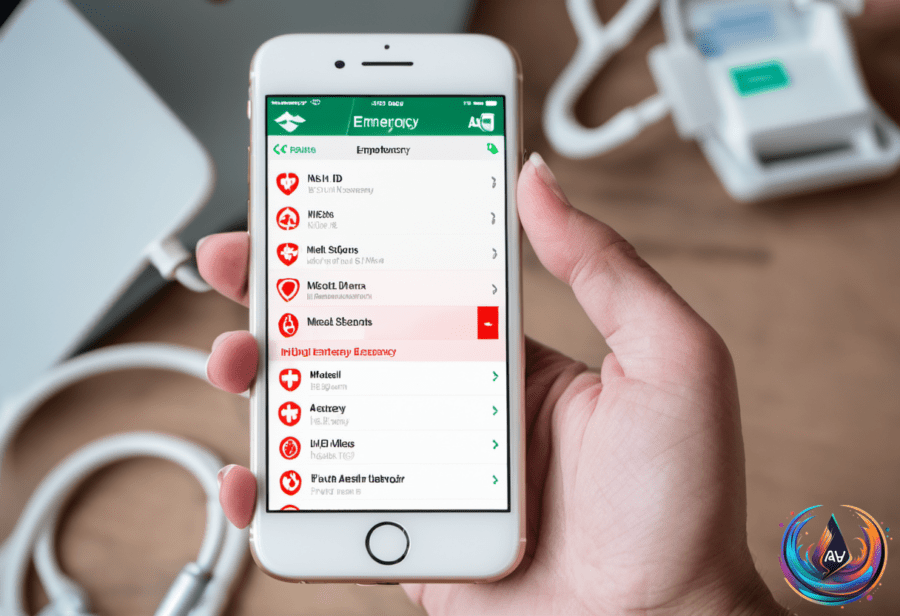
To create or edit your Medical ID, open the Health app and select your profile picture at the top-right. Choose Medical ID from the list. This opens the section where you can enter the details that may help during an emergency.
The available fields include your age, medications, allergies, health conditions, height, weight, blood type, and Notes. You can add the information that matters to your situation, then return to the same Medical ID section whenever those details change.
One setting controls whether emergency workers or other people can see the information from the lock screen. With Show When Locked enabled, anyone can tap Emergency, then Medical ID, on the passcode entry screen to view your details.
That access does not require the iPhone passcode. It gives people a way to see the Medical ID information when the phone is locked, including the details you entered about medications, allergies, health conditions, and other fields.
The Medical ID section also includes Share During Emergency Call. When this setting is enabled, it lets 911 know crucial details without you sharing them.
Add emergency contacts
You can designate emergency contacts in the Medical ID section by selecting Add Emergency Contact and choosing someone from your existing list. This connects those contacts to the iPhone’s Emergency SOS feature.
Emergency contacts are used to alert them and share your location when you use Emergency SOS. Adding them gives the iPhone people to notify when you trigger the emergency feature, instead of leaving that part of the response to memory during a crisis.
Choose contacts you want connected to Emergency SOS, then check the Medical ID section whenever you need to make changes. The contacts come from your existing list, so the process stays inside the Medical ID setup.
Understand Emergency SOS controls
Emergency SOS uses the same button combination as turning off your iPhone: the Side button and either Volume button. Holding those buttons for several seconds triggers a countdown with a loud sound before calling 911.
The countdown gives you a visible and audible step before the call begins. If you do not want to hold the buttons, you can enable Call with 5 Button Presses. That setting lets you press the Side button multiple times quickly to activate Emergency SOS.
There is also a setting called Call Quietly. Enabling it disables the quick press shortcut for Emergency SOS. That means the shortcut using multiple Side button presses will not activate Emergency SOS when Call Quietly is turned on.
The power-off screen provides another path to an emergency call. When you bring up that screen, the Emergency Call slider appears for emergency calls.
Emergency SOS is not available through the Action Button on the left side of the iPhone. The button combination, the quick Side button setting, and the Emergency Call slider are the options described here for starting an emergency call.
Prepare for accidents and missed calls
The Call After Severe Crash setting can help when you are hurt in an accident and cannot call yourself. It is designed for a situation where making the call on your own is not possible.
Medical ID and Emergency SOS serve different roles, but they work together. Medical ID stores information that can be viewed from the locked phone when Show When Locked is enabled, while Emergency SOS handles the call and contact alerts.
Emergency Bypass is a related tool with a different purpose. When enabled, it allows ringtone and notification sounds to bypass Do Not Disturb settings. It does not replace Medical ID or Emergency SOS, but it belongs among the iPhone settings that control how important calls and alerts get through.
After setting up these features, the key choices are easy to review: the information in Medical ID, whether Show When Locked is enabled, whether Share During Emergency Call is enabled, the emergency contacts you selected, and the Emergency SOS options you prefer. Those settings determine what the iPhone can show, who it can alert, and how you can start an emergency call.