Live Activities turn an iPhone screen into a useful snapshot of what is happening right now. Timers, navigation directions, music playback, and sports scores can appear on the Dynamic Island, giving you updates without opening each app.
The feature should be enabled by default on iPhone, but it may not appear for every app. Food delivery services and flight tracking apps are among the many third-party apps that have adapted to use Live Activities. A few settings checks can restore the feature and bring those updates to the Lock screen or CarPlay.
Turn on Live Activities on iPhone
Start by opening Settings on your iPhone. Go to Apps and make sure the Live Activities slider is enabled. This setting controls whether supported apps can show current information through Live Activities.
If the feature works while the iPhone is unlocked but disappears from the Lock screen, check another setting. Open Settings > Face ID & Passcode, confirm your passcode, then scroll to Allow Access When Locked and turn on Live Activities.
This Lock screen option matters when you want to check an active timer, navigation directions, music playback, sports scores, food delivery updates, or flight tracking information without unlocking the iPhone. If a specific app still does not show an activity, Live Activities may have been disabled for that app.
Live Activities are designed for information that changes during an ongoing event. They are not a replacement for opening an app, but they can keep the most useful update visible while you move between other tasks.
Use Live Activities with CarPlay
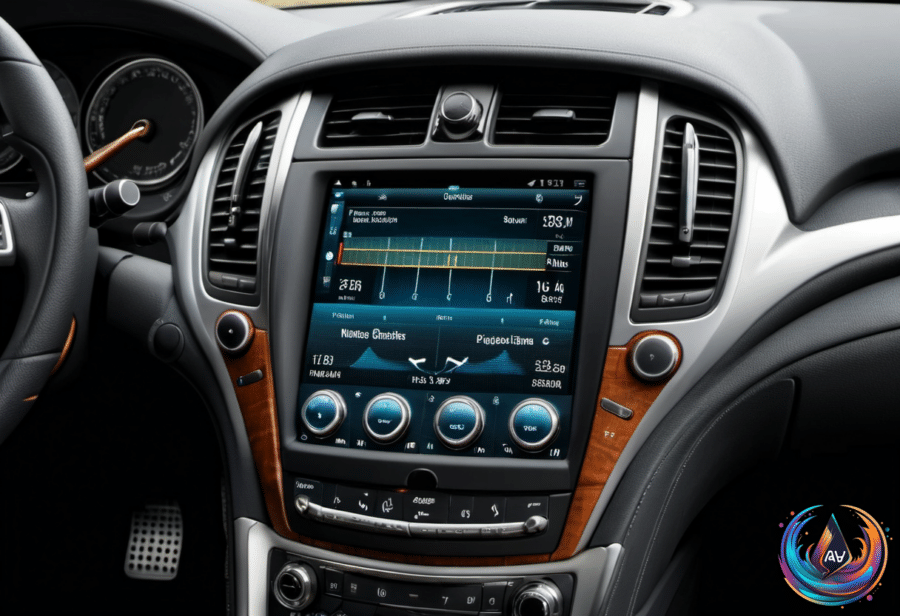
CarPlay can display Live Activities from an iPhone on the CarPlay Dashboard. When an app covers the entire screen, the Live Activity can still appear as a notification at the bottom of the display, so the update does not vanish when you switch into a full-screen view.
To turn on the feature, open Settings in CarPlay and make sure the Live Activities toggle is enabled. You should also confirm that Suggestions in CarPlay, or Suggestions in Dashboard, is turned on.
If Live Activities do not appear, check whether they have been disabled for the individual app on the iPhone. You can also turn off Driving Focus when it blocks the updates you want to see. These checks cover the main reasons an activity may appear on the iPhone but not in CarPlay.
The result is a more connected handoff between the iPhone and the car display. A navigation update, music status, timer, or other supported activity can remain available through the CarPlay Dashboard or as a notification, depending on how the app uses the screen.
Customize CarPlay widgets
Live Activities are not the only way to bring iPhone information into the car. Widgets can be added and customized through the iPhone by opening Settings > General > CarPlay > Widgets. If you have more than one car listed, choose the car you want to change.
Widgets appear in customizable stacks, so you can rearrange them or remove the ones you do not need. They live in the leftmost section of the CarPlay Dashboard, and you can reach them on the road by swiping from left to right in CarPlay.
Apple added widgets to CarPlay in iOS 26, and iOS 27 expanded the available widget pool. That gives compatible cars more ways to act as an extension of the iPhone without requiring every task to start from the phone itself.
Useful choices include Photos, Home, Reminders, Weather, Clock, and Podcasts. Third-party options include Instagram stories, Amazon order status, and chatbots. A widget can offer a quick glance at information, while Live Activities focus on events that are already in progress.
For example, you might use a Weather widget for a quick forecast, Reminders for tasks, or the Amazon widget to check an order status and make sure you are home in time. Photos and Instagram stories offer a different kind of update, while Podcasts and Clock support common dashboard tasks.
A simple setup for the road
For the smoothest setup, first enable Live Activities under Settings > Apps on the iPhone. Then allow them under Face ID & Passcode if you want them on the Lock screen, and turn on the matching option in CarPlay.
After that, open the CarPlay widget settings on the iPhone while parked or not driving. Add the widgets you want, remove distractions, and arrange the stacks in an order that makes sense. Since widgets and Live Activities serve different purposes, using both can make the Dashboard more useful without forcing you to open several apps.
The key is to treat these settings as separate controls. Live Activities manage changing updates from supported apps, while widgets provide a customizable view of selected information. Checking both gives your iPhone and CarPlay more ways to show what matters at the right time.
Based on