Old hardware still has work to do. A pair of speakers, an aging PlayStation 3, or the wrong HDMI port can limit your entertainment setup before anything actually breaks. The fix is often a better connection or setting—not another expensive box.
Reuse the speakers and fix the connection
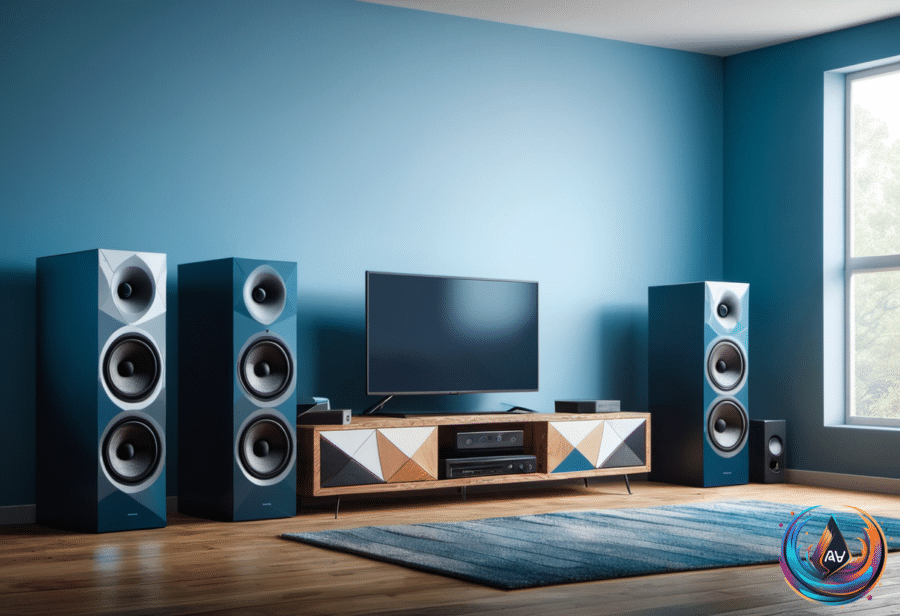
Old speakers can upgrade a TV for practically no charge, but connecting them is not always as simple as running a cable between the two. Most TVs do not have a dedicated speaker output, so the right approach depends on whether the speakers are active or passive.
Active speakers include their own amplifier and need either a power cord or USB power. Old PC speakers are the obvious example: they usually have a permanently attached cable ending in a 3.5mm plug, though some use RCA or include a 3.5mm “aux in” socket. If they worked with a computer, they can work with a TV—provided the TV sends sound through the matching output.
Passive bookshelf or floor-standing speakers need an amplifier sized to the rating printed on the speaker. A TV with analog audio output can send sound directly through a 3.5mm jack or RCA connection, while an optical output usually requires a basic digital-to-analog converter. Check the speakers or amplifier first, though; an optical input lets you skip that converter.
HDMI ARC can also connect external audio, but the equipment typically costs more. USB-powered PC speakers create another trap: the USB cable usually carries power only, while audio still travels through a separate 3.5mm or RCA cable. A TV USB port may ignore the speakers because TVs generally do not recognize USB devices that need their own drivers.
A standard USB 2.0 port supplies 5V at 500mA, or 2.5W—enough for small desktop speakers at modest volume, but not chunky ones. If the speakers demand more, the TV may trip over-current protection or enter standby, causing the speakers to cut out when the volume rises. Some TVs provide just under 1A, or 900mA, through a port intended for external hard drives; the label or manual will tell you which one.
Use the network that stays reliable
Netflix and Disney+ typically recommend at least 5 Mbps for 1080p streaming and 25Mbps or better for 4K HDR. Since 4K resolution is four times 1080p, 4K HDR subscriptions also tend to include Dolby Atmos, even when the audio uses compression.
Wi-Fi can deliver more speed on paper. TVs with Wi-Fi 6 can exceed gigabit speeds with a compatible router in ideal conditions, and even Wi-Fi 5 usually provides enough bandwidth for streaming. A 500 Mbps or 1 Gbps connection offers little extra for a 4K stream, though it can speed up software and app updates.
Ethernet wins on stability. Many TVs and streaming devices limit wired connections to 100Mbps, but an Ethernet cable avoids range and interference problems, while a Cat 6 cable can deliver 1Gbps up to 100 meters (328 feet). That stable connection can prevent buffering or a forced drop to lower quality.
Wiring the room is not always worth the mess. A 10-foot Cat 6 cable costs less than $10, but a distant router can leave cables across a living room or hallway; use Ethernet when it is convenient or Wi-Fi reliability is poor. Keep the router off the floor, in the open, and away from obstacles, and connect other devices by Ethernet when possible to free wireless bands.
Give the PlayStation 3 a second career
The PlayStation 3 is well into its end-of-life phase after two decades, 87 million units, and two new generations. Crunchyroll dropped its app in 2022, Plex followed in 2023, and Netflix ended support in March 2026—but the console still has useful hardware.
It plays audio CDs, DVDs, and Blu-rays without custom firmware, and its built-in upscaler can raise standard-definition DVDs to HD up to 1080p over HDMI. Enable it through Settings > Video Settings > BD/DVD Upscaler, then choose Normal, Double Scale, Full Screen, or Off. A BD Remote can replace the DualShock 3 for playback, though Blu-ray viewing requires keeping the console updated because of AACS copyright protection; Sony still issues an update about once a year.
The PS3 also supports DLNA, allowing a PC to stream locally stored movies, home videos, and music over the same network. Enable Media Server Connection under Settings > Network Settings. Windows Media Player works with supported formats, while Universal Media Server converts unsupported files in real time on Windows, MacOS, and Linux.
A FAT32-formatted USB drive offers a simpler route, with root folders named VIDEO, MUSIC, and PICTURES. FAT32 limits individual files to 4GB and video quality to 1080p. The console can also rip CDs, saving tracks as 128 kbps AAC by default; Settings > Music Settings > Audio CD Import offers MP3 320 Kbps or AAC, though copy-protected CDs may fail and every format is lossy.
Every PS3 supports PS1 games, but only early “fat” models play PS2 discs. Emulators for systems including the Super Nintendo and Sega CD require jailbreaking, which violates Sony’s licensing terms and can brick the console. If selling instead, back up the system to a FAT32 drive, deactivate its PlayStation Network account, and use Settings > System Settings > Restore PS3 System > Full Format before handing it over.
Do not guess with HDMI
HDMI has no official maximum cable length. HDMI Licensing Administrator leaves the distance to the cable, signal, and hardware, so 10-, 25-, and 50-foot limits are guidelines rather than laws. A passive cable that handles 4K/60 may fail at 4K/120 because higher bandwidth leaves less room for signal loss.
Premium High Speed cables support up to 18Gbps, Ultra High Speed models reach 48Gbps, and Ultra96 HDMI 2.2 cables raise the ceiling to 96Gbps. Long runs may need active copper or active optical HDMI, but many are directional; connect the source and display ends correctly. Test the highest resolution, refresh rate, HDR, and VRR combination before hiding the cable behind drywall—because drywall has never welcomed an upgrade.
The same caution applies to a PlayStation 5. Its 4K output at 120Hz requires a compatible screen, the correct HDMI 2.1 input, and a suitable cable; “HDMI 1” and “HDMI 2” are port labels, not version numbers. Use the cable supplied with the PS5 or another certified Ultra High Speed cable, connect it directly to the display, and check the exact TV or monitor specifications.
Set Settings > Screen and Video > Video Output to Automatic for resolution, Video Transfer Rate, and Enable 120Hz Output. A 120Hz screen refreshes 120 times per second, but the game must support 120 fps, and most high-frame-rate modes lower resolution. HDMI 2.1 also enables VRR and Auto Low Latency Mode; if the signal still falls short, inspect the port, cable, intermediary equipment, and display settings before blaming the console.
Based on
- Don’t throw away your old speakers — Use them for your TV instead — engadget.com
- Your Smart TV’s Wi-Fi Is Probably Faster Than Its Ethernet, But Speed Isn’t Everything — engadget.com
- 6 Unexpected Uses For Your Old PlayStation 3 — engadget.com
- How Long Is Too Long For An HDMI Cable? — engadget.com
- There’s A Chance Your PlayStation 5 Is Plugged Into The Wrong HDMI Port — engadget.com