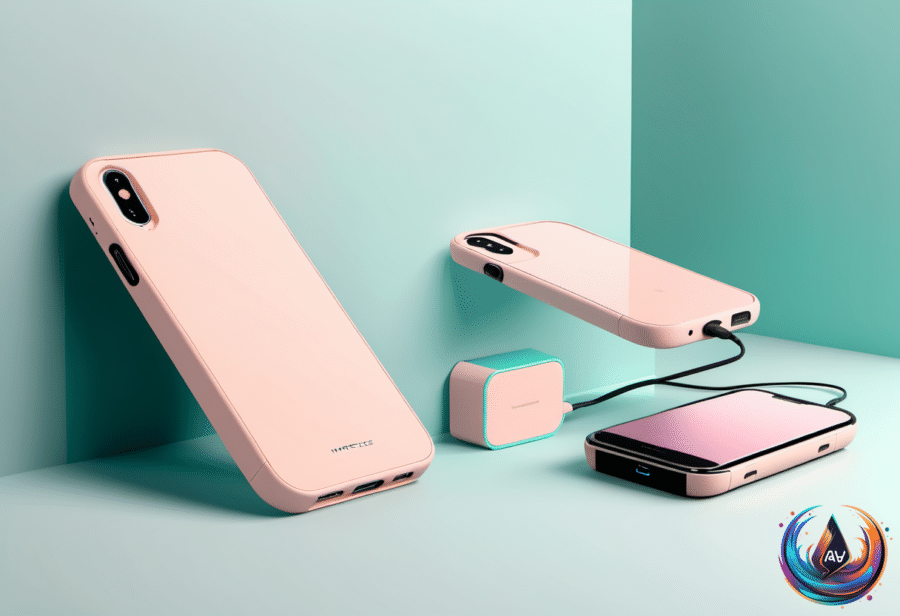
The Samsung Galaxy S26 series is Samsung’s current flagship, and one of its most useful upgrades sits outside the phone itself. If you own a Galaxy S26, especially the Ultra, a charger is the accessory that can make the biggest daily difference.
Samsung improved charging on its top model but left the charger out of the box. That means buyers need to understand which charger fits their phone, how wireless charging works, and which settings can help an older Galaxy last longer.
The Galaxy S26 charger situation
The Galaxy S26 Ultra can charge at up to 60 watts, which Samsung calls Super Fast Charging 3.0. At full speed, it can move from dead to around 75 percent in half an hour. The base Galaxy S26 remains at 25 watts, though its battery grew from 4,000 mAh in the S25 to 4,300.
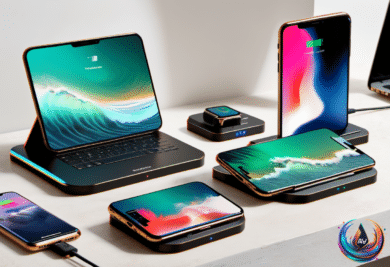
The Galaxy S26+ and S26 Ultra also received faster wireless charging. The S26+ supports 20-watt wireless charging, while the S26 Ultra reaches 25 watts, the top speed of current-generation Qi2.2 wireless charging. Wired charging remains faster than wireless charging.
There is one catch: the charger is not included. Samsung has followed Apple’s lead for several years by leaving charging bricks out of new Galaxy boxes. The last charger Samsung shipped with a phone was a 25-watt brick included with the S20 Ultra in 2020, even though that phone supported 45-watt charging.
Unbox a new S26 Ultra and you get no accessories besides an aging USB 2.0 cable, despite paying $1,400 for the smartphone. Third-party chargers have improved and remain affordable. Some fast chargers available in 2026 deliver 100 watts or more, charge multiple devices, and fit into nearly any pocket or bag.
Brands such as Anker, Belkin, and Ugreen sell gallium nitride, or GaN, chargers that deliver power in a smaller form. A 60-watt charger costs around $40, while chargers with twice the power remain affordable. A charger with enough output for the S26 Ultra can also serve other devices.
Wireless charging needs two accessories
To reach the faster wireless charging speeds, you need a 25-watt wireless charging pad and a magnetic case. High-speed wireless charging requires MagSafe-style Qi2 magnetic alignment, but Samsung did not build those magnets into the phones.
Any 25-watt magnetic wireless charger from a reputable brand will do. The case matters too. A thicker case makes wireless charging less efficient, and metal components can cause charging problems, so choose a case without them.
The case is the last thing you want between a phone and a wireless charger, but it is still useful for magnetic alignment. A thin, nonmetal case offers a better balance between protection and charging performance.
Keeping an older Android phone useful
A new phone is not the only answer when an older Android device starts feeling slow or losing power. If the phone charges more slowly or uses battery power faster than it did when new, a degraded battery may be the cause. Battery wear can also hurt performance because the battery cannot provide the quick bursts of power the processor needs for certain tasks and apps.
A replacement battery may cost far less than a new phone. Samsung Galaxy replacement lithium-ion batteries can cost between $10 and $20, while a DIY repair kit typically costs $60 or less. Professional replacement usually costs no more than $80 at a local repair shop.
Battery-saving modes can reduce power use by changing features such as screen brightness. Some Google Pixel phones offer Battery Optimization and Adaptive Battery, while many Samsung phones can place less-used apps into sleep mode. Keeping the phone charged between 20 and 80 percent can also reduce chemical stress, helping the battery last two to three times longer than one kept at 100 percent.
A sturdy case and screen protector can protect the phone from damage, while operating system updates help close security vulnerabilities and keep apps compatible. Updates have limits, though. Older processors and smaller amounts of memory can struggle with newer operating systems designed for newer components.
Cleaning up Galaxy bloatware
Preinstalled software that you do not want is called bloatware. These apps use storage and can send notifications. The list changes by Galaxy model, region, and carrier, and the Galaxy S4 showed how much space bundled software could consume: its 16GB version left about 9.5GB usable after Android, Samsung’s system software, and bundled apps.
Samsung Shop, Samsung TV Plus, and Samsung Global Goals are optional Samsung apps. In July 2026, Samsung entered an agreement to preinstall Amazon Music on certain Galaxy phones and tablets. Eligible new subscribers can receive a three-month free trial of Amazon Music Unlimited, but the trial renews at the paid rate if it is not canceled.
To remove an unwanted app, swipe up from the Home screen, press and hold the app, and choose Uninstall when that option appears. You can also open Settings > Apps, select the app, and uninstall it there.
Some preinstalled apps cannot be removed. In that case, open the app’s page in Settings > Apps and select Disable. This stops the app from running and hides its icon, though its files remain on the phone. If hiding is the only option, press and hold an empty area of the Home screen, open Settings, select Hide apps, choose the apps, and tap Done. Their icons disappear, but they can still send notifications. Turn those off through Settings > Notifications > App notifications.
What the H+ symbol means
H+ means the phone is connected to an HSPA+ network. HSPA stands for High-Speed Packet Access and supports data speeds up to 21 Mbps, while HSPA+ offers twice the speeds of HSPA. Real-world speeds on these networks range from 3.5 to 14 Mbps, with some rural areas reaching only 1.5 Mbps.
LTE speeds range from 12 to 40 Mbps, while LTE Advanced reaches 25 to 220 Mbps. Bell Mobility in Canada has announced plans to phase out the country’s 3G/HSPA network by March 1, 2027, so an H+ symbol may become less useful as older networks close.
One UI 9 adds useful tools
Samsung One UI 9 has started rolling out to more devices, bringing changes for cameras, privacy, multitasking, and customization. It adds background styles for Favorites tiles, an AI-enhanced clock that blends into a lock screen photo, and a standalone dark mode button separate from the display slider.
Controls can be resized with more precise vertical and horizontal adjustments, including the media playback widget. Shortcut widgets can be dragged into a preferred order, and multitaskers can fit up to three apps on one screen.
One UI 9 also adds a 24MP photo option between the older 12MP and 50MP choices. To enable it, install Good Lock, turn on the Camera Assistant module, open Camera Assistant, and enable 24MP under Advanced Resolution Options.
A Samsung phone can now work as a webcam through a direct USB connection. Connect it to a computer, open the USB notification, choose Webcam, and select the phone inside a video calling app. My Fan Cam can resize a video’s aspect ratio, while the object eraser in photos has become smarter.
Other additions include Gesture Wake-up for Bixby, a Multi-Finger Gesture library with up to five personalized actions, and a Live Data Speed monitor for Wi-Fi and cellular connections. The Privacy Indicator appears as a blue button in the status bar and shows which apps are sharing your location.
The Gallery app can organize screenshots into categories such as QR codes, receipts, and boarding passes, with keyword search available too. Game Booster controls are easier to reach while playing, and Now nudge uses Personal Data Intelligence to power its suggestions.
Based on
- The accessory Samsung Galaxy S26 users should be taking advantage of — engadget.com
- How To Make Your Older Android Phones Last Longer — engadget.com
- This Samsung Galaxy Problem Sadly Still Exists In 2026, But You Can Easily Fix It — engadget.com
- What Does The H+ Symbol Mean On Your Samsung Phone? — engadget.com
- 10 Of The Coolest Features In Samsung’s New One UI 9 Update — engadget.com