Home technology often rewards practical choices more than expensive ones. A router does not need a huge price tag, a regular television can become a smart TV, and an old computer may still have useful work left in it. Even a black USB port can tell you something, though its color is not a guarantee.
The common thread is simple: match the device to the job. Spending more only helps when your internet plan, home layout, connected devices, or storage needs can use the extra capability.
Why a Premium Router May Not Help
Speed has always been the main selling point for routers. Today’s flagship models, like Netgear’s Nighthawk RS700S, are rated for up to 19Gbps and include two 10Gbps ports and eight antennas. That sounds impressive, but the router sells for more than $500, which is money spent on a ceiling most households will never touch.
A budget router from a more affordable brand like Netgear or TP-Link costs under $100 and can handle the vast majority of what a typical home throws at it. The key reason is easy to miss: a router cannot make your internet faster than your plan. It takes the connection your provider delivers and shares it around your home. That is the whole job.
The FCC’s benchmark for what counts as “broadband” is 100Mbps down and 20Mbps up. A budget broadband router only needs to carry that connection to your devices without choking. There is no sense in buying a router that transfers more data per second than what is coming through your wall socket. If the router rating sits far above your plan, the provider remains the bottleneck.
Four features matter more than a giant number on the box: Gigabit Ethernet ports, parental controls, Wi-Fi 6 or better, and whole-home range. Gigabit ports keep the router from slowing down wired devices, while parental controls can schedule screen time and block sites on kids’ devices. Most decent budget routers include those controls through a free app.
Wi-Fi 6 handles many devices at once more gracefully than older standards, so phones, tablets, laptops, and televisions do not fight for bandwidth as much. Location matters just as much as raw speed. A fast router in the wrong corner of the house can provide slow speeds where you actually sit, and a mesh kit or second access point may help more in a larger home than a pricier single router.
When Wi-Fi 6, Wi-Fi 7, or a Premium Model Makes Sense
Wi-Fi 7 is the newest standard. Its headline feature is 320MHz channels in the 6GHz band, and the Wi-Fi Alliance says it doubles throughput compared with Wi-Fi 6. To see that speed, though, your devices need Wi-Fi 7 too, and plenty of phones and laptops today do not have it.
The top speeds printed on router boxes are theoretical maximums, not what you will necessarily measure in your living room. Wi-Fi 7 routers work with older devices, but those devices will not become faster just because the router supports the newer standard.
If you live alone or with a roommate, an older Wi-Fi 5 router can usually handle your phones, laptops, and televisions without trouble. In an average household of four to six people, with kids on iPads, parents on laptops, and grandma gaming in the living room, Wi-Fi 6 is the safer choice.
New, expensive Wi-Fi 7 routers start to make sense in a big home or home office with a gigabit-plus fiber plan and plenty of Wi-Fi 7 devices. A lone user may also have a reason to spend more. Meta says Air Link over Wi-Fi works best on the 5GHz band, with the computer wired to the router by Ethernet, and suggests considering a dedicated router if latency causes problems.
A router with plenty of headroom can keep a headset connection clean while everything else in the home is online. Local tasks create another reason to care about speed: copying video projects to and from a NAS or running regular backups never touches your internet plan. Those speeds depend on your own gear instead. Wired connections remain the best choice, but a faster router helps devices that must connect over Wi-Fi.
Fixing Smart Home Dropouts Without Replacing Everything
Some accessories simply do not play well with Wi-Fi and tend to drop out of apps. On Wi-Fi 5, the practical limit for simultaneous connections is around 10 to 25 devices, or 30 if you are lucky. Mesh systems can add another problem because one unified SSID uses automatic band steering. Your phone may land on 5 or 6GHz, which can prevent some apps from detecting new gear.
If you use a standalone router, try separate 2.4 and 5GHz SSIDs and move smart home accessories to the longer-range 2.4GHz band. If an accessory sits on the edge of the network, it can drop out when conditions worsen. Repositioning the device or router may help, while a mesh system may be the next step if moving them is not possible.
Apple’s platform can produce “No Response” errors in situations where Amazon Alexa and Google Home work fine. Apple has tried to smooth this out with an overhauled framework, but a reliable setup may still need two or more Apple home hubs for control redundancy. Those can include HomePods, HomeViews, or Apple TV 4Ks.
The longer-term option is moving accessories to Thread, Zigbee, or Z-Wave. These systems need a Wi-Fi hub, and Thread requires a Wi-Fi-enabled border router accessory. They reduce pressure on Wi-Fi, extend their reach through mesh networking, and can keep some automations running when the internet is down. Thread is a low-power standard for bulbs, locks, plugs, and sensors, not audio, video, or vacuuming.
Reuse Old Hardware for Entertainment and Storage
That old computer collecting dust in the basement can become a home server. With media servers such as Plex or Jellyfin, it can stream your own shows and movies, which may reduce the number of streaming services you need. The same machine can also serve as a mass storage device.
Cloud storage and backup subscriptions add up over a year. A home server lets you cut those costs, and adding more storage is a matter of buying and installing hard drives. Turning an old PC into a server can save money on storage and home entertainment while creating a building block for custom PC projects.
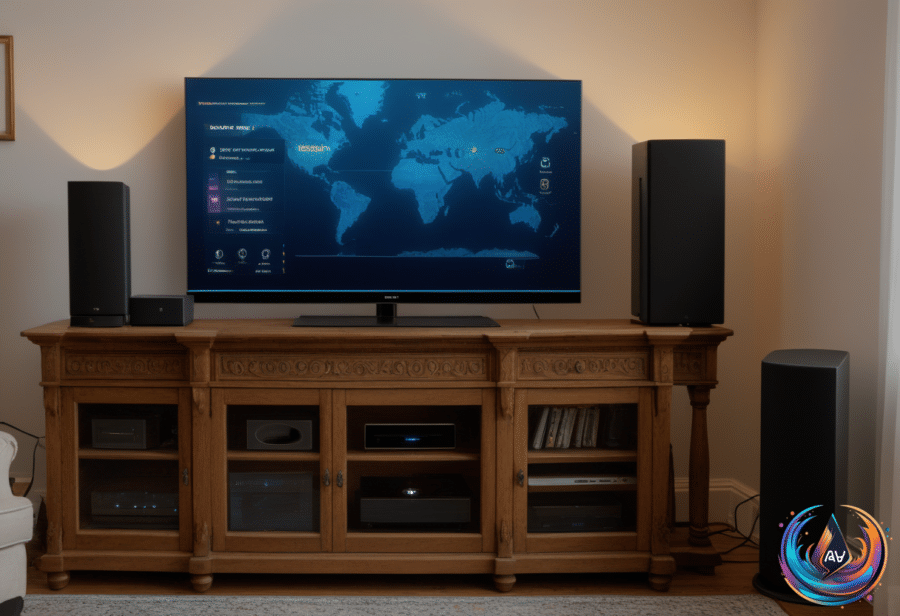
A regular television can take a similar shortcut. All you need is a TV with a suitable HDMI port and a streaming stick such as an Amazon Fire TV Stick. These small units plug into the HDMI port, after which you log into your streaming services. Most streaming sticks or hubs cost as little as $30, while a cheap smart TV can cost as much as $150 on the lower end.
Non-smart TVs are harder to find in stores, but a streaming stick remains a less expensive way to add smart features. For a new smart TV focused on streaming content, Roku and Samsung are options.
What Black USB Ports Tell You
A black USB-A port often means USB 2.0, also called “Hi-Speed” USB, with data transfer rates up to 480 Mbps. White ports typically indicate USB 1.x, which reaches 1.5 Mbps in low-speed mode and 12 Mbps at full speed. That makes USB 2.0 40 times faster than USB 1.x at full speed.
Color is not an industry standard, so check the markings beside the port and the manufacturer’s documentation. USB-A color meanings do not transfer to USB-C, and most USB-C ports have no color at all. If a USB-C port does have one, it may be cosmetic.
USB 2.0 works well for everyday, low-speed accessories, but it can make external HDDs and SSDs painful to use for large video files or backups. It may also lack the power some drives need. Seagate says the Wireless Plus 2TB may not appear on certain USB 2.0 connections when they supply insufficient voltage.
USB 3.0 devices can connect to USB 2.0 ports, but they will run at USB 2.0 speeds. USB 2.0 accessories can connect to USB 3.0 ports, but they will not perform better. Match low-speed, low-power devices with USB 2.0, and reserve faster or “Always On” ports for devices that benefit from them. When in doubt, check the manual or manufacturer’s website, because a black port is a clue, not a guarantee.
Based on
- Why you don’t really need an expensive, high-end router — engadget.com
- What To Do If Your Smart Home Devices Keep Disconnecting From Wi-Fi — engadget.com
- How Building A Cheap Home Server Could Save You Money In The Long Run — engadget.com
- The Easiest Way To Turn Your Regular TV Into A Smart TV — engadget.com
- The Reason Why Some USB Ports Are Black — engadget.com