A broken keyboard or frozen phone screen can make a working device feel useless. Before booking a repair, there are several checks that can separate a software problem from dirt, a weak battery, or damaged hardware.
The same practical approach helps with computer accessories, too. Choosing the right USB port, deciding between a touchscreen laptop and a tablet, or reusing an old SSD can save money and prevent avoidable headaches.
Start with the MacBook keyboard
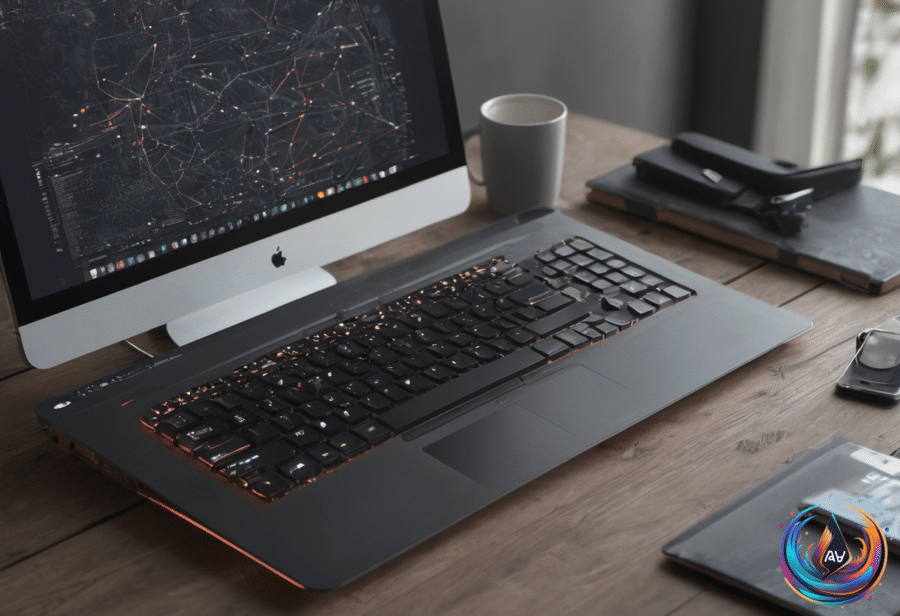
If your MacBook keyboard suddenly stops working, reboot the Mac from the Apple menu by selecting Restart. Software glitches can cause the keyboard to malfunction, and a restart may clear the problem. Small particles of dirt under the keys can also stop them from responding.
Check the keyboard connection before moving to deeper troubleshooting. Unplug a wired keyboard and reconnect it, making sure the connection is secure. For a wireless keyboard, turn it off and back on. If that does not help, open System Settings > Bluetooth, unpair the keyboard, and pair it again.
Wireless keyboards can also stop responding when their battery is low. Plug the keyboard into its charger if it has a rechargeable battery. If it uses replaceable batteries, put in new ones.
macOS also includes settings that change how it recognizes keystrokes. Open System Settings, choose Accessibility, and then select Keyboard. Check whether Sticky Keys or Slow Keys has been enabled by accident. Turn off either toggle that is on to restore normal keyboard behavior.
If you need to type while testing the problem, enable the Accessibility Keyboard in the same menu. It places an on-screen keyboard on the display, and you can press its keys with the mouse cursor.
An external keyboard can help identify whether the fault is limited to the built-in keyboard or connected to macOS. Safe mode can also show whether a third-party app is interfering. Shut down the Mac from the Apple menu rather than putting it into Sleep Mode, then press and hold the power button until Loading startup options appears. Select the startup disk, hold the Shift key, and click Continue in Safe Mode. Apple Diagnostics is another option.
If only one or two keys fail, debris is the most likely cause. Hold the MacBook at a 75-degree angle and use compressed air, then rotate the laptop and repeat the process. You can also turn the MacBook upside down and gently tap the back cover to push dirt out.
Do not remove the keycaps yourself. The parts inside are small and delicate, and removing them can permanently damage the key mechanism. Older MacBooks released between 2015 and 2019 became known for problems with the “butterfly” keyboard, which was more likely to get stuck when small particles entered it. Even the latest MacBooks can develop keyboard issues over time. If these steps fail, book an appointment with Apple Support so a specialist can decide whether the keyboard needs replacement.
When a phone screen stops responding
Most stuck screens have a simple fix, but an unresponsive display can come from a frozen app, a damaged screen, or a system problem. An app crash can jam the process that carries touch input through the processor, leaving the screen unable to respond.
First, inspect the phone for cracks or other damage. If you see damage, the problem is likely hardware rather than software. Remove the screen protector, case, gloves, USB-C or Lightning accessories, and any stickers covering the screen or sensors. A protector can hide damage or cause the problem itself. Clean the display with a slightly damp microfiber cloth, but keep moisture away from the phone’s openings.
If the screen still does not respond, force restart the phone. On an iPhone with Face ID, press and quickly release the volume up button, then the volume down button. Press and hold the side button until the Apple logo appears; this can take longer than 10 seconds. On an iPhone 7 and 7 Plus, hold the side and volume down buttons together. On an iPhone 6s and earlier, hold the Home button with the side or top button.
On Android, the restart process varies by manufacturer, but holding the power button for 30 seconds is the standard process. Android safe mode loads only the software that came with the device. To enter it, force restart the phone, then hold the volume down button when the manufacturer’s logo appears. If “Safe mode” appears in the bottom-left corner and the screen works, a third-party app is the culprit.
If safe mode does not help, try resetting settings and turning off Developer options on Android if it is enabled. On iPhone, use Settings > General > Transfer or Reset iPhone > Reset > Reset All Settings. Samsung users can open Settings > General management > Reset > Reset all settings > Reset settings. A factory reset is the last resort, and it wipes all data. A manufacturer service center or credible independent repairer can check for a hardware fault.
Smarter choices for ports, touchscreens, and old SSDs
A touchscreen laptop adds convenience for scrolling, testing mobile apps, and using a foldable 2-in-1 as both a work device and tablet. It does not replace the benefits of a laptop’s physical keyboard and trackpad. Tablets can cost hundreds of dollars less and weigh less, but keyboards and trackpads are paid add-ons, while laptops include both.
Laptops running Windows, macOS, or Linux also provide access to more capable apps than many Android and iPadOS devices. Professionals and hardcore gamers who need advanced software or graphics performance still have little choice but a laptop. Touchscreens are most useful for illustration, handwritten notes, or high-end photo editing; extended drawing on a vertical laptop screen is not comfortable.
USB ports also differ in speed and power. Front-facing ports may use extension cables, share a connector, or rely on slower standards. The ASUS ROG Maximus Z790 Hero motherboard, for example, has rear Thunderbolt 4 ports reaching 40 Gbps, while some front ports run at 5 Gbps or 20 Gbps. Use rear ports for external SSDs, capture cards, and VR headsets. Front ports work well for a mouse, keyboard, headphones, or a regular flash drive.
The baseline Mac mini with the M6 chip has front USB-C ports reaching 10 Gbps and rear Thunderbolt 4 ports reaching 40 Gbps. The latest Mac Studio follows the same front-versus-rear pattern. Check your computer’s specifications instead of relying only on port symbols or colors.
An unused removable SSD can become external storage when paired with the right enclosure. Check for important files first, then inspect its health with the Disk Utility app on macOS or Windows’ Drive Management tool. Match the enclosure to the drive: a larger 2.5-inch SATA model needs a different enclosure from a compact M.2 NVMe drive. Some ultra-thin laptops, including MacBooks, solder storage to the logic board, so removal is not always possible.
After checking the drive, format it to erase the data and install it in the enclosure. Most connect through USB-C and work like standard external drives. If an older SSD is nearing the end of its life, use it for files you would not mind losing, such as bulky games, rather than important data.
Based on
- The right way to fix your MacBook keyboard if it isn’t responding — engadget.com
- How To Fix Your Phone Screen When It’s Unresponsive To Touch — engadget.com
- What’s The Point Of Buying A Touchscreen Laptop When You Could Just Get A Tablet? — engadget.com
- Your Desktop’s Front USB Ports May Be Slowing Down Every Device You Plug Into Them — engadget.com
- Don’t Throw Away Your Laptop’s Old SSDs — Do This Instead — engadget.com