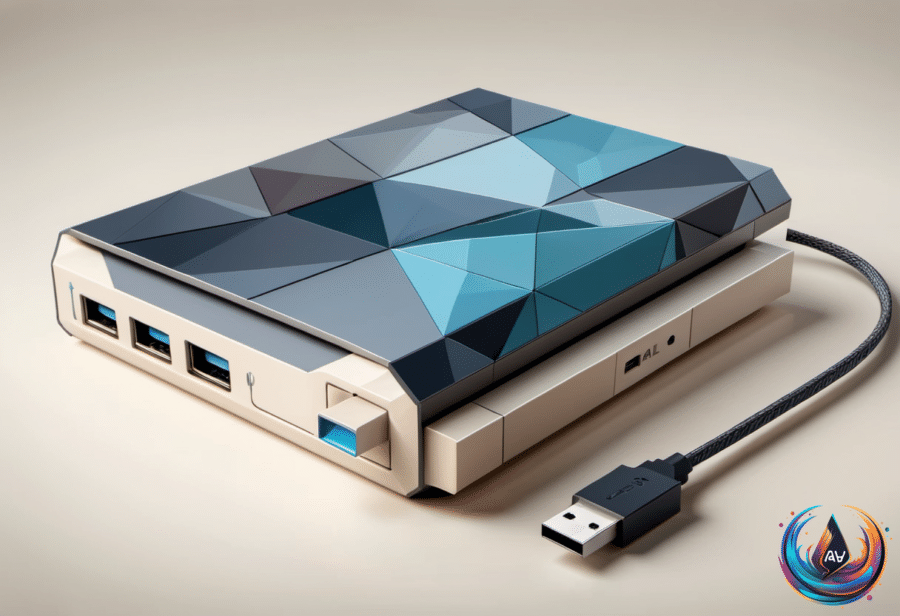
Your external drive may look idle while your computer is still finishing work. Give it a few seconds and one simple command before unplugging, because that small pause can protect files, backups, and even the drive’s file system.
Proper ejection tells the computer to wrap up whatever process is still running. That matters because a transfer can look complete before every piece of information reaches the drive, leaving you with a damaged or incomplete copy.
Why an Idle-Looking Drive Can Still Be Busy
Many times, nothing happens when you unplug an external drive without ejecting it. The action still carries risk, though, because the computer may be writing information in the background or updating the drive’s record of its own files.
If a transfer is still running when you pull the drive, the process ends incomplete and files can become corrupted. That corruption may stay silent. You might delete the original file because you believe the copy is safe, only to discover later that the version on the external drive is damaged.
Unannounced removal can also leave the drive with half-updated information about its files. That is one reason Windows may ask you to scan and fix a drive the next time you plug it in. The same problem can reach the drive’s file system, and neglecting to eject can lead to partition table damage.
When the partition table breaks, your computer may see the drive as unallocated or not initialized. The drive then becomes unusable until it is fixed, turning a rushed unplug into a repair problem.
“Taking a few seconds to eject an external drive tells your computer to wrap up whatever process is going on before you unplug it.” That short wait reduces the risk of data corruption and incomplete file transfers.
Mac, Windows, and Linux Handle the Risk Differently
The warning you see does not always mean disaster. On Mac, the “Disk Not Ejected Properly” warning is not a sign of data loss; it is a warning. The real danger comes when the drive disappears during a write, such as while a backup is running.
Mac can keep working after a visible file transfer ends. Time Machine backups and Spotlight indexing may continue in the background, so the drive can still be active even when the main task looks finished.
Linux relies heavily on write caching to improve performance. That can make a transfer look complete when the system still needs a few seconds to finish writing information. Waiting for the eject command gives those pending operations time to close.
During Windows 10’s lifetime, Microsoft made the Quick removal policy the default setting for removable drives. You can change the setting for any drive by right-clicking the Start button, choosing Disk Management, opening Properties, selecting the Policies tab, and choosing between Quick removal and Better performance.
It is safe to unplug a drive without ejecting when the drive is idle: no apps are using it, none of its files are open, and no transfer is happening. The challenge is knowing that every condition is true, especially when background processes can continue without an obvious window on screen.
Some newer drives include protection against sudden disconnection, helping guard against data loss or corruption. Those features can fail, so they do not replace safe removal.
USB Extenders Work, But Distance Changes the Rules
The same attention to limits matters when you connect a device through a USB extender. USB extenders do work, and they are safe to use when the hardware is properly rated and stays within its stated limits. The term covers several designs, from passive cables to active repeaters and CAT or fiber extenders.
A passive extension cable simply adds length between the computer and the device, making it suitable for shorter runs. USB 2.0 is tolerant up to approximately 16 feet, or 5 meters, while passive USB 3.x runs are typically kept to around 10 feet, or 3 meters.
Active extenders add electronics that regenerate the signal, allowing longer connections. StarTech’s active USB 3.2 Gen 1 cable reaches 33 feet with a 5 Gbps speed rating, and two of StarTech’s cables can be daisy-chained for a run of about 66 feet.
Icron’s Raven 3104 can deliver up to 5 Gbps at a maximum distance of 328 feet through a CAT 6a or CAT 7 cable. That reach comes with a power trade-off: the extender supports up to 5 Gbps but offers only 6W per remote USB port.
Storage drives, VR headsets, webcams, and docks are more likely to expose connection issues because they demand bandwidth or features that a weak extension setup may not support. Power also follows its own limits. USB Power Delivery can reach 240W when the source, device, and cable all support it, but data speed and charging capacity do not automatically match.
USB-IF requires USB-C-to-USB-C cables that pass its compliance program to carry a 60W or 240W power marking. All cables except USB 2.0 cables must also show their supported data rate. Anker offers a 10-foot USB-C cable with 240W charging support, but its maximum data transfer speed is 480Mbps.
Passive USB-C male-to-female extensions need extra caution because generic male-to-female Type-C extension cables are not listed in USB-IF’s passive Type-C compliance document. Before adding length, check both the cable’s ratings and the device’s needs.
The safest routine is simple: finish the transfer, close files and apps, eject the drive, and then unplug it. That habit costs seconds, while recovering a corrupted drive or damaged partition table can cost far more.
Based on