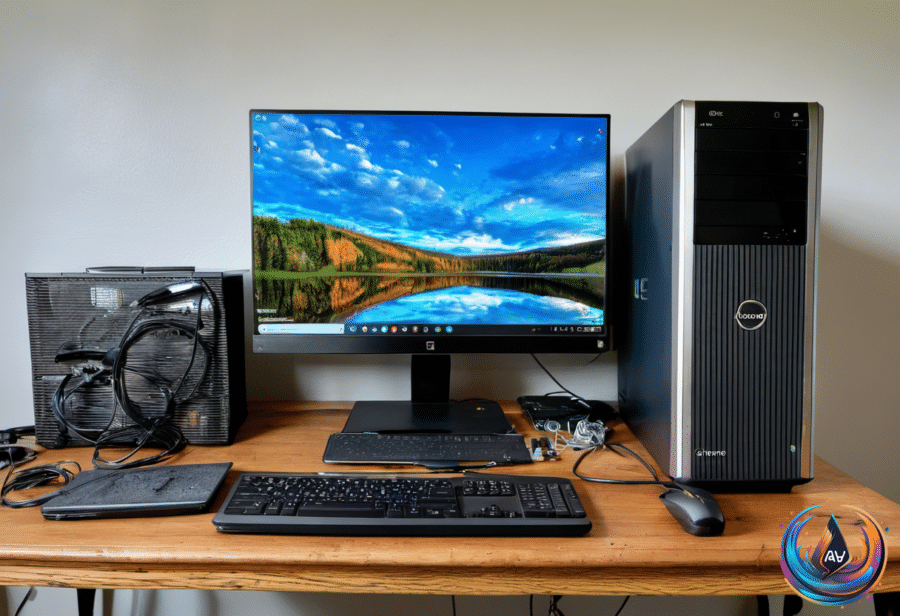
That hunk of plastic collecting dust in the basement might be more useful than you realized. Anyone who has spent years around computers has probably accumulated old PCs, laptops, Chromebooks, cables and other hardware that no longer serves as a main device.
When a new upgrade changes your setup, the old equipment often gets pushed aside. But an older computer can become a home server, media machine, file server or smart home controller. Reusing what you already own can lower spending on storage, home entertainment and extra devices.
Why an old PC can become a home server
A home server is one of the most useful ways to repurpose an old computer. A family can use one as a custom streaming hub or a free mass storage unit, making it a practical financial investment without requiring a new machine. The basic setup can also be affordable and painless, especially when the computer already sits unused.
A media server can help trim the streaming services bill. There are many services competing for a place in each household’s monthly budget, and the total can add up to quite a bit over four weeks. With a home server, you can create a custom media machine for streaming your own shows and movies, which may reduce the number of services your family keeps.
Media server apps such as Plex and Jellyfin let you populate the device with your own files and access them from other devices. That gives a home server a clear role beyond entertainment: it becomes a central place for personal media instead of another box that sits unused.
The same computer can also serve as mass storage. Photos, videos and important documents often fill laptops and other devices, while cloud storage and backup subscriptions add to household costs over the year. A home server can handle those storage needs, and its capacity can grow when you buy and install more hard drives.
Repurposing an old PC this way can save money on both storage and home entertainment. It can also become a building block for learning about custom PC builds, giving you a practical way to understand hardware before spending more on a new system.
An old Chromebook can replace extra devices
There’s plenty an old Chromebook can do, even if it is no longer your main computer. Its screen may still work perfectly well, and an app like Duet can connect the Chromebook to a PC or Mac as a second monitor. Duet requires a small subscription fee, but it can mirror or extend the screen without buying another display.
If a second monitor is not useful, the Chromebook can become a digital photo frame. Load it with photos, set the screen so it never turns off automatically, and display an image or slideshow in fullscreen mode. That gives the old laptop another job without adding a separate device.
A Chromebook can also provide a dedicated control screen for a smart home. The easiest option is accessing Google Home through a browser or the Android app. You can also run Home Assistant on a PC or Raspberry Pi, then use the Chromebook’s browser to monitor and control it from one place.
A more advanced approach runs Home Assistant directly on the Chromebook. That requires installing Linux and then installing the Home Assistant app. Chrultrabook and MrChromebox are two guides for turning a Chromebook into a Linux machine, but the process is not beginner friendly.
Linux opens other possibilities, including using the Chromebook as a small media server. After installing Linux, you can place files on the machine, add Plex or Jellyfin, and leave it running so other devices can access the data. The Chromebook’s limited hardware makes it better suited to a small media server than a demanding one.
Batocera can also turn a Chromebook into a dedicated retro gaming machine. Many of its emulators can run on low-powered hardware, although a faster PC may run them better. Emulators themselves are technically legal, but using them to run pirated games is not.
If installing a new operating system feels like too much work, Linux on ChromeOS, also known as Crostini, provides access to a Linux virtual machine. It can run apps beyond Linux developer tools, but the virtual machine places more demands on older hardware, so performance and compatibility can be extremely limited.
Choose new hardware for flexibility, not just appearance
Repurposing old equipment also makes it easier to see what you gain or lose when buying something new. All-in-one PCs pack the computer into the monitor, eliminating the tower, extra cables and much of the desk clutter found in a traditional desktop. They sit between laptops and desktops, offering a clean setup without being portable like a laptop.
That simplicity suits smaller apartments, dorm rooms and home offices. Many bundles, such as the Apple iMac, include a keyboard and mouse, so you can connect one cord and start working. An all-in-one is also easier to move than a tower, monitor and cable bundle.
The tradeoff is flexibility. Packing every component into a slim chassis limits upgrades and makes repairs harder. Upgrading the processor or graphics card is nearly impossible on most models, while RAM and storage upgrades depend on the specific machine. Newer iMacs offer little room for changes, while the Dell Pro 24 65W lets you add storage and RAM.
If you browse, work on documents and take video calls, an all-in-one can be a sensible choice. If you game, edit video or want to upgrade in a few years, a traditional PC gives you more room to grow. The key is matching the hardware to how you plan to use it.
Make the home network support your old hardware
A home server is only useful when the network works well. Poor router placement can lead to buffering and weak connections, so put the router in a central location or as close to one as possible. Keep it away from the microwave, cordless phones and baby monitors, since nearby electronics can disrupt Wi-Fi.
Wireless connections are not ideal for every device. A gaming PC benefits from an Ethernet cable because it provides speed, lower latency, protection from wireless interference and better security. Cat6a can support 10-gigabit connections over channels up to 100 meters, which suits extremely high-speed internet service.
When adding equipment, set up one piece at a time, confirm that it works and label the cables. If you add another router, two DHCP servers can create conflicts, so use bridge mode or access point mode. Check that the equipment matches your internet plan and that a mesh system fits your home’s layout.
Security matters too. Enable WPA3 Personal when the router and devices support it. If older equipment needs a different option, WPA2/WPA3 transitional mode allows compatible devices to use WPA3 while others use WPA2 Personal with AES. Avoid WEP and TKIP, change both the administrator credentials and Wi-Fi password, and keep the router firmware up to date.
The best approach is simple: reuse what still works, understand its limits and add new features gradually. An old computer or Chromebook may not replace every modern device, but it can handle storage, media, smart home control and other useful jobs without sitting forgotten in a basement.
Based on
- How building a cheap home server could save you money in the long run — engadget.com
- Don’t Throw Away Your Old Chromebook (Even If You’re Getting A Googlebook) — engadget.com
- The Pros And Cons Of Using An All-In-One Desktop Computer — engadget.com
- Common Mistakes You Should Avoid When Setting Up Your Home Network — engadget.com