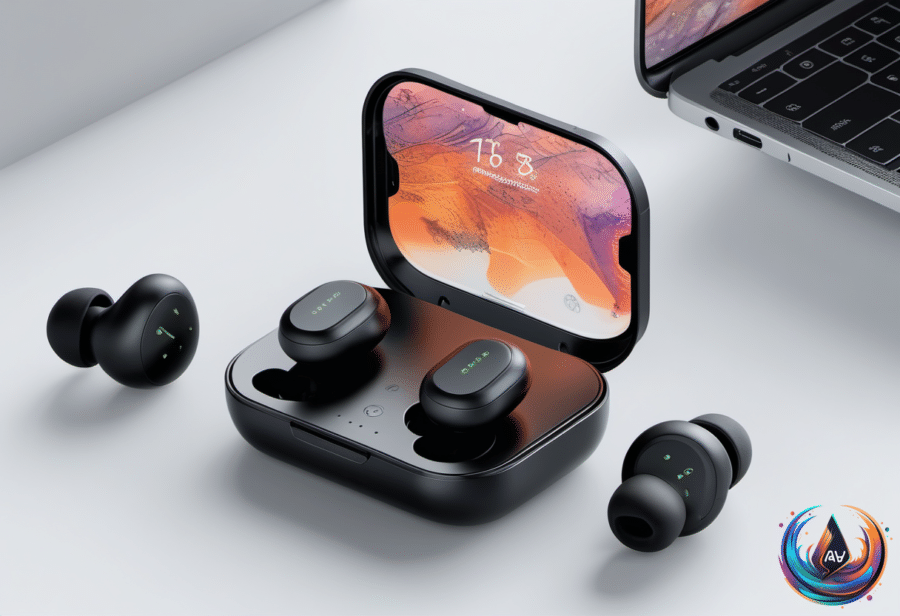
AirPods update themselves. Apple hides the process from view, so firmware changes happen without a dedicated update page like the one inside Settings for iOS. The updates can fix bugs and improve reliability, but some also add features such as Custom EQ, Live Translation, studio-quality audio recording, and remote camera control.
Before an update can arrive, make sure your iPhone, iPad, or Mac runs the latest software. Open Settings, choose General, then Software Update; if an update exists, it appears there, and if not, the device says it is running the latest version.
To check your AirPods firmware on an iPhone or iPad, connect the earbuds and open Settings. Tap the AirPods menu near the top, scroll to the About section, and find Version. On a Mac, open System Settings, go to Bluetooth, find your AirPods, and click the information button on the right.
Apple also maintains an AirPods firmware page listing the latest version for each model. If the number on your earbuds does not match, they probably need an update — though there is no button that forces one to install.
How to trigger an AirPods firmware update
Apple says firmware updates are “delivered automatically.” To give the process the best chance, pair your AirPods with an iPhone, iPad, or Mac, turn on Bluetooth, and connect that device to Wi-Fi. The update will not download over 4G or 5G, because apparently even earbuds have network preferences.
Put both AirPods in their charging case, plug the case into power, and close the lid. Keep the case within Bluetooth range of the connected device for about 30 minutes, then reconnect the earbuds and check Version again.
The process is much the same for AirPods Max: place them in the case and connect the case to a charger. If you use AirPods without an Apple device, an Apple Store or Apple Authorized Service Provider can update the firmware.
Not every update brings a headline feature. Many release notes stop at “bug fixes and other improvements,” but those changes can resolve connection problems and other annoyances. Custom EQ works with all AirPods that have an H2 chip, while new features often remain limited to newer models.
When AirPods refuse to connect or keep disconnecting
Start with power. If the earbuds or case are fully drained, AirPods will not appear on your iPhone — not even with a low-battery warning. Put the earbuds in the case, connect it to power for a few minutes, and check whether any lights appear or the connection returns.
Dirt and earwax can block the charging contacts, leaving one or both earbuds without power. Clean the AirPods and case with a soft cotton swab, then try again.
Bluetooth must be on. Open Settings, choose Bluetooth, and enable the toggle; put the AirPods in your ears, select them from the list, and check the audio output list in Control Center under the AirPlay button in the media controls.
Automatic switching can also create fake disconnections. AirPods signed in to your Apple Account can move between an iPhone, iPad, and Mac when audio starts, and even an email notification on a Mac can pull them away from another device.
On an iPhone or iPad, open the AirPods menu in Settings, choose Audio & Routing, then Connect to this iPhone or iPad and select When Last Connected to This iPhone or iPad. On a Mac, open System Settings, choose Bluetooth, click the information button beside your AirPods, and select When Last Connected to This Mac.
Keep Automatic on the device you use most, and choose When Last Connected on the others. You can also use Forget This Device in Bluetooth settings on devices you no longer use with the AirPods.
Automatic Ear Detection may interrupt playback when its sensor thinks an earbud has left your ear. Run Ear Tip Fit Test from the AirPods menu, clean the earbuds, and try different tips; if the problem continues, open Settings > AirPods > Audio & Routing and disable Automatic Ear Detection.
Network problems can cause audio to stutter during streams, while microwave activity, heavy Wi-Fi use, and many nearby Bluetooth devices can interfere with playback. Siri can also interrupt audio, and turning it off requires Settings > Siri > Requests; that disables Siri for the entire device, since AirPods do not get their own toggle.
If pairing still fails, reset the AirPods. For AirPods 4, AirPods 5, and AirPods Pro 3, double-tap the front of the case until the light turns white, repeat the double-tap when it flashes white, then double-tap a third time when it flashes faster. For older models, hold the button on the back of the case for about 15 seconds; for AirPods Max, hold the Digital Crown and ANC button together for about 15 seconds.
If the iPhone does not show pairing instructions afterward, hardware failure may be involved. Apple Support can handle a replacement request, which may be free under the one-year warranty or with an AppleCare+ plan.
Identifying AirPods and stopping charging-case sounds
Visual clues are unreliable because several AirPods and AirPods Pro models share similar designs and cases. Find the model number in Settings under the AirPods menu or Bluetooth information panel; it starts with A. On the earbuds, the number sits on the underside, while AirPods Max place it behind the left ear cushion.
The case has its own model number, and some models use multiple numbers based on charging method or ANC. A serial number offers another route: find it below the model number in Settings, on the case lid, inside the left AirPods Max cushion, on individual earbuds, or on the original packaging and receipt. Enter it on the AppleCare and Warranty page to identify the exact model.
Random chirps often signal low battery, power fluctuations, connectivity trouble, or a Bluetooth change. AirPods Pro 2 and AirPods Pro 3 with the Hearing Aid feature may “periodically play a quiet chime when they’re in their charging case” so their microphones and speakers keep “operating at their best.” Find My can trigger louder sounds, while water damage, dirt, or poor ear-tip fit can cause piercing feedback.
To disable charging-case sounds, open the case, open Settings on the connected device, tap the AirPods name, choose Audio & Routing, and turn off Enable Charging Case Sounds. A small menu buried in Settings: technology’s traditional hiding place.
Based on
- You can easily update your AirPods firmware in just a few simple steps — engadget.com
- Why Your Apple AirPods Won’t Connect To Your iPhone And How Can You Fix It — engadget.com
- Why Your AirPods Keep Disconnecting Without Warning: These Settings Can Fix It — engadget.com
- Here’s How To Tell Which Gen AirPods You Own — engadget.com
- Your Apple AirPods’ Chirping Noise Doesn’t Just Mean Low Battery — engadget.com