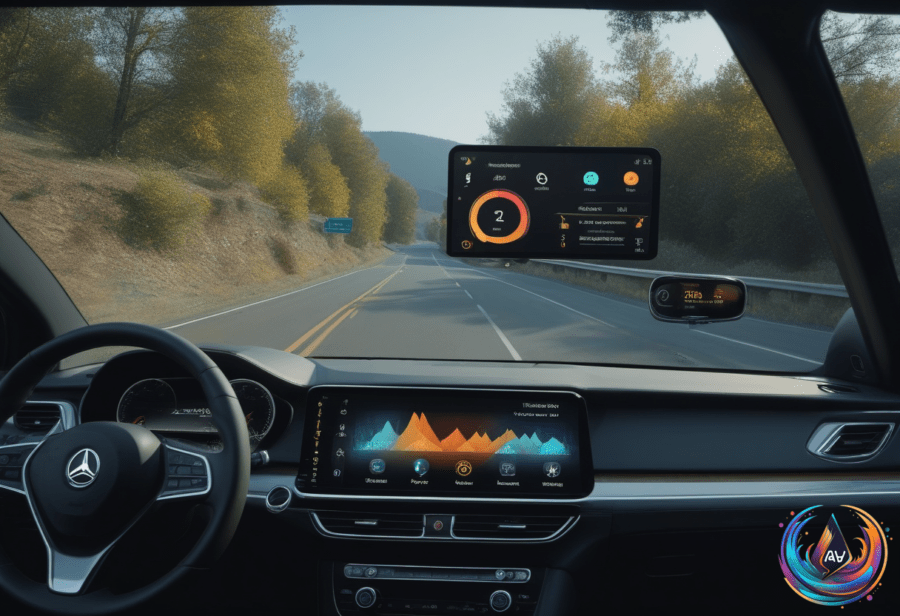
Siri failing in the car is usually a settings problem. The breakdown can start with the iPhone, the CarPlay connection, or the vehicle’s infotainment system, which gives drivers several places to look before blaming the microphone.
You can activate Siri in CarPlay by holding the car’s voice-command button or pressing and holding the CarPlay Home button on the display. Some cars also support “Hey Siri,” but if the button wakes Siri and the wake phrase does not, the car may not support voice activation. Screaming “HEY SIRI!” even louder isn’t fixing the problem, surprisingly.
Where CarPlay and Siri Can Go Wrong
Start with Siri’s settings. Apple suggests turning “Siri” or “Hey Siri” off and on, then repeating the voice-recognition setup. Siri can also be disabled when the iPhone is locked, while CarPlay itself can be turned off under Settings > Screen Time > Content & Privacy Restrictions > Allowed Apps.
Siri needs an internet connection to respond in CarPlay, and some VPN profiles may block it. Apple does not detail which VPN configurations cause the problem, so the fastest check is simple: disconnect CarPlay and test Siri on the iPhone. If Siri works there, the connection deserves suspicion.
Wired CarPlay problems may come from the cable or the vehicle’s USB port. Apple suggests using a different USB cable or a compatible USB port. Wireless CarPlay requires both Bluetooth and Wi-Fi, with Auto-Join turned on for the CarPlay network—a surprisingly long checklist for a feature meant to remove one cable.
When the connection remains unreliable, restart the iPhone and vehicle, forget the car under Settings > General > CarPlay, and pair it again. Siri may also be responding without making itself heard; the Prefer Spoken Responses option appears under Settings > Apple Intelligence & Siri > Siri Responses.
Focus Modes Mute the Noise, While Android Auto Limits the Screen
Apple changed Do Not Disturb from a simple switch into Focus modes in 2021, starting with iOS 15. Focus modes are customizable through Settings > Focus, where the default options include Personal, Sleep, and Work.
Each mode lets you control notifications by choosing Allow Notifications From or Silence Notifications From for People and Apps. Use the Add button in each panel to select contacts and apps to mute or allow, then adjust the People section’s Allow Calls From toggle with options including Everybody, Allowed People Only, Favorites, and Contacts Only. An Allow Repeated Calls toggle provides another way for calls to break through.
In Apps, enabling Time Sensitive Notifications allows certain alerts through during a Focus mode. Tap the Plus (+) icon on the Focus page to access other default modes or create a custom one. All modes except Do Not Disturb can use a custom icon and color, and an unwanted mode can be removed with Delete Focus at the bottom of its page.
The main Focus page also includes Share Across Devices, which mirrors an iPhone’s Focus mode to other devices using the same Apple account. Focus Status tells contacts that you are in a Focus mode when they open an iMessage conversation with you; they can choose to notify you anyway if a message is urgent. Contacts will not see the mode’s name unless Share Focus Status is enabled for them, and users can disable that sharing for individual contacts in iMessage.
Emergency Bypass handles the people who cannot be filtered out. Calls and texts from selected contacts can make noise even when the phone is silent or in Focus mode; enable it by opening Contacts, selecting a person, tapping Edit, choosing Ringtone or Text Tone, and turning on Emergency Bypass.
Android Auto has its own set of limits, especially for YouTube. Picking a YouTube video on a phone plays only its audio through Android Auto while driving, and listening to YouTube videos while driving is exclusive to YouTube Premium users. Most Android Auto users also cannot scrub forward inside a video without a Premium subscription.
Google introduced YouTube media controls for Android Auto in March, but the platform still offers a scaled-back experience until native support arrives. Some manufacturers, including GM, have unlocked full YouTube compatibility and services such as Disney+ while vehicles are stationary.
An update scheduled for this year will add native YouTube support for Android Auto, allowing HD videos while parked and audio playback while moving. Google also promised HD playback at 60 frames per second while parked, an audio-only transition when driving starts, and a reworked interface with widgets and deeper Gemini integration for brands including BMW, Chevrolet, Ford, and Hyundai. Premium Lite support is not specified.
Unofficial options such as Fermata Auto and AA Browser promise video playback while parked, but their results are mixed. Until the official update arrives, Android Auto remains willing to play the soundtrack—just not the screen.
Based on