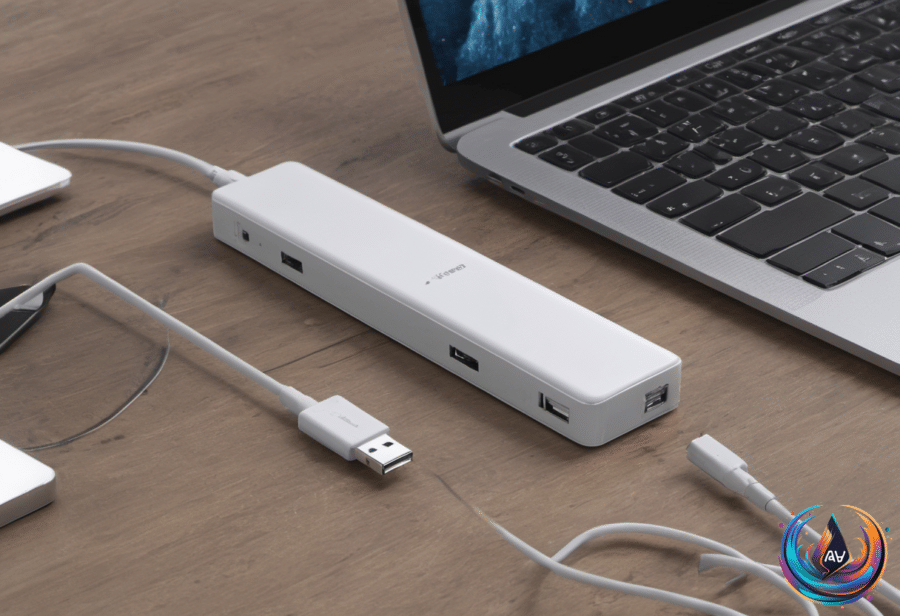
USB ports can look simple, but their colors, shapes, symbols, and speeds do not always tell the whole story. A red port might be the fastest connection on a computer, a USB-C port might still be limited to USB 2.0, and a port that charges your phone after shutdown may not transfer data at all.
The best way to understand what a port can do is to check the manual, inspect its markings, and test it with suitable hardware. A few tools can also show whether a connection is reaching its intended speed or falling back to an older USB standard.
How to test a USB port’s real speed
CrystalDiskMark for Windows and AmorphousDiskMark for macOS are open-source programs that check a storage drive’s read and write speeds. They can also serve as a practical proxy for testing whether a USB connection is running close to its intended specification.
Start by connecting a drive, opening the appropriate program, and selecting that drive from the drop-down menu. Click the first button below All to begin a sequential read and write test. The transfer rates give you a useful picture of how fast the USB port is working, which you can compare with the speed promised for the port or connected device.
Choose your test hardware with care. Use a device and cable that meet or exceed the USB port’s capabilities, otherwise the drive or cable may become the bottleneck. Avoid a thumb drive because its performance can degrade more quickly during intensive testing. If you are checking a USB hub, connect it to the fastest available USB port so the host computer does not limit the result.
Windows users have another option. After installing the Windows SDK, open USBView from Program Files (x86) > Windows Kits > 10 > Debuggers. Choose the folder matching your machine’s architecture, then launch USBView. Select the storage device in the left pane and find Device Bus Speed under Device Information. Instead of a simple version number, the tool may show a description such as SuperSpeed 20.
Storage tools display results in bytes per second, while USB specifications use bits per second. One byte contains eight bits, so the units cannot be compared directly without converting them. Real transfers rarely reach the maximum theoretical speed, but a newer USB connection should still outperform the previous version. A USB 3.2 Gen 2 device may not reach 10 Gbps, for example, but it should beat the 5 Gbps threshold associated with USB 3.2 Gen 1.
What USB names, colors, and speeds actually mean
The speed range starts with USB 2.0, also called Hi-Speed, which reaches 480 Mbps. USB 3.2 Gen 1, or SuperSpeed, reaches 5 Gbps; USB 3.2 Gen 2, or SuperSpeed+, reaches 10 Gbps; and USB 3.2 Gen 2×2, called SuperSpeed 20, reaches 20 Gbps. USB 4 comes in 20 Gbps, 40 Gbps, and 80 Gbps versions, with 80 Gbps technically belonging to USB4 version 2.
USB 3.2 Gen 2×2 and USB 4 require the Type-C connector, while the other standards support both Type-C and Type-A. USB remains backward compatible, so an older device can work when connected to a newer port, but it will only use the speed allowed by that device. USB 4 also does not require host devices to support 20Gbps speeds through USB 3.2 Gen 2×2. When that support is missing, the connection can fall back to 10Gbps through USB 3.2 Gen 2.
Thunderbolt uses the Type-C connector too. Thunderbolt 3 and Thunderbolt 4 are rated for 40 Gbps, while Thunderbolt 5 can reach 80 Gbps in both directions. With Bandwidth Boost, Thunderbolt 5 can split traffic at 40 and 120 Gbps. Cables must support the specific Thunderbolt standard you want to use.
Colors offer clues, not guarantees. The USB Implementers Forum sets USB specifications, but it does not decide how manufacturers color their ports. Red often marks USB 3.2 or 3.1 Gen 2 ports, which can transfer data at up to 20 Gbps, but some manufacturers use red for always-on charging instead. A teal port can suggest a faster connection, while the SS symbol may indicate SuperSpeed. A lightning bolt often marks an always-on port.
USB-C does not guarantee high speed, and even ports on the same computer may behave differently. The user manual is the safest guide. When that information is missing, USBView can identify the port’s long-form speed description, but you may need to translate that name into the actual version and transfer rate.
USB-A is only a connector label. The familiar wide rectangular plug appears on flash drives and many charging cables, while USB-B and USB-C identify other physical connector types. The letter does not reveal transfer speed or charging power. A USB-A connection may support USB 2.0 at 480 Mbps, or a faster implementation at 5 Gbps or 10 Gbps.
When a computer will not read an external drive
Start with the basic checks: try another USB port, replace the matching USB or Thunderbolt cable, and connect the drive to a second computer if one is available. Every external drive needs power, and some computer ports may not supply enough. If the drive has a jack for an AC adapter, connect that adapter before trying anything else.
Windows or macOS may detect a drive without loading it. In Windows 11, search for Device Manager in the taskbar and expand Disk drives. If the drive appears, right-click it and choose Properties > Volumes > Populate. Then open Disk Management and look for the disk number. If it has no drive letter, assigning one may restore access.
If the drive lacks NTFS formatting, Windows may require a reformat. That erases existing data, so treat it as a last resort. Before taking that step, open Terminal and run chkdsk [drive letter] /r. The CHKDSK utility attempts to fix errors and recover bad sectors.
On a Mac, open Disk Utility and choose View > Show All Devices. Select the indented entry for the drive and click Mount. If that fails, choose First Aid, which may repair errors without deleting data. Reformatting remains an option, but it wipes the drive.
Driver updates can also help. macOS includes hardware drivers with the latest operating system updates, available through Apple menu > System Settings > General > Software Update. In Windows 11, use Settings > Windows Update. Windows users can also return to the drive’s Properties menu in Device Manager, open the Driver tab, and try updating or uninstalling the driver. If you uninstall it without deleting the driver files, restarting the PC should reinstall the software.
Why a USB port may charge a phone after shutdown
Some USB ports have an “Always On” mode that supplies power while the computer is turned off. Lenovo calls this an “Always On” port, while Dell uses the name PowerShare. Other systems use a battery symbol or lightning bolt. The manual remains the best way to confirm the feature and learn how to enable it.
Test it by plugging in a phone, shutting down the computer, and checking whether charging continues. If it stops, the setting may be disabled. On many Windows PCs, restart the computer and press the startup key shown on screen, often F2, Del, or F10. Look under Advanced, Power, or Chipset for USB power delivery or Always On charging. If ErP or Deep Sleep is enabled, disabling those settings may restore standby power.
Energy-saving features can cut USB power during shutdown or hibernation. On select ASUS NUC PCs, enabling ErP Ready disables USB standby power. Laptops also have battery reserve limits, and charging may stop after shutdown when the battery reaches that threshold or when an AC adapter is required.
“Always On” means power availability, not charging only. A phone may continue charging while the computer is off without transferring photos or other files. The feature can work after shutdown, during hibernation, during sleep, or during only some of those states, depending on the system. Check the manual before changing firmware settings, and remember that no setting can add post-shutdown charging if the hardware never supported it.
Based on
- Here’s how to properly test your USB speed — engadget.com
- Common Reasons Why Some USB Ports Are Red — engadget.com
- What’s The Meaning Of The “A” On Your USB-A Ports? — engadget.com
- Here’s What You Can Do If Your PC Won’t Read An External Hard Drive — engadget.com
- Your PC’s USB Port Can Charge Your Phone, Even When It’s Turned Off — Here’s How — engadget.com