Heat is the battery killer. Your phone uses a lithium-ion battery, so it wears out over time, but Apple says charging habits and temperature affect how fast that aging happens. Modern phones manage much of the charging process themselves, yet no software feature can rescue a phone trapped under a blanket or paired with a bad cable.
Overnight charging is less concerning than it once was because iPhones have Optimized Battery Charging, Pixel phones have Adaptive Charging, and Samsung Galaxy phones include Battery protection. On some Galaxy phones, you still need to turn that setting on yourself. These tools limit the time a phone spends at 100 percent, where a battery wears faster during long stretches.
1. Keeping the phone at 100 percent all day
Battery optimization settings exist for a reason: they reduce the time your phone remains fully charged. On iPhone 15 and later, open Settings > Battery > Charging and choose a limit from 80 to 100 percent. Older iPhones place Optimized Battery Charging under Settings > Battery > Battery Health & Charging.
Pixel owners can open Settings > Battery > Battery health > Charging optimization, then select Adaptive Charging or Limit to 80 percent. Limit to 80 percent is available on Pixel 6a and later. On Galaxy phones running One UI 6.1 or later, open Settings > Battery > Battery protection and choose Maximum, which stops charging at 80 percent.
The trade-off is plain: limiting the charge can leave you with up to a fifth less battery for the day. Turn the limit off before a long day when that extra capacity matters more than reducing time at 100 percent.
2. Running the phone down to zero
You do not need to drain a modern battery to 0 percent before charging it. A charging cycle measures the equivalent of 100 percent battery use, even when that use spreads across a couple of days, so topping up twice a day is fine.
Leaving a phone completely drained for an extended period is different. The battery can stop holding charge altogether. If the phone is going into a drawer for a long time, charge it to about 50 percent, switch it off, and bring it back to around 50 percent after six months.
3. Charging in heat or under heavy use
Apple says iPhones are designed to work between 0-35 degrees C (32 to 95 degrees F), and very hot conditions can shorten battery life. A parked car on a hot day, a phone charging under a pillow, and a device sealed beneath a blanket are basic heat traps—basic, but apparently still undefeated.
Phones can slow or pause charging when temperatures rise too high. Pixel phones can limit charging to about 70 to 80 percent after hours of charging in high heat, but these protections react to heat rather than preventing it. Charge on a hard, flat, shaded surface, and remove the case if the phone gets hot while charging.
Heavy use creates another problem because phones warm up while charging and while running demanding apps. Samsung recommends not using the phone during charging, while Apple lists games and video streaming as activities that warm an iPhone. Charge first, then play games or watch YouTube; if the phone becomes too hot, unplug it, close the apps, and let it cool.
4. Treating wireless charging in a car as free power
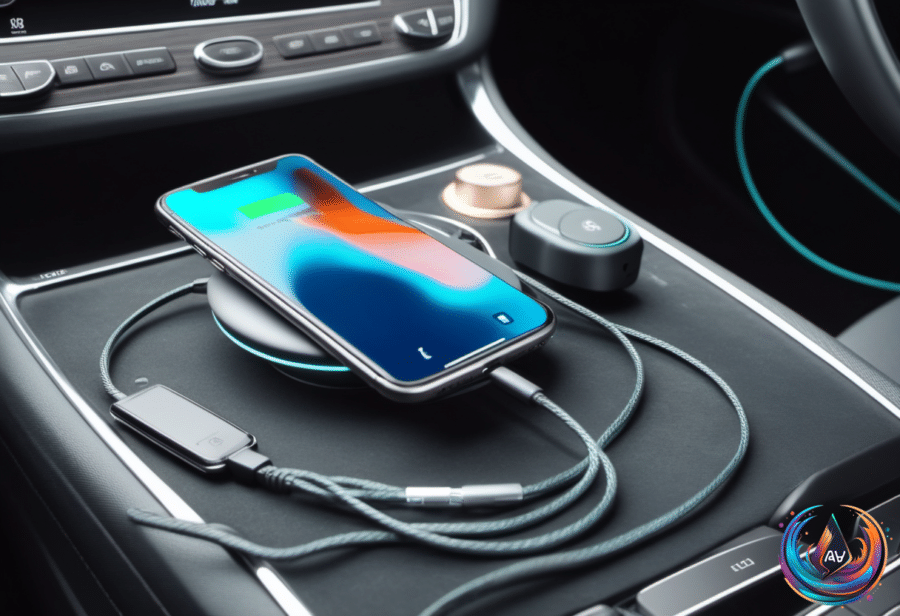
Wireless charging adds heat, and a thick or metal case can slow charging or stop it altogether, according to Google. Wireless Android Auto adds another layer: an hour can use up to 16 percent of a phone’s battery with everything turned on, while navigation and music warm the device during the drive.
The phone may then slow charging to protect itself. Bluetooth and Wi-Fi stay active for the entire wireless Android Auto session, and a phone sitting on a charging pad in direct sunlight can collect heat from the pad, dashboard, navigation, and vehicle.
Keep the phone out of direct sunlight, away from hot vehicles and poorly ventilated spots, and use a vent mount with cold air instead of a dashboard cradle in full sun. A USB connection can keep the phone cooler and charge it more effectively, though some vehicle USB ports may be too slow to prevent battery drain.
Switching from 5G to LTE can make the biggest difference to battery life, and LTE is fast enough for navigation and music. On a Samsung Galaxy, use Settings > Connections > Mobile networks > Network mode, then select LTE preferred. Offline maps and turning off 3D buildings in Google Maps can also reduce device strain during long, predictable drives.
5. Using the wrong charger, cable, or port
A 140-watt charger will not force an iPhone to pull 140W. Even the iPhone 18 Pro caps charging at 52W, while the iPhone 17, iPhone 17 Pro, and iPhone 17 Pro Max reach 50 percent in about 20 minutes with a 40W or higher adapter.
The charger still needs to meet safety standards. Apple warns that third-party chargers that fail those standards could cause injury and even death, so stick with reputable brands. The charger’s maximum wattage is not the only limit: the phone, port, and cable all decide what reaches the battery.
For iPhone 15 and later, USB-A charging is capped at 7.5W. USB-C can provide 15W without Power Delivery, while USB PD reaches 100W in the Standard Power Range and 240W with Extended Power Range. Standard USB-C cables handle 3A and reach 60W; 100W cables use an e-marked 5A design that tells the charger what the cable can handle.
On iOS 18 or later, a Slow Charger message appears on the Lock Screen and under Settings > Battery. iOS 26 also alerts you when an incompatible charger is not charging the iPhone. The message is less exciting than a new phone announcement, but it may save the battery—and your patience.
Based on
- 5 charging mistakes that could ruin your phone’s battery life — engadget.com
- Wireless Android Auto Has A Phone Battery Draining Problem, But You Can Fix It — engadget.com
- Can You Safely Use A 140w Charger On An iPhone? — engadget.com
- These Settings Can Adjust Your Samsung Phone’s Display To Your Liking — engadget.com
- These iOS Settings Will Help You Control Your Mobile Data Use — engadget.com