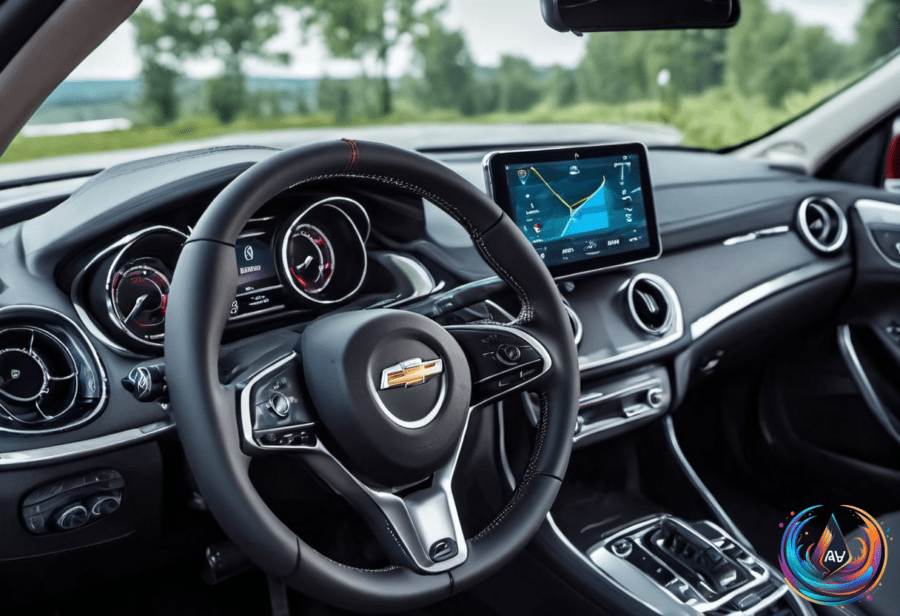
CarPlay can leave Siri silent for several unrelated reasons. The fault may sit in the iPhone settings, the CarPlay connection, or the car’s infotainment system. Screaming “HEY SIRI!” even louder isn’t fixing the problem, surprisingly.
Start by checking whether Siri responds through the normal CarPlay controls. Hold the car’s voice-command button, or press and hold the CarPlay Home button on the display. Some cars also support “Hey Siri” for voice activation, but a working button and a dead wake phrase can point to a simple limitation: the car may not support voice activation.
Apple suggests turning “Siri” or “Hey Siri” off and on, then repeating the voice-recognition setup. Siri can also be disabled when the iPhone is locked, which can block the expected response when the phone is connected to CarPlay.
Check the connection before blaming Siri
CarPlay needs more than a screen that lights up. Siri needs an internet connection to respond in CarPlay, and some VPN profiles may prevent Siri from working. CarPlay itself can also be turned off under Settings > Screen Time > Content & Privacy Restrictions > Allowed Apps.
Disconnect CarPlay and test Siri on the iPhone. If Siri works on the phone but not in the car, the connection becomes the main suspect—not the assistant. Broader CarPlay connection problems should be checked before spending time adjusting Siri settings.
Wired CarPlay gives you two immediate checks: try a different USB cable and use another USB port. Either change may resolve the problem, because a connection that looks active can still fail to carry the functions Siri needs.
Wireless CarPlay depends on both Bluetooth and Wi-Fi. Auto-Join must be turned on for the CarPlay network, so checking those settings matters before attempting more involved fixes.
When the connection remains unreliable, restart both the iPhone and the vehicle. You can also forget the car under Settings > General > CarPlay, then pair it again. It is not glamorous troubleshooting, but neither is shouting at a dashboard.
Sound settings can create a false Siri failure. If Siri responds but you cannot hear it, raise the car’s volume or enable Prefer Spoken Responses. The assistant may be answering; the vehicle may simply be keeping quiet about it.
Focus modes can change what reaches the iPhone
CarPlay troubleshooting is only part of the notification picture. Focus modes evolved from Do Not Disturb in 2021 and let users customize alerts and notifications, which can affect what reaches the iPhone during a drive.
Focus modes can be personalized with icons and colors, then shared across devices when Share Across Devices is enabled. That setup can make a chosen Focus mode follow the user from one device to another instead of staying isolated on the iPhone.
Turning on Focus Status lets contacts see when a user is in a Focus mode, but the feature is limited outside iMessage. That means visibility into the user’s notification state does not extend across every messaging service.
Focus mode does not have to block every important contact. Emergency Bypass can be enabled for specific contacts, allowing their calls or texts to ring through even when Focus mode is active.
The practical order is simple: confirm Siri works on the iPhone, check whether CarPlay is enabled, verify the connection, then review Siri and Focus settings. CarPlay is a chain of controls, networks, permissions, and vehicle hardware—one quiet link can make the whole system look broken.
Based on