How long can an HDMI cable run before the picture starts falling apart? There is no single number that answers it, because the cable, signal, and hardware at both ends all shape the result. A connection that handles one video format with ease can struggle when resolution, refresh rate, HDR, and VRR push the bandwidth higher.
That same lesson appears across home entertainment networks: extra connections can create new failure points, faster ports need compatible hardware, and troubleshooting works best when you test one part at a time. From HDMI cables to Ethernet couplers and the Nintendo Switch 2, the details matter.
HDMI Has No Universal Maximum Length
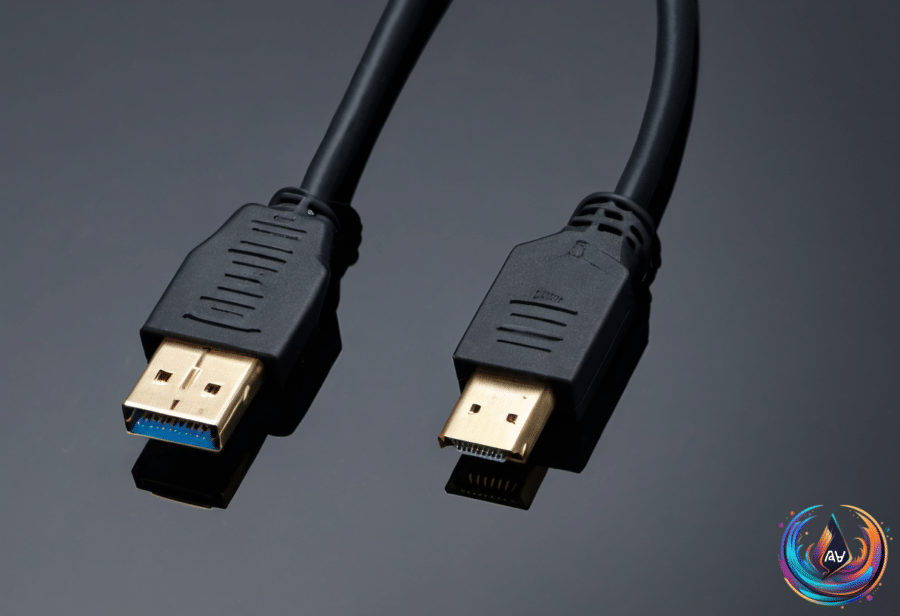
There is no official maximum HDMI cable length. HDMI Licensing Administrator does not specify one because the usable distance depends on the cable, the signal it carries, and the hardware connected at each end. The 10-, 25-, and 50-foot limits often listed online work better as guidelines than fixed boundaries.
Bandwidth is the key factor. An old DVD player does not demand much from a cable, while 4K at 120Hz with HDR and VRR sends a much heavier signal. The longer the run, the less room there is for error, and faster HDMI signals make long connections harder to maintain.
Passive HDMI cables send an electrical signal through copper, and that signal weakens along the way. There is no brick wall where a passive cable suddenly stops working, so one 25-foot cable may perform flawlessly while another begins acting up sooner. A cable that works at 1080p may not reliably handle 4K/120 at the same length, and a cable that supports 4K/60 can fail when you switch to 4K/120.
The cable categories show how much information each connection can carry. Premium High Speed cables, also called HDMI 2.0, are certified for up to 18Gbps. Ultra High Speed models, or HDMI 2.1, support up to 48Gbps for uses such as 4K/120 gaming, while the Ultra96 category, or HDMI 2.2, raises the ceiling to 96Gbps.
More bandwidth does not magically make a cable better over long distances. The more information a cable carries, the shorter its effective distance becomes. A 6-foot cable connecting a streaming box to a TV will likely fulfill its purpose for the duration of its life, but longer runs need testing before installation.
Spot Failure Before It Reaches the Wall
When an HDMI cable reaches its limit, the picture usually does not fade a little at a time like an old analog TV. Flickering, sparkling pixels, audio glitches, temporary black screens, or no picture at all are more likely. HDMI tends to go from “everything’s fine” to “why is my TV doing that?” quickly.
If a passive copper cable becomes unreliable, active copper is the next step because its electronics compensate for signal loss. Active optical HDMI converts the high-speed signal to light and can run well over 100 feet in some applications. Many active and optical HDMI cables are directional, so one end belongs at the source and the other belongs at the display; reversing them can produce a black screen even when the cable is good.
Before installing a cable permanently, test the highest resolution, refresh rate, HDR, and VRR combination you plan to use. Wall plates, couplers, switches, and AV receivers can also create trouble, so a direct source-to-display connection is a strong place to start. For an in-wall run, consider conduit and a pull string because HDMI standards change, while drywall does not welcome upgrades.
The simplest buying rule remains the most useful: choose the shortest cable that reaches comfortably, identify the category your equipment needs, and look for a certification label instead of paying extra for vague “premium” claims.
Ethernet Couplers, 2.5G Ports, and Switch 2 Connections
An Ethernet coupler is two RJ45 sockets connected together, giving you a simple way to join two Ethernet cables without an outlet, setup guide, or network certification. A quality coupler should not noticeably slow an internet connection, but it adds another connection to check when the network starts acting up.
For a permanent setup, one longer cable is usually simpler. The standard copper Ethernet channel limit is 328 feet (100 meters), including patch cords, so joining two 200-foot cables would exceed that limit. A coupler does not reset the distance limit, and a bad join can cause dropouts, transmission errors, or a link falling back to 100 Mbps instead of 1 Gbps.
Tests of Cat6 and Cat6A cables with couplers found that configurations with three couplers generally passed, although one received a marginal pass, while configurations with four couplers failed. Those tests used specific cables and couplers, so they do not establish a universal breaking point. They do show why adding more joins than necessary is a bad idea.
If you need more wired ports at the far end, a network switch makes more sense. A five-port unmanaged Gigabit switch leaves four ports available after one connects to the router, creates separate Ethernet links, and needs no configuration; basic models cost around $15, though the switch still needs power. A standard non-PoE switch will not supply Power over Ethernet, so devices requiring it need a PoE-capable switch or injector.
A standard Ethernet port typically tops out at 1 Gbps, while a 2.5G port can provide speeds of up to 2.5 Gbps. The router, connected device, and cable must all support that speed; Cat5e and newer cables can deliver 2.5Gbps, but older standards become bottlenecks. A 2.5Gbps connection can help with large file transfers, cloud backups, and NAS backups, though it will not make Netflix smoother or improve online game performance unless the network is extremely busy.
For a Nintendo Switch 2 that will not connect to a TV, Nintendo recommends powering off the TV and disconnecting every cable from the dock for about 30 seconds. Reconnect the AC adapter to the dock and wall, place the handheld fully into the dock with its screen facing forward, and check for frayed cables, a dead outlet, or an adapter that lacks the required minimum 54W.
Use the included Ultra High Speed dual-end HDMI cable, which supports 48Gbps and HDMI 2.1 connections, or another cable that supports UHS. Connect it from the dock’s HDMI-out port to an HDMI-in port on the TV, preferably HDMI 2.1, which supports up to 8K at 60Hz or 4K at 120Hz. The Switch 2 can output 4K at 60Hz or 1080p at 120Hz.
If the screen stays blank, select the matching TV input, enable settings such as gaming mode or ALLM when available, and try another UHS cable, TV port, or TV. Update the console through System Settings > System > System Update, set TV Resolution to Automatic or the TV’s matching resolution, and try Match TV Power State. If those steps fail, Nintendo support can investigate the console and dock.
Based on
- How long is too long for an HDMI cable? — engadget.com
- Why You Might Not Want To Join Two Ethernet Cables (And What You Should Do Instead) — engadget.com
- What’s The Point Of The 2.5G Ethernet Port On Your Router? — engadget.com
- What To Check If Your Nintendo Switch 2 Isn’t Connecting To The TV — engadget.com