Sonos makes some of the best smart speakers in the game, but getting a new speaker running still depends on a few important steps. The Sonos app experience has improved over the last couple of years, turning setup into a smoother path from unopened speaker to room-filling sound.
Back in 2024, the app was considered buggy. Dave Meikleham captures the change clearly: “The app experience has improved over the last couple of years.” If you are setting up a Sonos speaker for the first time, the official app is the place to begin.
Start With the Sonos App and Your Network
Before setup begins, download the Sonos app to your smartphone or tablet. The app is available through the App Store and Google Play, so both Apple and Android users can get started from their mobile device.
Once the app is downloaded, create a Sonos account. You also need to make sure the speaker and the app connect to the same network. This is one of the most important parts of the process because connection problems are most likely network-related.
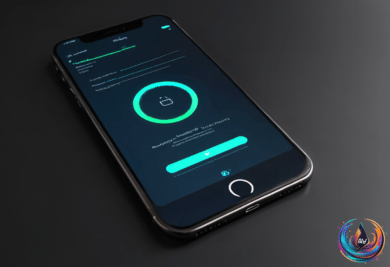
Open the app and select “Start a new Sonos system”. From there, press “Add your speaker” and follow the setup process to connect the speaker to Wi-Fi. The app then lets you assign the speaker to a room using one of 22 preset names or a custom name.
That room assignment gives the speaker a clear place in your Sonos system. It also makes it easier to recognize the speaker when you manage your setup through the app.
Expand the System and Add Services
One speaker can be the beginning of a larger Sonos system. To add more speakers, open the settings menu and choose Settings > Add Speaker or Component. This lets you build out the system after the first speaker is connected.
If you plan to use surround speakers, the speakers in that Sonos system should likely be the same model. Keeping the surround speakers matched helps maintain a consistent setup as you add more equipment.
The settings menu also lets you pair your speaker with services such as Amazon Alexa. Once the speaker is connected and assigned to a room, these additional options give you more ways to use the system.
Sound quality can improve when you spend time tweaking the speaker settings. Sonos provides settings that can change how the speaker sounds, so exploring those controls can help you shape the listening experience around your setup.
Fix the Most Common Connection Problems
When the app cannot find a speaker, check the network before assuming the speaker has failed. The speaker and the app may not be connected to the same Wi-Fi network, which is the most likely cause of connection issues.
A changed router password can also create trouble. VPNs can cause connection issues too, so both belong on the checklist when the app cannot connect to a speaker.
Apple users should grant the Sonos app permission to find devices on the network. Without that permission, the app may not be able to locate the speaker even when the network connection looks correct.
Regular software updates are recommended to prevent connection problems. Keeping the software updated gives the Sonos app and speakers a better chance of working together without interruptions.
If the app still cannot find the speaker, a reset may be necessary. Start with a reboot before moving to a factory reset, because the reboot process does not erase the speaker’s setup.
Reboot or Factory Reset the Speaker
To reboot a Sonos speaker, unplug it and wait ten seconds. Reconnect the speaker, then wait a minute for it to start again before checking the app.
If a reboot does not solve the problem, a factory reset may be needed. The reset process involves unplugging the speaker, holding the Bluetooth or Join button while powering it on, and waiting for the status light to flash green.
Older Sonos speakers require a different button step for a factory reset: hold down the Join button. That detail matters when the speaker does not include the same controls as a newer model.
With the app installed, the account created, and the speaker connected to the same network, setup becomes a clear sequence rather than a guessing game. Add the speaker, give it a room name, connect extra components when needed, and use the settings menu to refine the experience. When problems appear, check the network, permissions, updates, and reset steps before giving up on the system.