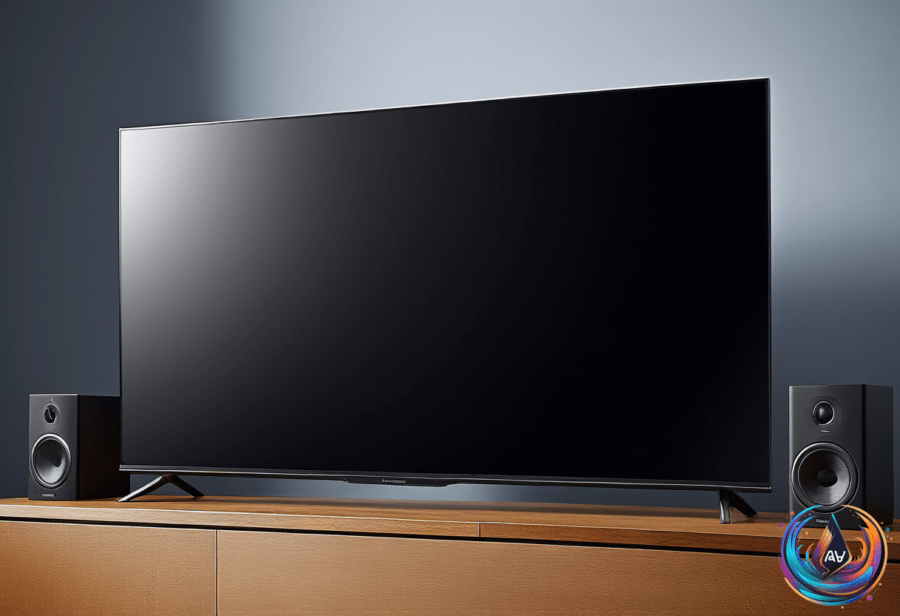
Netflix is built to choose the best audio stream your connected equipment can handle, but that does not always mean the sound will seem clear. A television may claim to support surround sound while using only basic speakers, and an external sound system can create problems when its settings do not match the rest of the setup.
Small changes can fix many common issues, from muffled voices to weak volume. The same idea applies to iPhone audio: the right app settings, accessibility controls, headphones, and hardware can make a clear difference.
Fixing Netflix Audio on a TV
When a setup supports surround sound, Netflix sends a 5.1 or Dolby Atmos track instead of standard stereo. That can improve the listening experience when the television or connected sound system handles those formats correctly. But surround sound is not always the best choice for every setup, especially when a TV uses basic built-in speakers.
Many smart TVs say they can push surround sound even though their speakers do not deliver the same result as a dedicated audio system. External sound systems such as soundbars can also produce subpar sound when they are not configured correctly. In these cases, voices may sound muffled, quiet, or harder to understand.
The simplest fix is to open the Netflix audio menu and switch from the surround track to the standard track. This change can restore clearer voices without changing the entire television setup. “This simple menu tweak restores crisp, clear voices,” Gabriela Vătu wrote.
Netflix saves the audio preference after you change it. As the Netflix article explains, “Netflix remembers your preference moving forward, so doing this once should fix any potential issues moving forward too.” That means you should not need to repeat the change every time you watch.
Hardware can also affect the signal. A loose or damaged HDMI cable may distort or weaken Netflix audio, so using a different HDMI cable can resolve the problem. Bypassing external audio devices can help as well, especially when the television produces clearer sound on its own.
Outdated firmware on a streaming device or television may mishandle audio processing. If the audio problem continues after changing the track or cable, the connected equipment remains part of the setup to check. The important point is that Netflix may already be sending the best stream the device supports, while the equipment determines how that stream sounds.
Getting Better Netflix Audio Quality
Netflix settings can also affect the quality of the stream. Increasing playback quality within Netflix settings allows the service to send higher audio bitrates. The stream can reach up to 640 kbps for 5.1 audio and 768 kbps for Atmos.
Those formats require compatible equipment, and high-fidelity spatial audio and Dolby Atmos require the Netflix Premium tier. A higher setting alone cannot turn basic speakers into a surround system, but it can provide the available audio quality when the rest of the setup supports it.
For many viewers, clear speech matters more than a surround format. Switching to standard audio can be the better choice when voices sound low or muffled, while 5.1 or Atmos makes sense when the connected equipment handles those tracks properly.
Improving Audio on an iPhone
iPhone audio quality depends on more than the phone itself. Major streaming apps such as Apple Music and Spotify include settings for mobile data, Wi-Fi, and downloads, giving users ways to adjust audio quality for different listening situations.
Apple Music includes EQ controls under Settings > Apps > Music. Users can choose from preset types rather than leaving the sound unchanged. Spotify places its EQ controls under Profile > Settings and privacy > Playback, where users can enable and customize the equalizer.
Lossless audio preserves all the original data and produces crisp sound equivalent to CD quality. Apple Music and Spotify Premium offer lossless audio, but the benefit depends on the rest of the listening setup. As the iPhone article puts it, “Lossless is only worthwhile if you have high-quality wired headphones.”
Bluetooth does not support lossless audio, which limits wireless lossless playback unless it is paired with specific devices such as Apple Vision Pro. A good DAC can help carry the quality of lossless audio on Apple Music, while high-quality wired headphones let listeners hear more of what the format preserves.
iPhone accessibility settings provide more ways to adjust sound. These include Phone Noise Cancellation, Balance adjustment, and Headphone Accommodations. Phone Noise Cancellation is available only on iPhone 12 and earlier.
Headphone Accommodations can improve clarity for supported headphones through controls for Frequencies and Soft sounds. These options can help shape the sound to make speech or other audio easier to hear without changing the source file itself.
There is one simple hardware check that costs nothing: keep the iPhone speakers unclogged and clean. Blocked speakers can reduce sound quality, so keeping them clear supports better audio from the phone.
The best result comes from matching the audio format to the equipment. On Netflix, standard audio may beat surround sound through basic speakers, while a compatible setup can take advantage of 5.1 or Atmos. On an iPhone, app settings, supported headphones, a DAC, and clean speakers all play a role in turning available audio quality into sound you can actually hear.
Based on