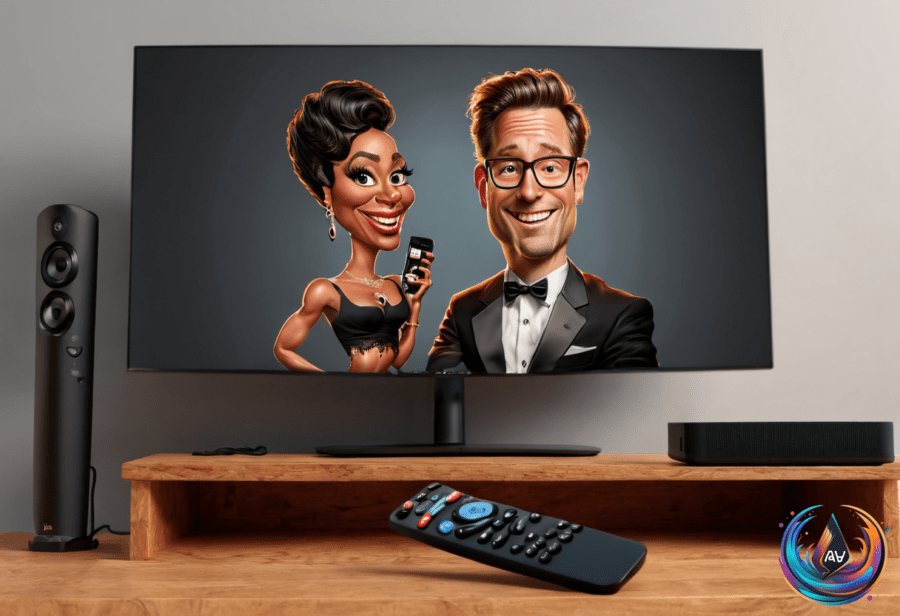
Remote trouble has a short repair path. If the Apple TV remote stops responding, you can restart it, reset it, check its battery, or pair it again without reaching for a replacement. The correct steps depend on whether you have a Siri Remote or an older aluminum or white remote.
Resetting and restarting the remote
For a first-generation or later Siri Remote, unplug the Apple TV for at least six seconds. Then press and hold the TV/Control Center and Volume Down buttons for five seconds, and wait for a disconnect message to appear.
You can also restart the remote by holding the TV/Control Center and Volume Down buttons for about five seconds. The Apple TV status light should flicker off and on, confirming that the restart happened.
Older aluminum and white Apple TV remotes use a different button sequence. Point the remote at the TV, then press and hold Menu and Home for six seconds; when the status light starts blinking, press and hold Menu and Right for six seconds to reset it.
That sequence is easy to confuse with pairing, because Apple has given several generations of remotes their own small rituals. The buttons are not interchangeable, so identify the remote before pressing everything in sight.
Pairing, batteries, and signal problems
To re-pair a remote, point it at the Apple TV from about three inches away. Press and hold the Back button or Menu alongside Volume Up for five seconds, and position the remote on top of the Apple TV if pairing does not complete from a normal distance.
If re-pairing fails at first, unplug the Apple TV, wait up to 10 seconds, and plug it back in. Then repeat the pairing steps; sometimes the box needs a full power cycle before it accepts the remote again. Technology remains committed to making “turn it off and on” sound like a strategy.
Battery trouble can look like a failed connection. Check the charge by opening Settings, selecting Remote and Devices, choosing Remote, and then opening Battery Level.
Older Apple TV remotes use replaceable batteries. Remove the battery cover with a coin on aluminum models or with a paperclip on white models; newer remotes have a built-in rechargeable battery, so recharge them instead of opening the casing.
The Apple TV itself can also need a restart. Open Settings, choose System, and select Restart.
Bluetooth signal strength can weaken when the remote sits too far from the Apple TV or when objects block the connection. Move closer to the Apple TV and remove obstructions before treating the remote as defective.
When a factory reset makes sense
A full factory reset wipes all settings, content, downloaded apps, and personal account information from the Apple TV. Use it only when ordinary restarting, resetting, pairing, and signal checks fail, because this option removes more than the remote connection.
After the reset, the Apple TV will no longer retain the settings, content, apps, or personal account information stored on it. That is a clean slate, not a gentle nudge.
Use an iPhone or iPad instead
An iPhone or iPad can serve as the Apple TV remote when the physical remote remains uncooperative. Pull down from the top right of the device to open Control Center, then select the remote icon.
This gives you another way to control the Apple TV while you troubleshoot the original remote. It also keeps the problem contained to the accessory rather than leaving you without access to the system.
Resetting an iPhone used for troubleshooting
If the iPhone itself causes trouble, Apple provides three reset options: a restart, a soft reset, and a hard reset. They do not erase the same information, so choose the option that matches the problem.
For a restart, press and quickly release the volume up button, then press and quickly release the volume down button. Hold the side button until the Apple logo appears.
A soft reset keeps your content but resets settings. Go to Settings > General > Transfer or Reset iPhone > Reset > Reset All Settings.
A hard reset erases the device. Go to Settings > General > Transfer or Reset iPhone > Erase All Content and Settings, then enter the passcode and Apple password.
For additional help, you can connect with Apple support. Start with the least destructive fix—restart, check the battery, improve the Bluetooth position, and pair the remote again—before wiping anything.
Based on