One UI is not leaving your Samsung phone. Samsung’s custom software is a staple feature across its phones and tablets, and you cannot remove it completely. You can, however, make it far less visible without switching phones or treating your handset like a weekend software project.
The confusion starts with the launcher. The launcher controls the look of the home screen, so that is often the part people actually want to change. One UI covers much more than that, though: it includes features and pre-installed apps that affect nearly every part of the phone, meaning some pieces will always be running in the background.
Replace the launcher and hide the clutter
Installing a new launcher is the closest thing to giving One UI a new front end. Launchers download from the Play Store like any other app, and Niagara Launcher and Smart Launcher are among the most popular third-party choices for Android.
After downloading one, open the Settings app, tap Apps, then Choose default apps. Select the new launcher under Home app, and it will control the home screen instead of Samsung’s default launcher. This changes the most visible layer of the interface while leaving the underlying One UI software in place — a compromise, but a useful one.
Samsung also offers Good Lock, its own customization suite for phones running One UI. Good Lock is not a full replacement launcher, but it provides a large set of settings that can reshape the home screen and other parts of the interface. The official app can be downloaded from the Play Store.
Good Lock includes add-ons such as Theme Park, which lets you change the colors of individual keys, notifications and Quick Panel switches, including the control for turning on Airplane Mode. Home Up adds stickers, flexible placement for apps and widgets, custom gesture animations, and control over speed and vibration.
Good Lock also includes one-handed operation features that support diagonal swipes for tasks such as opening Recent Apps or returning to the Home screen. It is not a clean escape from One UI, but it gives you control over enough details to make Samsung’s design feel less permanent.
Customize icons, colors and pre-installed apps
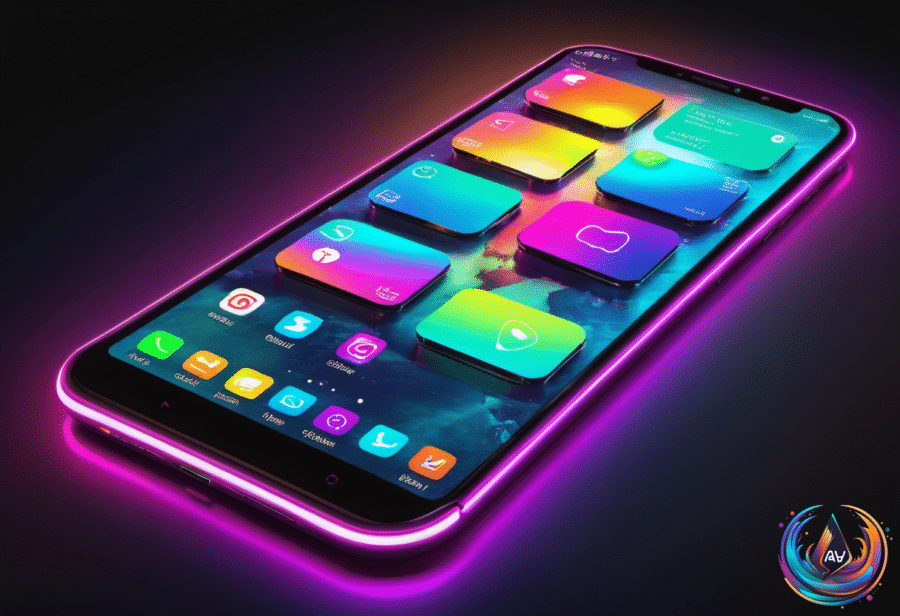
Samsung’s Themes app handles another layer of the makeover. On the Home screen, hold an empty area and tap Themes, then download the options you want. Press Menu, open My stuff, choose Icons or Themes, select your preferred option and tap Apply.
Themes can change the color scheme of system apps such as Contacts, Settings and Messages, while the Quick Panel gains a matching splash of color. You cannot use your own images as app icons, but the Icons section offers plenty of downloadable alternatives. If your Galaxy device runs One UI 9, the redesigned Quick Panel opens by swiping down from the top-right corner.
You can also alter the broader interface through Settings. Open Wallpaper and style, tap Color palette, turn on the switch, then choose from Wallpaper colors or Basic colors. Tap Apply, and the selected color appears across the interface, from menu switches to buttons in system apps. The palette may not affect every app icon, but it can change most icon colors without requiring a completely different theme.
Pre-installed apps are harder to defeat. One UI includes apps for basic functions ranging from health tracking to a digital wallet, and most are system apps that cannot be deleted completely. You can hide them through Settings, Home screen, then Hide apps on Home and Apps screen, keeping unused icons out of sight.
Some apps, such as Notes, allow a full uninstall. If an app has no uninstall option, tap the three dots in the top-right corner and choose Uninstall updates. The app remains on the phone, but it takes up less storage space — not a purge, exactly, but less baggage.
The practical answer is simple: you cannot remove One UI from a Samsung phone. Replace the launcher, hide unwanted apps, use Themes and Color palette, and explore Good Lock if you want deeper control. You will not erase Samsung’s software, but you can decide how much of it gets in your way.
Based on
- Can you completely remove One UI from a Samsung phone? — engadget.com
- How To Change And Customize Your App Icons On Samsung Galaxy — engadget.com
- 10 Things You Should Never Do On Your Android Phone — engadget.com
- The Pros And Cons Of Using A Dumb Phone Over A Smartphone In 2026 — engadget.com
- Why Does Your Phone Say No Service Even With A SIM Card? — engadget.com