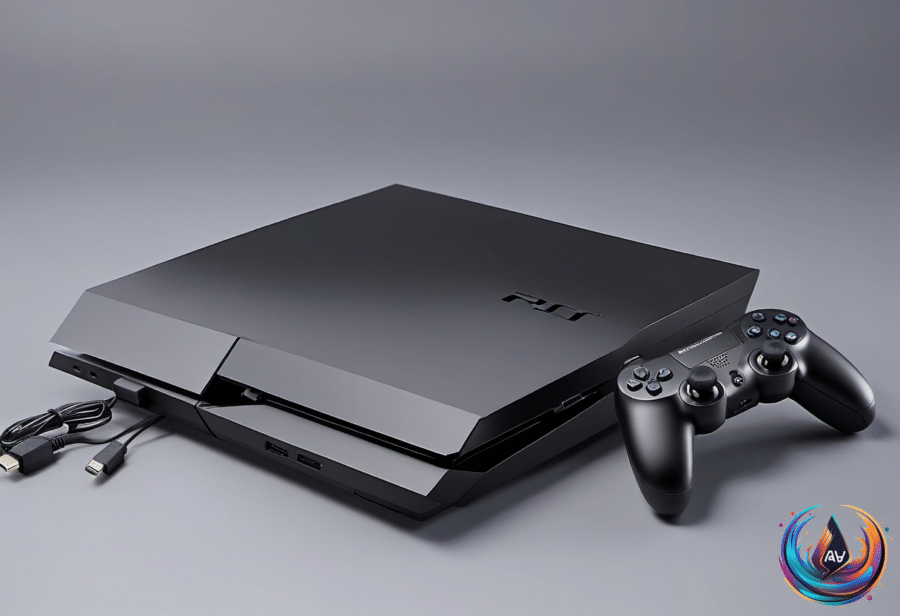
Grand Theft Auto VI is almost here, and the PlayStation 5 version is expected to put the console through its paces. Judging by the trailers, photos, and Rockstar Games’ past catalog, GTA 6 is set to be one of the most demanding and best-looking entries in the series.
That makes now a good time to check your PS5 settings before heading into Leonida. A few changes can help your TV handle motion, HDR, and sound, while a storage check may save you from spending launch day waiting for downloads.
Set up your picture and sound
Start with VRR, or variable refresh rate. This lets your TV change its refresh rate to match the frames your PS5 produces. In a game as large as GTA 6, frame rates may not stay flat, so VRR can help motion look smoother during a busy chase or on a crowded street.
Your TV must support VRR, which usually requires HDMI 2.1. On the PS5, go to Settings > Screen and Video > Video Output > VRR. In the same menu, turn on Apply to Unsupported Games. Sony says this can stabilize frame rates in games that do not support VRR on their own. If the game or display acts up, turn VRR off again.
While you are in that menu, check ALLM, or auto low-latency mode. A supported TV can switch into its low-latency game mode when needed, and Sony says it does this when you use VRR even if ALLM is set to Off.
Next, turn on 120 Hz Output at Settings > Screen and Video > Video Output > 120 Hz Output. Connect the PS5 to an HDMI 2.1 input, since not every HDMI port on a TV supports a 120Hz signal. Even if GTA 6 runs at 30 frames per second on consoles, this setting still helps keep frame pacing even because 30fps fits into a 120Hz signal exactly, with each frame held for four refreshes.
HDR deserves a calibration check too. First, enable HDR for the HDMI input your PS5 uses. Then go to Settings > Screen and Video > Video Output > HDR. Sony says Always On converts games and apps without HDR support to HDR output, while On When Supported displays them in standard dynamic range.
Either option works, but the key step is Adjust HDR. Go to Settings > Screen and Video > Video Output > Adjust HDR and follow the prompts. If your TV has an HGIG mode, turn it on so the TV does not apply its own tone mapping on top of the console’s. Run the calibration in the room where you usually play, and you only need to do it once.
For sound, connect headphones and open Settings > Sound > 3D Audio (Headphones). Choose Create Personalized 3D Audio Profile, then listen to sounds from different positions and answer where each sound seems to come from. After creating the profile, turn on Apply Personalized 3D Audio Profile. Sony also offers five presets if you want to skip the profile process.
Make room before the download
GTA 6 is expected to require a 210GB download on PlayStation 5. That figure is 61GB more than the 149GB of free space Red Dead Redemption 2 needed on PS4 in 2018, and it is more than half of the approximately 362GB of usable storage in a standard 512GB Xbox Series S.
The 210GB figure may not represent every bit of space required. Installers need temporary room on the hard drive, and a day-one patch could add to the wait. PlayStation Game Size said preloading will begin on November 12, ahead of the November 19 release, so clearing space before then is a smart move.
An M.2 SSD offers the best long-term storage solution. You can also connect an external SSD or HDD, but PS5 games cannot run directly from an external drive. You can move them there for storage and move them back when you want to play. PS4 games can run from external storage.
For game storage, the drive must support at least USB 5 Gbps, also called USB 3.0, and hold between 250GB and 8TB. You can use only one external drive at a time, and it cannot connect through a USB hub. With the drive connected, go to Settings > Storage > USB Extended Storage > Format as USB Extended Storage. Formatting erases existing data.
Choose the right PS5 hardware
GTA 6 may demand every bit of power from a PS5, even the PlayStation 5 Pro. That does not make the Pro an obvious purchase for this game. The PS5 Pro launched at $700 in 2024, and the answer today, less than a month before the November 19 release, is no if GTA 6 is your only reason to buy one.
Your PS5’s USB ports can also matter when you prepare. All PS5 versions have two 10 Gbps USB-A ports on the rear. The original PS5 has one USB-A 2.0 port and one 10 Gbps USB-C port, while the PS5 Slim and PS5 Pro use USB-C for the front USB 2.0 port. Avoid the slower USB 2.0 port for external storage.
The ports also support DualSense charging and pairing, headsets, racing wheels, fight sticks, keyboards, mice, and other accessories. PlayStation VR2 uses one USB-C cable in the fast front port, which is the bottom port on Slim and Pro consoles. The original PS VR works on PS5 with the PS4 camera and an adapter, but Sony stopped giving away those adapters in 2024.
If you charge a DualSense in Rest Mode, go to Settings > System > Power Saving > Features Available in Rest Mode. Choose 3 Hours to shut off the ports after that time. On the PS5 Slim and Pro, choose Adaptive to stop supplying power when the controller is charged. Choosing Always wastes energy after charging ends.
One final option is backing up your PS5. Connect a FAT32- or exFAT-formatted drive that is not set up for games, then go to Settings > System > System Software > Back Up and Restore > Back Up Your PS5. This process is all-or-nothing, excludes trophies and M.2 storage, and does not let you select individual games. Individual PS4 save data can be backed up under Settings > Saved Data and Game/App Settings > Saved Data (PS4).
Based on