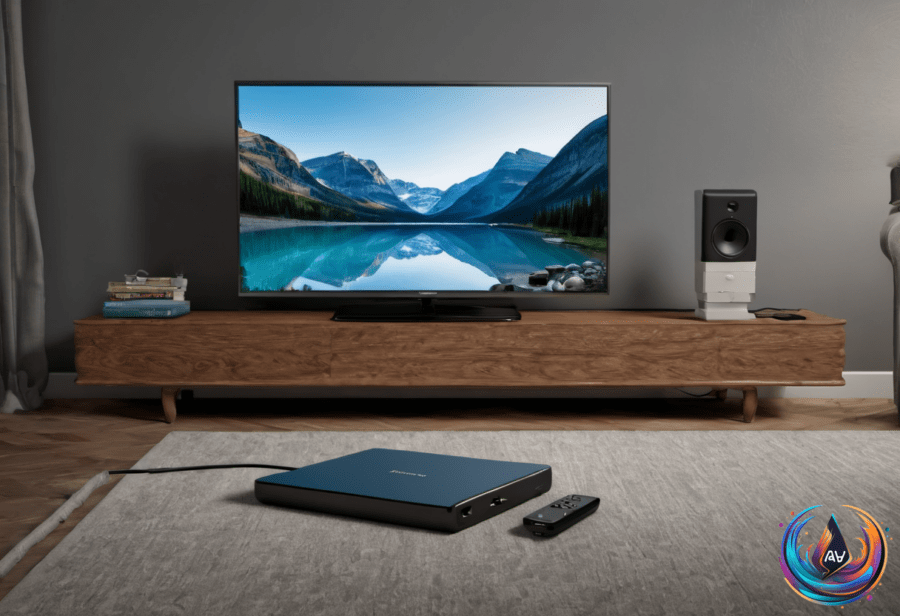
A power rule can turn your Roku off. The device line includes a feature called auto power saving, and its default behavior can look like a fault when the screen suddenly goes dark.
With auto power saving enabled, a supported Roku enters low power mode after 20 minutes of no interaction. Once it enters that mode, Roku attempts to turn off the connected TV. Nothing is broken by default; the device is following a setting that treats inactivity as a reason to reduce power.
That distinction matters because the Roku and the TV are connected. The Roku changes its own power state, then attempts to turn off the television connected to it. If the TV appears to be switching off after a stretch without interaction, auto power saving is the first setting to check.
Turn Off Auto Power Saving
Roku puts the control in its settings menu. On the Roku device, go to Settings > Power > Auto power savings, then uncheck “After 20 minutes of no interaction”.
That removes the specific 20-minute inactivity rule. The setting is not hidden behind a separate troubleshooting tool, and the fix does not require changing HDMI connections, replacing remote batteries, or checking the TV’s own power options first. One unchecked box may end the mystery — technology occasionally permits this.
Auto power saving is supported on specific Roku models. The list includes Roku Express 4K, model 3940, and Roku Express 4K+, model 3941, along with Roku Streaming Stick 4K, model 3820, and Roku Streaming Stick 4K+, model 3821.
It also includes Roku 4, model 4400; Roku Ultra, models 4800, 4802 and 4850; and Roku Ultra LT, model 4801. If the device matches one of these models, the auto power saving setting is a direct explanation for a shutdown that follows 20 minutes without interaction.
If the Roku Still Turns Off
If the device continues to turn off after you uncheck “After 20 minutes of no interaction,” check the other parts of the setup. The troubleshooting steps are straightforward: check the power sources, inspect the HDMI connections, check the remote batteries, and review the TV’s power-saving features.
Start with the power sources. A Roku that continues turning off after its auto power saving rule is disabled may require a closer look at how it receives power. Checking the power source separates the setting-based behavior from a power issue without changing several other parts of the setup at once.
Next, check the HDMI connections between the Roku and the connected TV. A loose or uncertain connection can make the setup behave in ways that resemble a power problem, so confirming the HDMI connection belongs near the top of the checklist.
The remote batteries also deserve attention. Check them before treating the Roku or TV as defective, because the troubleshooting guidance specifically includes remote batteries among the possible causes to review.
Then check the TV’s power-saving features. Roku’s auto power saving setting is one power control, but the television has its own power-saving features, and those settings can affect what happens after the Roku enters low power mode.
HDMI-CEC settings may also cause the issue. To identify whether they are involved, unplug HDMI devices one by one and watch for a change in the behavior. Removing devices individually gives you a way to isolate the connection that may be triggering the shutdown instead of turning the entire setup into a guessing game.
The cleanest first move remains the same: open Settings > Power > Auto power savings and uncheck “After 20 minutes of no interaction”. If the Roku still turns off, work through power sources, HDMI connections, remote batteries, TV power-saving features, and HDMI-CEC by unplugging HDMI devices one by one.