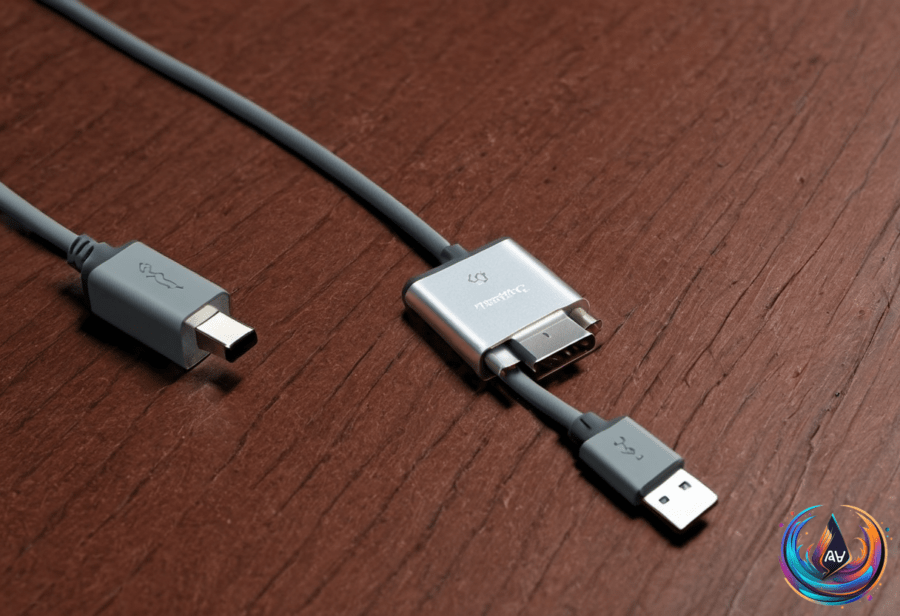
An iPad that refuses to charge usually points to one of three areas: the cable, the charger, or the device’s hardware. The problem may be simple, such as dirt blocking the charging port, but visible port damage can also stop power from reaching the battery.
Start with the charger and cable. Apple recommends using the official first-party charger or a high-quality fast charger rated at least 10W for iPad charging. If the iPad still refuses to charge with suitable charging equipment, the charging port becomes the next place to inspect.
Check the Cable, Charger, and Charging Port
A damaged or blocked charging port can interrupt the connection. One warning sign is a charging icon that fluctuates instead of staying steady. Scratched or bent pins inside the port can also point to damage, while discoloration may signal that the port needs attention.
Dirt buildup can interfere with charging even when the port does not look badly damaged. Clean the opening with soft bristles, and avoid metallic objects or cotton swabs. Those materials can damage the port or leave more debris behind, turning a small blockage into a larger charging problem.
If the port shows scratched or bent pins, discoloration, or a charging icon that keeps changing, Apple may repair it for free. That option applies when the iPad remains under warranty and Apple decides the damage counts as a manufacturing defect.
That warranty decision matters. A damaged port does not automatically qualify for a free repair, since Apple must determine whether the problem came from a manufacturing defect.
Could iOS 27 Be Affecting Battery Behavior?
Charging trouble can also feel different after a major software update. Apple released iOS 27 to qualifying devices on September 25, 2026, and major iOS updates can affect battery life and thermal performance for a short time.
After the update, background processes such as indexing and app updates can increase battery drain temporarily. That may make an iPhone or iPad seem to lose power faster, even when the charger and charging port work as expected.
Apple describes the change this way: “Immediately after completing an update, particularly a major release, you might notice a temporary impact on battery life and thermal performance.” The company also recommends not charging an iPhone or iPad to 100% during the initial days after a major update to help prolong battery life.
Charging conditions matter too. Apple advises that temperatures between 32°F to 95°F are optimal for safe charging conditions. This guidance applies when charging an iPhone or iPad, so temperature belongs on the checklist when battery behavior changes after an update.
Where MagSafe Fits In
MagSafe adds another layer to Apple’s charging story, but it does not replace the basic iPad checks above. The technology began in 2006, when Apple introduced it as a magnetic power connector for the MacBook Pro. Apple replaced it with USB-C in 2015, then brought MagSafe back to MacBooks.
On a MacBook, MagSafe is a proprietary charging standard. Magnets snap the cable into place, which reduces the risk of yanking the laptop off a desk. As Adnan Ahmed put it, “Charging your MacBook becomes as simple as bringing the MagSafe connector close to the charging port and letting the magnets snap it into place.”
USB-C serves a broader purpose because one cable can charge all devices and connect peripherals. MagSafe remains proprietary to MacBooks in that form, so the two systems are not interchangeable versions of the same connector.
MagSafe on iPhones works differently. It is a wireless charging system rather than the magnetic cable connector used by MacBooks. “MagSafe on the iPhone is a very different implementation from the connector that MacBooks use. For one, it’s completely wireless,” Ahmed said.
MagSafe charging peaks at 15W on the iPhone 17e and iPhone 15, while newer iPhone models can charge wirelessly at up to 25W. The iPhone 18 Pro can charge faster, reaching up to 60W with a compatible USB-C cable and charger.
Apple does not bundle MagSafe chargers with iPhones, so buyers must purchase them separately. MagSafe accessories include magnetic wallets, phone stands, and car mounts, which explains why the system is more than a charging method for iPhone users.
A Practical Order for Finding the Problem
For an iPad that will not charge, check the cable and charger first, using an official charger or a high-quality fast charger rated at least 10W. Next, inspect the port for dirt, fluctuating charging behavior, scratched or bent pins, and discoloration.
Clean dirt with soft bristles, not metallic objects or cotton swabs. If the issue began after iOS 27, allow for temporary battery drain from indexing and app updates, and follow Apple’s guidance about avoiding a 100% charge during the initial days after the update.
When the port shows signs of physical damage, warranty coverage may provide a path to a free Apple repair if the damage qualifies as a manufacturing defect. The key is separating a blocked port, unsuitable charging equipment, temporary post-update battery behavior, and a hardware fault.
Based on