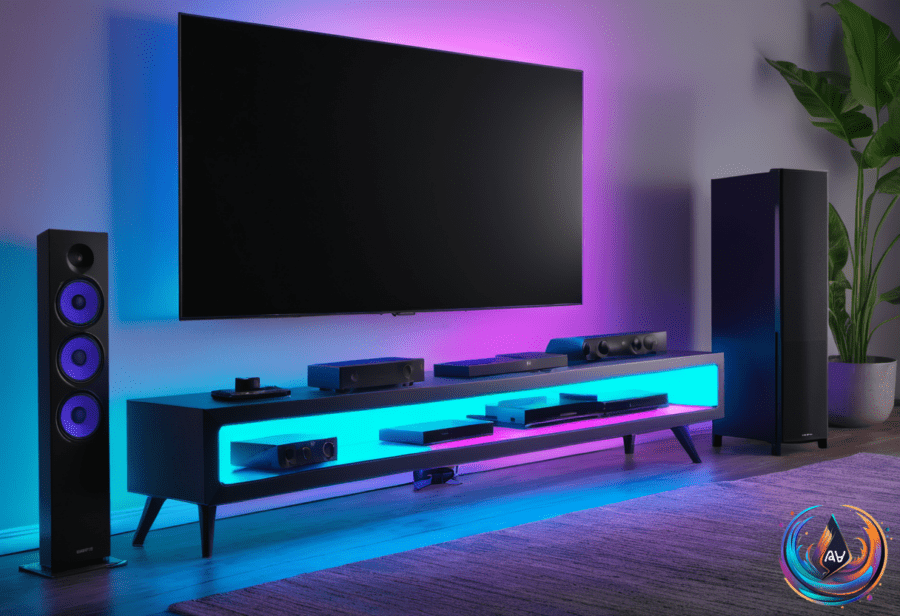
HDMI-CEC can make a Samsung TV and its connected devices feel like one entertainment system instead of a collection of separate boxes. Samsung calls its HDMI-CEC feature Anynet+, and it can reduce the need for multiple remotes and manual input switching.
Most Samsung smart TVs made after 2008 support HDMI-CEC. Anynet+ is usually active by default on newer Samsung TVs, but checking the setting can help when connected devices do not respond as expected. As Husain Parvez puts it, “HDMI-CEC makes all the devices connected to your Samsung TV work together more efficiently, with a few quirks to know.”
How to turn on Anynet+ on a Samsung TV
On newer Samsung TVs, press the Home button on the remote. Then open Settings > All Settings > Connection > External Device Manager and turn on Anynet+.
If your TV does not show a Connection menu, look under Settings > General > External Device Manager. The setting has a different path on those TVs, but the feature still uses the Anynet+ name.
Turning on Anynet+ allows compatible connected devices to communicate with the TV. Once the connection is established, the TV remote can control those devices, and the TV can switch inputs when a device reports that it has turned on.
There is one timing detail to remember. Samsung states that the first HDMI-CEC handshake can take up to two minutes to establish, so the feature may not respond at once after setup.
Check the connected device, not just the TV
CEC only works properly when the connected device supports HDMI-CEC and has its own CEC setting enabled. Manufacturers use different names for the same type of feature: LG calls it SIMPLINK, while Sony uses BRAVIA Sync or Control for HDMI.
On a PS5, open Settings > System > HDMI > Enable HDMI Device Link. The device must also be turned on or placed in standby mode for CEC to work. A device that is fully off may not respond to the TV.
When the setup works, turning on a compatible device can make the TV switch to that HDMI source. Turning the device off or putting it into sleep mode can turn off the TV or place it in standby. If HDMI-CEC is disabled, turning on a game console will no longer wake the display.
Anynet+ can control up to 12 compatible devices, including up to three devices of the same type. The setup can control only one home theater system, so the number of connected products does not mean every device will share every function.
What to do when Anynet+ behaves strangely
HDMI-CEC does not always behave the same way across manufacturers and devices. Compatibility varies, and faulty or unexpected CEC commands can cause unwanted input changes. The setting deserves attention if the TV turns on by itself, switches inputs unexpectedly, or stops controlling other connected units.
Start by checking that CEC is enabled on both the Samsung TV and the connected device. Then reseat the HDMI cable or replace it, restart the hardware, and install available firmware updates. These steps address the TV, the connection, and the devices involved instead of focusing on only one part of the setup.
Disabling HDMI-CEC on a device can help prevent unwanted shutdowns, but it can also create problems with audio devices such as soundbars or receivers. That trade-off matters if the TV, a console, and an audio system are meant to work together.
HDMI-CEC also matters for HDMI eARC, which can work only when Anynet+ is enabled. If eARC is not working, checking Anynet+ is part of the basic setup review.
The goal is simple: let compatible equipment share control, automatic input switching, and standby behavior through the HDMI connection. When a device or cable causes trouble, turning off CEC may stop one unwanted action, but it can remove useful control from the rest of the system.