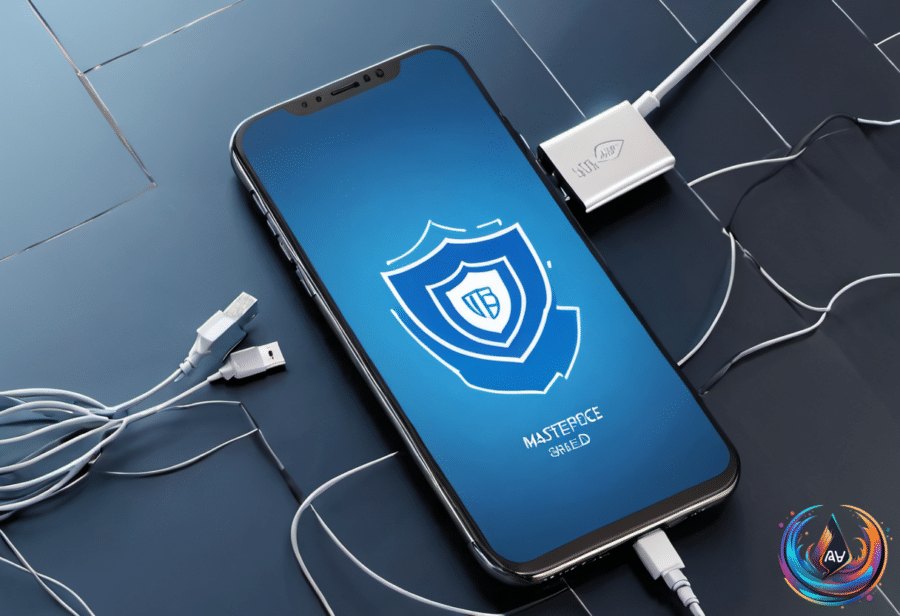
Galaxy security begins with app control. Samsung’s Auto Blocker is a built-in security feature for Galaxy devices running One UI 6 or higher, and it targets more than questionable app installs. It filters apps, USB commands, and messages that could put a device at risk.
Auto Blocker ships enabled by default on devices with One UI 6.1.1 or later. Samsung recommends keeping it on, and for most users, that’s sound advice—because downloading an app should not require treating every file like a tiny security investigation.
Auto Blocker Covers More Than App Downloads
The feature blocks app installations from outside the Google Play Store or Samsung’s Galaxy Store. That closes off a common route for untrusted software, although users who rely on apps from other sources will find the restriction less convenient.
Auto Blocker also blocks malicious commands sent through a USB cable. That matters because a cable can carry more than power, and the feature treats suspicious commands as a threat rather than waiting for the device to sort out the mess later.
Messages receive protection too. Auto Blocker filters images suspected of containing malicious code in Samsung Messages, Google Messages, Messenger, WhatsApp, and Telegram. The feature does not merely watch the app store; it also checks parts of everyday communication where harmful content can arrive disguised as something ordinary.
Samsung offers a “Maximum restrictions” mode for people who want extra safeguards. Auto Blocker keeps threats at bay, but it can also get in your way.
Users can turn the feature off through Settings > Security and privacy > Auto Blocker, then tapping the toggle. On phones running One UI 8.5 or later, another option can turn Auto Blocker back on 30 minutes after it is disabled—a useful safety net for anyone who forgets that temporary exceptions have a habit of becoming permanent settings.
Secure Folder Replaces Basic App Locking
Samsung phased out its basic app lock option in favor of Secure Folder, a more robust system built on Samsung Knox. Secure Folder creates an entirely separate, encrypted space on the phone, giving sensitive apps a stronger boundary than a simple lock screen prompt.
Apps placed inside Secure Folder run as isolated copies with their own data and sign-ins. They remain inaccessible until authentication unlocks the folder, so the protected version of an app does not simply share its ordinary data with the rest of the phone.
Setting it up requires opening Settings > Security and privacy > More security settings > Secure Folder, signing in with a Samsung Account, choosing a lock type, and selecting the apps to add. The Secure Folder icon can also be hidden from the home screen.
Hidden apps inside Secure Folder do not continue working in the background or create notifications. That gives users control over both access and visibility, rather than leaving protected apps quietly announcing themselves through alerts.
Samsung Galaxy phones also offer app pinning for quick restrictions without full encryption. To enable it, open Settings > Security and privacy > More security settings and turn on Allow apps to be pinned.
To pin an app, tap the Recents button or swipe up and hold, then select Pin this app or Pin to screen. To unpin it, hold the Recents and Back buttons at the same time.
Pinning does not encrypt anything, so it is not suitable for financial or private apps. Secure Folder’s Knox-backed encryption is the stronger choice for sensitive apps; app pinning is better treated as a temporary boundary, not a vault.
Separate from these settings, Epic Games filed a lawsuit against Samsung and Google in 2024. The lawsuit was dropped after Epic reached an agreement with Samsung, leaving Auto Blocker and Secure Folder as Samsung’s practical answers for controlling app access and device threats.
Based on