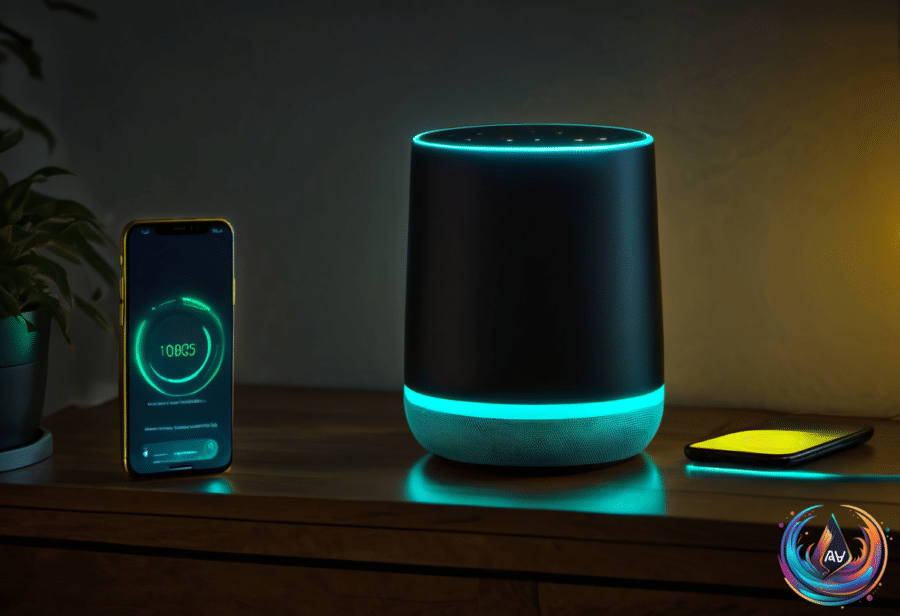
That yellow light on an Amazon Echo is not random, and it is not a sign that the device has stopped working. A yellow light emanating in slow bursts every few seconds means Alexa has a message or notification waiting to share with you.
The fix is simple: ask Alexa about your notifications or messages, then follow the response. If you want more control, the Alexa app gives you settings for reminders, Skills notifications, and camera alerts, so you can decide what reaches the device.
What Alexa’s Yellow Light Means
Alexa’s yellow notification system was introduced in 2017. When the light pulses in slow bursts every few seconds, the device has a notification or message ready for you. The light acts as a visual prompt, turning an unseen update into something you can address with a voice command.
You can clear the yellow notification by asking Alexa about your notifications or messages. This keeps the process focused on the device itself, with no need to search through multiple app screens before finding the alert.
You can also say, “Alexa, learn my voice” to the same effect. The voice command gives you another way to interact with the device when the yellow light appears.
Alexa devices use nine different color notifications, so the color matters. Yellow points to a message or notification, but other colors signal different device states.
How to Manage Notifications in the Alexa App
The Alexa app provides a central place to manage notification settings. Open the app and navigate to Settings > Notifications. From there, you can review the notification controls available for the device.
Reminders have their own setting. To clear a reminder notification by voice, ask Alexa, “What are my reminders?” You can change reminder notification settings in the Alexa app under Notifications > Reminders on this Device.
Alexa Skills notifications use a separate path. To edit those settings, navigate through More > Skills & Games > Your Skills > Settings > Manage Account Permissions. That route lets you manage the notification permissions connected to Alexa Skills.
Camera alerts also have their own controls in the app. Select Devices, choose your connected camera, and toggle Person or Package Detection Announcements. This gives you a direct way to manage those announcements instead of treating every alert as one general notification.
- General notifications: Open Settings > Notifications.
- Reminders: Use Notifications > Reminders on this Device.
- Skills notifications: Go to More > Skills & Games > Your Skills > Settings > Manage Account Permissions.
- Camera alerts: Select Devices, choose the connected camera, and toggle Person or Package Detection Announcements.
What Alexa’s Other Light Colors Signal
The yellow light is only one part of Alexa’s color system. Other colors tell you what the device is doing or which function needs attention, giving you a quick visual way to understand its current state.
- Cyan light: Alexa is listening and processing a request.
- Teal-blue light: Alexa is waiting for a command.
- Red ring: A key functionality is turned off, such as the microphone being disconnected.
- Bright orange light spinning: The device is starting up or restarting after a software update.
These colors create a simple visual language for the Amazon Echo. A cyan light connects to an active request, teal-blue shows that Alexa is waiting, red points to a disabled key function, and bright orange marks startup or a restart after an update.
That means a yellow ring deserves a voice response, not a reset. Ask Alexa about your notifications or messages first, then use the app settings when you want to change which alerts appear on the device.
With the yellow notification system in place since 2017 and controls available through both voice commands and app settings, managing Alexa alerts stays straightforward. The next time the yellow light pulses, you will know exactly where to start—and how to make the notification disappear.
Based on