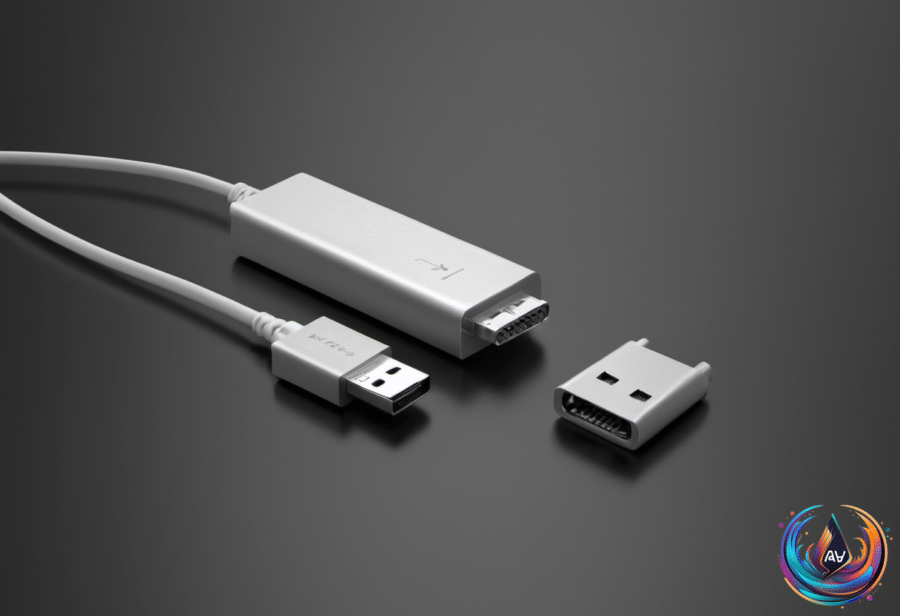
Those two square holes on a male USB-A connector are not decoration. They are part of a small locking system that keeps the plug attached while a device powers up, transfers files, or charges.
Most male USB-A connectors have two square-shaped holes. Inside the matching female port, spring-loaded retention clips snap into those openings and hold the connector in place. Push the plug in slowly and you can usually hear an audible click, which means it will not slide out unless you pull it firmly.
That design also explains why USB-A has to be inserted in the correct orientation. Unlike USB-C, it is not reversible. USB-A ports are rated for thousands of plug-and-unplug insertion cycles, so the clips are built to handle repeated use.
Why USB-C and Micro-USB Use Different Designs
USB-C keeps a cable in place with a different mechanism. Spring-loaded tabs inside the female port latch onto notches inside the connector, removing the need for square holes. Because USB-C is reversible, connecting and disconnecting it is easier than using USB-A, since you do not have to find the correct side first.
Micro-USB also used a different approach from USB-A. Some Micro-USB connectors had spring-loaded clips in the plug itself, an upgrade over the delicate thin plastic tongue mechanism found in Mini-B connectors. Moving the spring contacts to the male port meant users only had to replace their Micro-USB cables when the cables wore out.
Micro-USB dates back to 2007 and became one of the most prolific USB variants. It brought USB data and charging to smaller devices after standards such as mini USB, and it lasted longer than several other designs. You may still have a Micro-USB Kindle, flashlight, game controller, or similar device, and new cables and accessories using the older standard can still be found.
For new purchases, USB-C is the better choice. Micro-USB data speeds can top out at USB 2.0’s 480 Mbps, while USB 3.0 enables 5 Gbps and USB 4 starts at 40 Gbps. Micro-USB wall chargers are unlikely to deliver more than 7.5W, while some laptops and Android phones use USB-C to exceed 100W with modern fast charging standards. Devices that fully use USB PD can reach 240W.
Micro-USB is also not reversible, and its pins are easier to bend by accident. Adapters can help, but they add another piece to the setup and mean keeping different cables around. Still, there is no reason to throw away a working Micro-USB device when its port is the only drawback. For wireless earbuds, which do not have large batteries, 7.5W may be enough. A 480 Mbps connection is also plenty for file transfers under a gigabyte.
USB-C has spread across phones and accessories. The European Commission considered Micro-USB its connector of choice for mobile devices in 2009, but the European Union required smartphone manufacturers to switch to USB-C by 2024. Apple switched its iPhone lineup to USB-C with the iPhone 15 in 2023, ending its use of Lightning on those phones. USB-A remains familiar in offices and workplaces, while USB-C rolled out in 2014.
What USB Port Colors Really Tell You
A yellow USB-A port often marks an “Always On” port, meaning it can continue charging a device after the computer turns off. Lenovo’s older IdeaPad Y400 and Y500 used yellow ports for this purpose, while later Lenovo models replaced the color with battery icons. Yellow ports are a specialty feature found on specific enterprise or business laptops, not a universal USB signal.
There is an important catch: USB port colors are not an industry standard. The USB Implementers Forum recommends a specific blue insert to help distinguish USB 2.0 from USB 3.0, but that is a suggestion rather than a rule. Manufacturers can use other colors as they choose.
Red USB-A ports are commonly used for 10 Gbps to 20 Gbps connections. Teal ports can indicate USB 3.1 Gen 2 or USB 3.2 Gen 2, with speeds up to 10 Gbps, while blue is typically 5 Gbps USB 3.0. Black and white ports sit on the lower end. Yellow does not have a fixed place on the speed ladder: Corsair lists yellow ports as either USB 2.0 or USB 3.0, while USB Memory Direct places yellow alongside red.
That is why a color chart cannot confirm a port’s speed. If you need to connect an external SSD, use a port rated for 5 Gbps or higher. If you find a yellow port, check its label or battery icon, then confirm the feature in the user manual or on the manufacturer’s specification page. You may also need to enable Always On in the BIOS, and some laptops ship with “Charge in Battery Mode” disabled.
When a Mac Does Not Detect a USB Device
macOS asks for permission before accessories connect by default, which helps prevent malware from being injected. If you reject the prompt by mistake, a legitimate accessory will not transmit data until you approve it, although charging should still work.
Unplugging the accessory and plugging it in again can bring the prompt back. The setting is in Apple menu > System Settings > Privacy & Security, where you can choose Ask for new accessories, Automatically allow when unlocked, or Always allow. Always allow is best avoided unless you are always around your Mac or in a secure environment.
For more checks, hold the Option key and open Apple menu > System Information. If the accessory appears under Hardware, check the manufacturer’s support information. If it does not appear, try another port or connect the device directly instead of through a hub or dock. A Thunderbolt dock example showed a wireless mouse receiver working only after it was plugged directly into a laptop, while an SSD on the dock continued working.
Some accessories need more power than a Mac port can supply, and a dock or hub may need its own power supply. A damaged cable, bent pins, lint, dust, or grime can also block a connection. Clean debris with an air can or a soft-tipped tool, but treat browning or exposed wires as a fire hazard. Keep macOS updated through Apple menu > System Settings > General, then Software Update, and remember that external cards and drives need APFS, FAT, or ExFAT formats.
Why DisplayPort Cable Length Matters
USB connections are only part of the cable story. DisplayPort also has a practical limit: as the cable gets longer, visual quality can fall. A standard copper DisplayPort cable should handle demanding output up to 6 feet, including 4K HDR at 144Hz.
By about 10 feet, resolution and refresh compromises can begin. A 4K refresh rate may be limited, or the resolution may drop to 1080 or 1440p. Toward 15 feet, stable 4K is gone and even lower resolutions may run at slower refresh rates. Problems can include artifacts, flickering, dropped connections, or automatic reductions in resolution and refresh rate.
Active copper cables can extend the practical range to between 15 and 30 feet, while fiber optic cables can run up to 100 feet. A 10-foot passive copper cable rated for DisplayPort 2.1 can cost as little as $10, but a 15-foot fiber optic cable can cost more than $50. For most desks, a passive copper cable measuring 6 feet or less remains the sensible choice.
Short cables matter even more when daisy-chaining monitors through MST. Two 3-foot cables already reach 6 feet, and extra distance can make it harder to maintain the display settings your hardware supports. The GPU may still be the biggest bottleneck, especially when trying to run 4K games at 120Hz on two screens, but the cable can create limits too.
Based on
- Why do some USB connectors have those 2 square holes? — engadget.com
- Why You Probably Shouldn’t Buy Gadgets With Micro USB Ports — engadget.com
- Why Some USB Ports Are Yellow (And Less Common Than Others) — engadget.com
- Why Your USB Device Isn’t Showing Up On Your MacBook And How You Can Fix It — engadget.com
- At What Length Do DisplayPort Cables Start Giving You Trouble? — engadget.com