Where should your monitor sit? The answer starts with a simple measurement, but screen size, resolution, viewing angle, and even your laptop accessories can change the ideal setup. Get the distance right, and your entire desk becomes easier to organize.
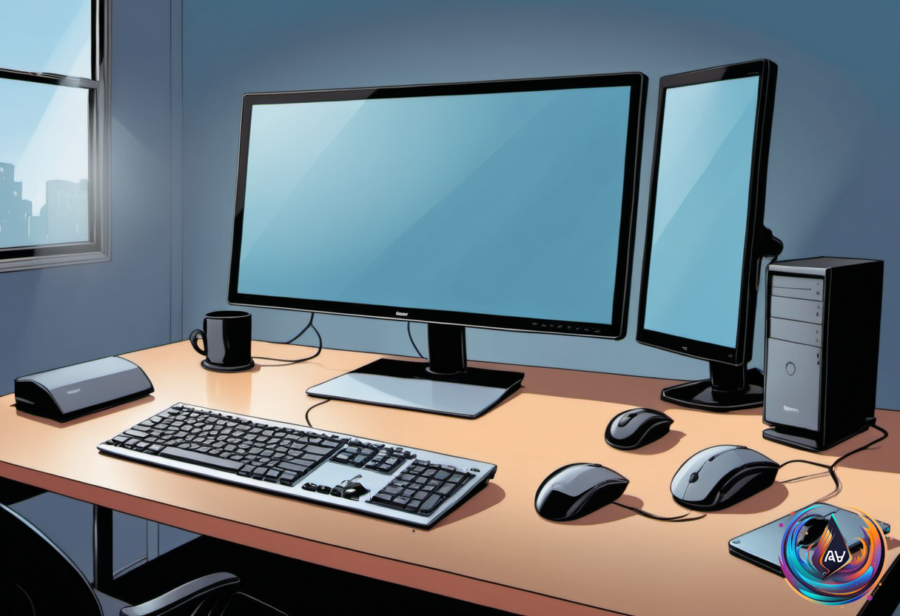
The ideal distance between your eyes and a monitor is 20 to 28 inches, a range also recommended by the Occupational Safety and Health Administration. That distance gives you a strong starting point for most displays, while the size of the screen determines whether you should move closer or farther away.
Match Your Distance to the Screen Size
A 24-inch display belongs near the standard range of 20 to 28 inches. A 27-inch monitor needs more room, with a recommended distance of 24 to 32 inches. Once the screen reaches 32 inches or larger, move back to 34 to 38 inches so the display stays within your field of view without forcing your neck to move around.
- 24-inch display: 20 to 28 inches away
- 27-inch monitor: 24 to 32 inches away
- 32 inches or larger: 34 to 38 inches away
There is also a practical shortcut: the arm’s-length rule. Extend your arm fully and position the monitor where your fingers can touch the screen. The average adult arm length is about 28 to 31 inches, so this approach lands near the upper end of the standard recommendation for many monitors.
Screen resolution can change how close you can sit. Higher resolutions let you move nearer without seeing individual pixels, and 32-inch monitors with resolutions of at least 1440p are common examples of displays that support closer viewing.
Raise, Tilt, and Align the Monitor
Distance is only one part of a comfortable monitor position. The top of the screen should sit at or slightly below eye level, while the middle of the display should rest 15 to 20 degrees below eye level. This arrangement keeps the screen positioned in front of you instead of forcing you to look upward.
Tilt the monitor back between 10 and 20 degrees. Users who wear bifocals can tilt the display between 30 and 45 degrees. These measurements give the screen a defined place on the desk, rather than leaving its angle to guesswork.
Laptops create a special challenge because their built-in screen and keyboard stay connected. To maintain proper arm’s-length distance, use a separate keyboard and mouse with the laptop, allowing the screen to sit at the needed distance while your hands remain in a better position.
Turn Monitor Ports Into Desk Shortcuts
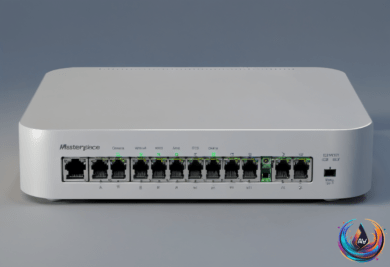
A monitor’s USB ports can do more than sit unused along the side or back of the display. They can connect a keyboard, mouse, webcam, or flash drive to the PC, and they can support permanent desk accessories, temporary storage, or device charging.
Monitors with a USB hub use different port roles. The upstream port sends data from the monitor to the computer, while downstream ports send data from connected devices to the hub. Some monitors handle video through separate HDMI or DisplayPort cables and use another USB cable to connect the hub.
USB-C monitors can combine video and data transfer through one cable, and some can charge laptops through USB Power Delivery. The details depend on the device, because support for USB 3.2, USB4, and USB Power Delivery varies by device.
A monitor with a built-in KVM switch adds another useful option: two computers can share the same monitor, keyboard, and mouse. That setup can make one desk serve multiple computers without requiring a separate collection of input devices.
Make an iPad Part of the Display Setup
An iPad can become a second screen for Mac or Windows PCs through built-in features or apps. For Mac users, Apple’s Sidecar turns the iPad into a secondary display with adjustable placement and resolution. Both devices must use the same iCloud account and be signed in with two-factor authentication.
Universal Control lets one input device control multiple Apple devices, with the same iCloud account and two-factor authentication required. If Sidecar does not work, Universal Control can be enabled in the Screen Mirroring settings.
Windows users and Mac users can also install Duet Display on both devices. The app replicates Sidecar’s features and requires a paid license. Luna Display offers another route through a dongle plugged into the computer, supports Mac and Windows, and costs $79 for the dongle.
Luna Display also includes a headless mode for using a Mac mini without a monitor. That option connects the iPad to a broader desk strategy, where the main display, laptop, USB accessories, and tablet each have a clear role.
The best setup starts with the screen in the right place: measure the distance, match it to the display size, set the height and tilt, then connect the tools that make the desk work harder. A monitor can anchor the workspace, while USB ports and an iPad can extend it without adding another full computer station.
Based on