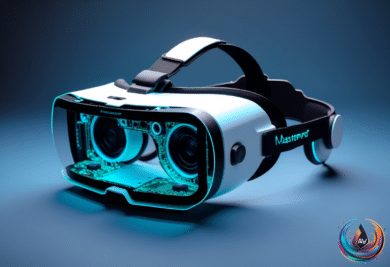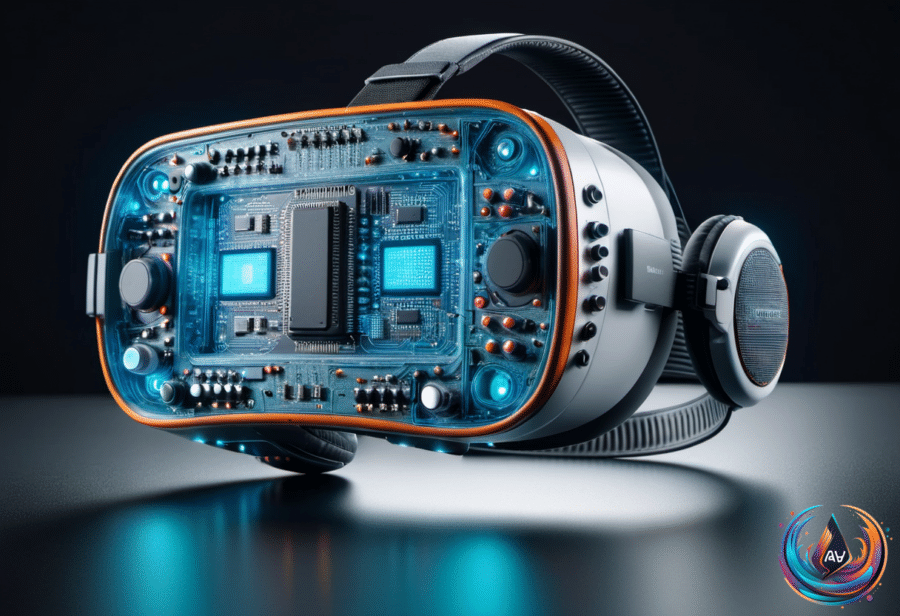
SteamVR is the doorway to Steam’s virtual reality library. Steam lets users play VR games through its launcher with SteamVR, and the platform supports most headsets from Valve, HTC, Meta/Oculus, and many more. The setup is not a technical expedition, although wireless hardware adds one extra requirement because apparently cables were the easy part.
Start by installing SteamVR from Steam. Then plug the headset, controllers, and sensors into the PC. Those connections give SteamVR the hardware it needs to start, detect the equipment, and place the user inside the VR environment.
Wireless users need the Steam Link app installed on the device. Steam Link works with Meta Quest 2, Quest 3, Quest Pro, HTC Vive Focus, and PICO headsets. The headset must have the app before it can use the wireless connection for SteamVR.
After SteamVR starts, it asks users to choose a space setting: Room-Scale or Standing Only. Room-Scale supports a defined play area of about 6.5 by 5 feet, while Standing Only is the other available setup choice. The important part is choosing the setting that matches how the headset will be used.
What SteamVR Gives You Once It Starts
SteamVR opens into SteamVR Home, a digital hub built for more than launching games. Users can invite friends, chat, and interact through avatars inside the space, turning the startup area into a social lobby rather than another grey software menu.
SteamVR Home also allows customization. Users can decorate their space with items purchased on Steam or unlocked through achievements. The system therefore connects the virtual environment to Steam’s existing purchases and progression systems without asking users to leave VR.
The SteamVR dashboard handles the practical work. From there, users can browse titles, adjust VR settings, and access their desktop within VR. That makes the dashboard the control center for moving between games, configuration, and the Windows desktop without removing the headset.
Users who want more control can open advanced settings. SteamVR includes Motion Smoothing, Controller Bindings, and Advanced Frame Timings, giving experienced users specific tools for handling motion, changing controller behavior, and examining frame timing.
Virtual Desktop Brings Steam Frame Into The Story
Virtual Desktop adds a separate development thread to SteamVR’s headset compatibility story. The software can natively beam Windows monitors into a headset on Steam Frame and Meta Quest headsets, extending the desktop into VR rather than limiting the headset to games.
Virtual Desktop was created in 2016 and was later “sherlocked” by Meta. Developer Guy Godin says he will try to port Virtual Desktop to Steam Frame, while he can already stream Virtual Desktop Classic from his PC to Steam Frame with working 3D video.
That existing result matters because it shows a working path before a dedicated port arrives. Still, a standalone version with passthrough would be better. Sean Hollister made that point directly: “Virtual Desktop Classic streamed from my PC to Steam Frame. A standalone version with passthrough would be better.”
The SteamVR guidance and Virtual Desktop development were associated with Sadie Rodriguez and Sean Hollister, with dates listed as Sept. 22, 2026 9:30 am EST and Sep 17, 2026 at 11:46 PM UTC. The practical takeaway is uncomplicated: install SteamVR, connect the hardware, use Steam Link for supported wireless headsets, and choose the correct space setting. The rest—social spaces, desktop access, advanced controls, and Virtual Desktop support—comes after the headset is actually running.
Based on