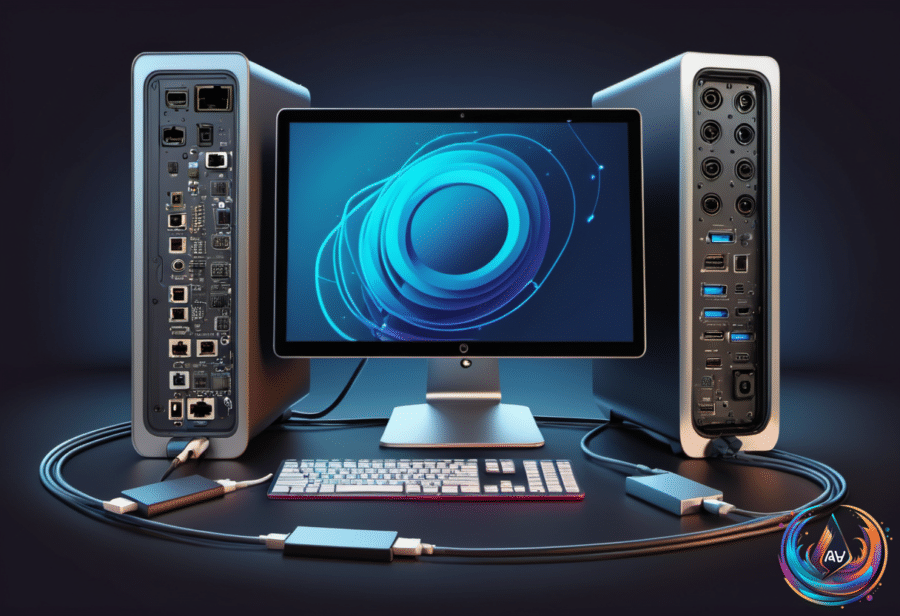
USB-C looks simple, but the symbol hides a major difference: not every USB-C port is Thunderbolt, and features can vary wildly. On a modern Mac, every Thunderbolt port uses USB-C, yet many USB-C ports do not support Thunderbolt at all.
That difference can decide how fast files move, whether a display works, which accessories connect, and how much the setup costs. The connector may look identical, but the technology behind it can deliver very different results.
USB-C Is the Shape, Not the Full Promise
USB-C describes the connector, not one fixed speed or feature set. Standard USB-C ports can range from 480 Mbps on USB 2 to 80 Gbps on USB4 Version 2.0. Speed tiers, DisplayPort Alt Mode, and Power Delivery remain optional on USB-C ports, so two devices with the same connector can behave in different ways.
The MacBook Neo shows that range inside one computer. It has two ports: one USB 2 port supporting 480 Mbps and one USB 3 port supporting 10 Gbps. The USB 3 port can power a display, while the two ports do not offer the same data performance.
That gap becomes clear with a large transfer. Moving a 500GB file takes about seven minutes through the MacBook Neo’s USB 3 port. The same file takes less than a minute over Thunderbolt 5 on the MacBook Pro M5 Max.
Older Thunderbolt versions used the now-obsolete Mini DisplayPort, but current Thunderbolt ports use the USB-C connector. That change makes the ports easier to confuse, because the physical connection no longer tells you the full story.
Thunderbolt Brings Defined Speed and Display Support
Thunderbolt sets a higher and more specific standard. Thunderbolt 4 supports 40 Gbps, while Thunderbolt 5 supports 80 Gbps and can reach 120 Gbps when data moves in one direction. Every Thunderbolt 5 port must support 80 Gbps, creating a firm baseline that standard USB-C ports do not share.
The MacBook Pro M4 Pro has Thunderbolt 5 ports that top out at 120 Gbps in one direction. Thunderbolt 5 ports can also support up to three 4K monitors over a single port, giving one connection a much larger role in a desktop setup.
Thunderbolt’s requirements extend beyond raw speed. Features such as speed tiers, DisplayPort Alt Mode, and Power Delivery are mandatory on Thunderbolt ports, while standard USB-C ports may or may not include them. That distinction helps explain why one USB-C connection can power a display while another cannot.
Thunderbolt is a standard co-developed by Intel and Apple, not the USB Implementers Forum. Manufacturers must pass rigorous testing to obtain Intel’s certification to use the Thunderbolt name and logo, adding requirements that do not apply to every USB-C port.
Compatibility Depends on the Port and Cable
A standard USB-C drive will work when plugged into a Mac’s Thunderbolt port, but it will run at the drive’s speed. Thunderbolt does not force a regular USB-C drive to reach Thunderbolt speeds.
The reverse creates a harder limit. A Thunderbolt-only external SSD will not work with a MacBook Neo. Newer accessories can usually fall back to slower USB speeds for compatibility, but that fallback cannot help when the computer lacks the required Thunderbolt support.
Cables also matter. A Thunderbolt cable works with a USB-C port or device without limiting performance, while a regular USB-C cable connected to a Thunderbolt device limits speed to the cable’s standards. The fastest port cannot overcome a cable built for lower speeds.
Cost is another clear dividing line: Thunderbolt ports and cables cost more than USB-C ports and cables. That price reflects the testing, required features, and performance associated with Thunderbolt, but it does not mean every setup needs it.
How to Identify the Right Mac Port
Apple does not label the ports on MacBooks, so the connector alone cannot settle the question. The best way to identify Thunderbolt or USB ports is to check Apple’s Tech Specs page for the MacBook model.
That check matters before buying a cable, drive, or display. A USB-C port may deliver 480 Mbps, 10 Gbps, or much more, while a Thunderbolt 4 port reaches 40 Gbps and a Thunderbolt 5 port supports 80 Gbps, with up to 120 Gbps in one direction.
The choice comes down to the hardware and the work. A standard USB-C connection can handle accessories at its own supported speed, while Thunderbolt offers defined performance, required display support features, and broader high-speed capabilities. Once the port, device, and cable match, the confusing USB-C landscape becomes much easier to navigate.
Based on