Placement can make or break a smart home. A robust setup makes it easy to control the devices keeping a household in the 21st century, but smart home systems can fail in ways that offer no clear cause. One overlooked culprit is where the hub and router sit.
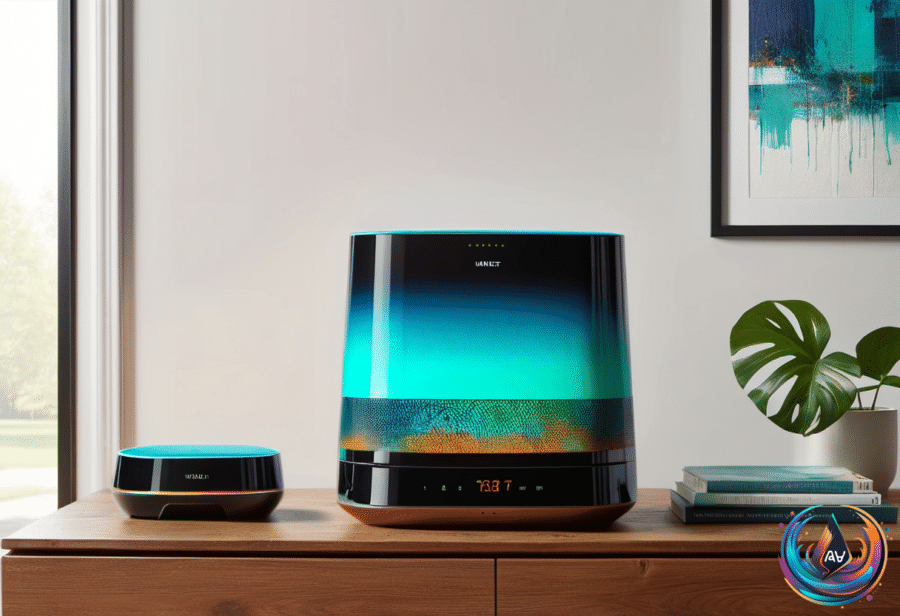
A hub may look like the central command center, especially when it controls connected devices from one place. That makes a central location sensible, but hiding it inside furniture or pushing it into a corner can block the signals it needs to send and receive. Whether it fits the home’s aesthetic or not, the hub may need to stay visible.
Treat the hub like a Wi-Fi router, even when the devices connected to it use another wireless protocol. Walls, furniture, and doors can block wireless communication, so keep as clear a path as possible between the hub and the devices it serves. A central position will not give every device perfect reception, but it reduces the number of weak connections.
If the hub has visible antennas, point them toward the smart home devices when possible. Keep the hub close enough to the router to receive a strong signal, but do not place the two devices right next to each other. Routers, phones, microwaves, and other electronics can interfere with the hub, and the practical fix is distance.
Put the router where its signal can work
A weak Wi-Fi signal does not always mean the router is failing or the internet service is at fault. More often, it points to a placement problem. Routers broadcast in all directions, but the signal weakens over distance, and a router shoved into a corner wastes much of its coverage outside the home.
Start with a central, elevated, and open location away from electronics that weaken signals. A side table, desk, or the top of a cabinet can work; a stand may help if those options are limited. Keep the router away from corners, metal objects, thick walls—especially metal and concrete—Bluetooth devices, and microwaves, which interfere with the 2.4GHz band.
Multi-floor homes need a little more thought. On the ground floor, move the router closer to the ceiling; on the second level, move it closer to the floor. For a single floor or apartment, keep the antennas vertical. In a building with multiple floors, angle at least one antenna to about 30 degrees and leave the others vertical.
Do not settle on a position by staring at the router and hoping for the best. Run a speed test before moving it, then test again as you adjust its position. That gives you a clear read on how each location changes signal quality and internet speed.
Coverage, congestion, and separate networks
The 2.4GHz band reaches farther but offers slower speeds, while the 5GHz band reaches less distance but delivers faster speeds. Put devices that need speed and stability, such as desktop PCs and gaming consoles, on 5GHz when possible; distant, mobile, or low-demand devices can use 2.4GHz.
Wi-Fi 6 and 6E routers top out at 9.6Gbps, while Wi-Fi 7 raises the ceiling to 46Gbps. Those figures cover total bandwidth, including traffic between local devices. A transfer of a few dozen gigabytes from a camera to a laptop can create congestion when other devices are also demanding bandwidth.
The 2.4GHz band is easy to overwhelm because it has only three non-overlapping channels, and many low-power accessories cannot use 5 or 6GHz. Wi-Fi 5 may handle as few as 10 to 25 active devices before older connections get removed to make room. Wi-Fi 7 helps, but it is not a magic bullet; connected devices must support its features, including preamble puncturing.
Zigbee or ZWave devices can form a linked mesh network when the hub cannot reach every corner directly. Each device repeats the signal it receives, creating a chain through the home, although the signal weakens across multiple devices. The closer a device is to the hub, the better.
For larger buildings, three or more floors, or several dead zones, a Wi-Fi booster or mesh system may be necessary. Extenders capture and repeat the router’s signal, but that can mean halving bandwidth. Mesh systems cost more, use nodes to extend coverage on one network, and tri-band systems avoid that bandwidth penalty.
A kit such as an Eero 7 two-pack can cover up to 4,000 square feet in theory, with more compatible routers added for extra coverage. Mesh also provides seamless roaming through unified SSIDs, though cheaper systems can struggle with 2.4GHz-only smart home accessories and shared-band backhaul.
Separating smart home devices onto a 2.4GHz SSID or guest network can improve range or limit access to phones and laptops. It can also break communication between devices, force a phone or tablet onto another network, and become unworkable on mesh systems that rely on unified SSIDs and automatic steering.
Use separate networks only after examining the real setup. If connections already work, migrating devices is busywork; if accessories keep dropping out, mesh coverage, hub placement, or network congestion may be the real fix. A hub can also connect dozens of products through Thread or Zigbee while using only one Wi-Fi connection—an efficient arrangement in a home where every lamp, speaker, watch, and camera wants a place on the train.
Based on
- Your smart home hub placement is more important than you’d think — engadget.com
- Where Should You Place Your Wi-Fi Router For The Best Internet? — engadget.com
- Should You Keep Your Smart Home Gadgets On A Separate Home Network? — engadget.com
- Why Your Wi-Fi Slows Down When More Devices Connect — engadget.com
- The Pros And Cons Of Using Mesh Wi-Fi — engadget.com