The median broadband speed in the United States is over 300 Mbps. That’s faster than most streaming services need and great for big downloads. But your actual speed depends a lot on your router. If your internet feels slow or drops often, small changes might help.
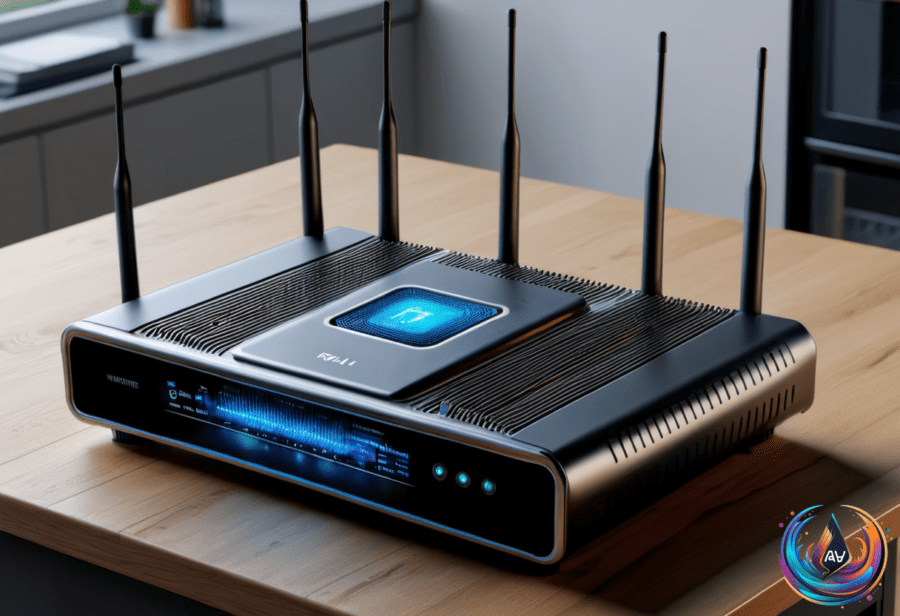
Start by moving your router to a more central spot in your home. Walls and furniture block signals, so the closer to the middle, the better the coverage. If your router has external antennas, try spacing them apart and pointing them in different directions. This can improve Wi-Fi range and signal strength.
Avoid placing your router near electronics like microwaves or cordless phones. These devices can interfere with your wireless signal and cause hiccups. Instead, find a clear, open spot away from appliances.
Choose the Right Wi-Fi Band for Speed
Many routers broadcast two Wi-Fi networks: 2.4GHz and 5GHz. The 5GHz band offers much faster speeds and less interference. Devices connected to 5GHz enjoy higher download rates, while 2.4GHz usually caps out at about 100 Mbps. If your device is stuck on 2.4GHz, it will feel slower.
Check your device’s Wi-Fi settings to see if it’s connected to the 5GHz network. If not, try switching it. The difference in speed and stability can be huge, especially if you stream or game online.
Manage Network Traffic and Update Your Router
Newer routers often include Smart Queue Management, or SQM. SQM helps reduce latency by managing how data packets queue up. This keeps your connection smooth, especially during heavy use. You can test if your network suffers from bufferbloat—excessive delay caused by router queues—using Waveform’s bufferbloat test online.
Turning your router off and unplugging it for 30 seconds before plugging it back in can clear glitches and boost performance. Also, check for firmware updates. Manufacturers release updates to fix bugs or add features that keep your router running well.
Extra Tips for Devices Like Roku
Clearing cache on streaming devices can improve their responsiveness. For example, on a Roku, press the Home button five times, then Up once, Rewind twice, and Fast Forward twice. This sequence clears cached data and triggers a system restart.
You can also restart a Roku fully by going to Settings > System > Power > System restart. Or unplug it for 30 seconds and plug it back in. These simple steps often fix lag or buffering issues.
If you want a wired connection, Ethernet switches can help. A Netgear 8-Port Gigabit Ethernet Plus Switch costs $24 after a 40% discount. A TP-Link 8-Port Gigabit Ethernet Switch costs $41 after a 41% discount. These switches expand wired connections and usually offer stable, fast speeds.
Routers don’t need upgrading often. But newer models tend to improve speeds, range, and latency. If your router is several years old, it might be time to consider an upgrade. For now, try these tweaks first. They can make a big difference without spending a dime.
Based on
- Slow downloads? These tweaks could speed up your router — engadget.com
- 5 ways I speed up my Android phone beyond clearing system cache – all for free | ZDNET — zdnet.com
- I fixed my home office’s spotty Wi-Fi with Samsung’s free diagnostic tool – and it took just minutes | ZDNET — zdnet.com
- Best Ethernet Switches: Fast, Reliable, and Secure | WIRED — wired.com
- How To Clear The Cache On Your Roku TV — engadget.com