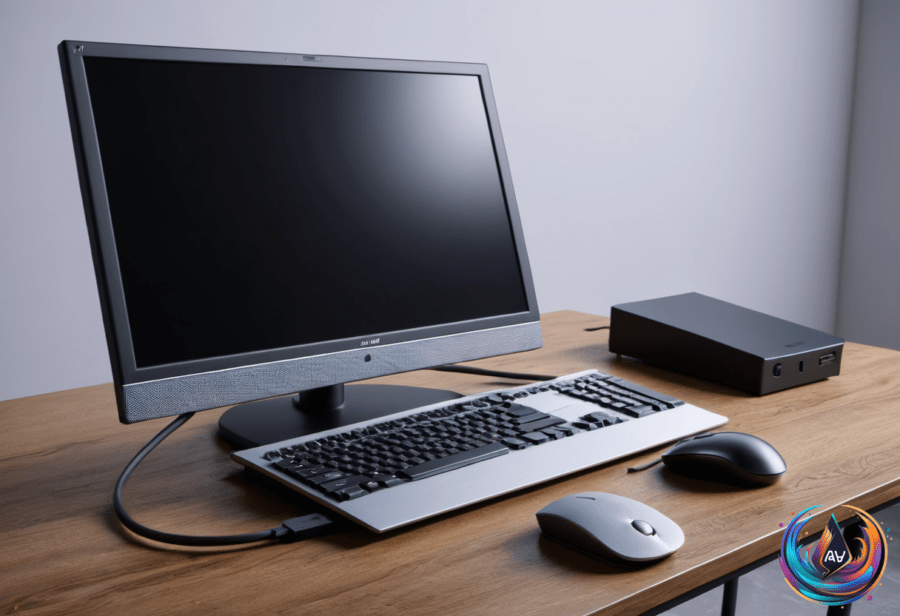
Those extra USB ports are not decorative. Your monitor can use them to connect a keyboard, mouse, webcam, or flash drive to your computer, turning the display into a practical USB hub instead of a box that merely shows pixels.
“Your monitor’s USB ports have many uses, but they don’t all have the same capabilities,” Novak Božović wrote. That distinction matters because a monitor may include USB ports without giving every port the same job, speed, or video support.
How the monitor USB hub actually works
A monitor with a USB hub has an upstream port and downstream ports. The upstream connection sends data from the monitor to the computer, while the downstream ports send data from connected accessories into the hub.
The labels on the monitor or instructions in its manual should identify which ports are upstream and which are downstream. Plugging an accessory into the wrong port will not turn the monitor into a hardware mystery; it simply will not create the data path the accessory needs.
Video and USB data can also use separate connections. A monitor may receive its picture through HDMI or DisplayPort, while a separate USB cable connects the monitor’s hub to the computer.
A standard HDMI or DisplayPort cable does not provide the USB data path required by the hub. If a monitor uses either of those video connections, it needs a separate USB upstream cable before its USB ports can communicate with the computer.
What USB-C changes
Supported USB-C monitors can carry video and data through one cable, and some can charge a laptop through that same connection. That single-cable setup is useful, but the USB-C connector alone does not guarantee every feature users expect from it.
DisplayPort Alt Mode lets a compatible USB-C connection carry video alongside data. It sends video signals through the DisplayPort protocol, making it the key feature to check when a USB-C monitor setup must handle both jobs.
“The best way to know if your USB-C setup supports video transfer is checking whether it supports DisplayPort Alternate Mode,” Alec Hively wrote. USB 3.1 and USB 3.2 devices may support DisplayPort Alt Mode, but the manufacturer decides whether that capability exists on a particular device.
Support for USB 3.2, USB4, and USB Power Delivery varies by device. A USB-C port can therefore support data without video, or video without offering every charging and performance feature associated with newer standards. The connector shape tells you very little. It is a remarkably small symbol carrying a remarkable amount of consumer confusion.
Thunderbolt, HDMI, and the fallback options
All generations of Thunderbolt connections that use USB-C—from Thunderbolt 3 through Thunderbolt 5—offer high-speed data and video transfers, including DisplayPort Alt Mode. Thunderbolt 3 offers similar capabilities as USB4, while Thunderbolt 4 and Thunderbolt 5 add several performance upgrades.
Finding out whether a device supports DP Alt Mode can be difficult. Some manufacturers print the port type on the device or place a DP icon beside a USB-C port, but the label or product manual remains the place to confirm what the connection supports.
If a USB-C port or cable does not support video, an HDMI cable can still work when the device has an HDMI port. HDMI 2.0 or later, including HDMI 2.1, supports high resolutions and refresh rates, while HDMI cables support up to 8K visuals and high dynamic range.
When a device lacks a video-capable USB-C connection and has no suitable HDMI output, an active adapter can provide another route. The StarTech USB-A 3.0 to Dual HDMI Adapter can enable HDMI output from a USB port that does not support video natively.
That solution is different from a normal passive connection. USB-C hubs with HDMI ports and USB-C to HDMI cables will not work when the laptop does not support DisplayPort Alt Mode, because those accessories still need a USB-C connection capable of carrying video.
Wireless display options such as AirPlay or Miracast offer another way to cast a display without cables. The useful lesson is simple: check the port assignment, confirm the upstream connection, and verify DP Alt Mode before buying a cable or adapter. USB-C may promise one cable, but only the right standards deliver one cable.
Based on