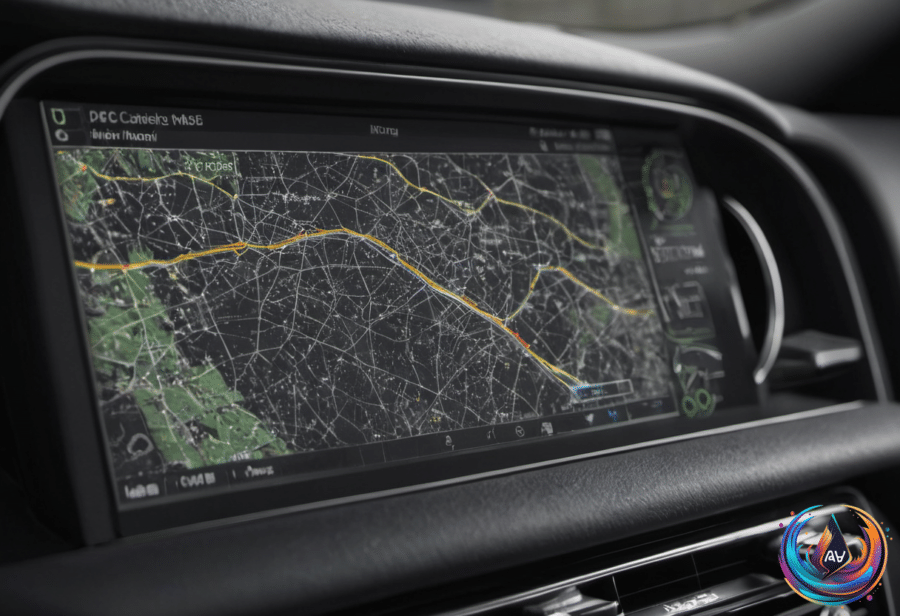
CarPlay is supposed to make navigation easier, but iOS 27 may be putting Google Maps and Waze drivers in a difficult position. Guidance banners can overlap the map, hiding the road view and making turn-by-turn directions difficult or nearly impossible to follow.
Drivers have posted many complaints about the problem, and the pattern points to iOS 27 rather than a failure inside Google Maps or Waze. If your CarPlay display suddenly feels cramped, confusing, or unusable during a trip, the update may be the reason.
A redesigned CarPlay system is creating the trouble
With iOS 27, Apple redesigned the template that third-party navigation apps use in CarPlay. Google Maps and Waze cannot build their own CarPlay interfaces from scratch, unlike their versions on iOS. Instead, the apps send navigation information to iOS, which renders the next-turn and ETA cards inside the car.
Those cards should push the center of the map toward the side when they appear. That is the part that seems to be failing after the iOS 27 update. CarPlay may stop reporting the safe area to third-party apps, causing navigation banners to appear directly on top of the map.
The result depends on the screen inside the car. Wider displays leave more room for the map, but compact multimedia units have less space and show the problem more clearly. A banner that might only cover part of a route on a wide screen can block much more of the map on a smaller display.
Apple Maps does not face this specific issue because Apple’s native apps use their own interface in CarPlay. That leaves Google Maps and Waze users waiting for a fix that addresses the system template itself.
Updating Google Maps or Waze probably will not solve the problem. Reinstalling the apps or re-pairing the car also will not help when the apps already appear in CarPlay; those steps are meant for cases where an app does not show up at all.
What drivers can try right now
If an app is missing from the CarPlay screen, open Settings > General > CarPlay on the iPhone, choose your car, tap Customize, and check that the apps you want are enabled. An app outside the Include list will not appear on the car’s display.
One setting may reduce the size of the banners, though it does not fix the underlying bug and does not work for every vehicle. On the CarPlay screen, open the Settings app, go to Display, and turn off Smart Display Zoom. Some drivers say this makes the banners smaller.
The bug still appears in the first iOS 27.3 beta available to developers, but Apple engineers have acknowledged the issue. Until a fix arrives, voice guidance offers the safest workaround, and using the iPhone’s screen or switching to Apple Maps may provide a clearer view.
CarPlay runs from the iPhone, so cars usually do not have their own “update CarPlay” option. Updating iOS is the way to receive CarPlay bug fixes, new features, and compatibility improvements, although CarPlay keeps working if you skip an update.
To check for an update, open Settings > General > Software Update. The latest version listed at the time of writing is iOS 27.2.1 from November 9. Phones running iOS 26 see the smaller iOS 26 update and the larger iOS 27 upgrade as separate choices.
What iOS 27 adds to the CarPlay experience
The update brings useful features alongside the navigation trouble. iOS 27, released September 14, added an audio mini-player, a progress bar in Now Playing, route sharing with the car’s own screens, and video apps for supported cars when the vehicle is parked. Apple also says the update improves wireless CarPlay reliability, navigation heading, and GPS accuracy.
Support depends on the car and the iPhone. Video apps and route sharing work only where the automaker added support, while iOS 27 requires an iPhone 11 or later or the second-generation iPhone SE. Older iPhones can still use CarPlay, but they do not receive the new iOS 27 features.
iOS 27.2, released October 26, added a Podcasts Home tab with New Episodes and Continue Playing in place of Up Next. Siri also gained the ability to recall past conversations, though that feature requires an iPhone 15 Pro or later.
CarPlay also supports a wide range of tools beyond Apple Maps and Music. Drivers can run Spotify or Waze, remember where they parked, plan routes with EV charging stations, and use Siri in supported vehicles by saying “Hey Siri” or holding the Home button on the CarPlay screen.
AI assistant apps can appear on the CarPlay Home Screen automatically when they are installed on the iPhone. Starting with iOS 26.4, and with improvements in iOS 27, apps such as ChatGPT and Gemini can work in CarPlay, but they remain voice-only. They cannot control other apps, play songs, make calls, or replace Siri when the steering-wheel voice button is pressed.
SharePlay has been available in CarPlay since iOS 17, allowing passengers to control Apple Music from their phones after the driver starts playback. Android users can join through a browser, but SharePlay works only with Apple Music, and only the driver needs a subscription.
CarPlay can also support gas payments through apps from chains such as Chevron and Texaco, charging station apps for EV drivers, and pickup orders from Dunkin’, Panera, and Domino’s. Parking apps such as SpotHero cover more than 400 cities across the US and Canada, while EasyPark offers a similar experience in Europe. Payment methods for these apps must be managed on the iPhone because Apple Pay is not supported inside CarPlay apps.
For drivers who use an Apple Watch, haptic alerts can tap the wrist before a turn and offer different vibration patterns for left and right turns. Open the Watch app, select My Watch > Apps > Maps, and manage alerts for Driving with CarPlay. The watch cannot run CarPlay by itself, but watchOS Apple Maps can provide directions with audio, visual guidance, and haptics.
For now, the key question is whether Apple can repair the safe-area problem before it disrupts more trips. Until then, keep voice guidance ready, check for iOS updates, and consider Apple Maps when Google Maps or Waze banners cover the route you need to see.
Based on
- iOS 27 could be messing up your CarPlay experience with Google Maps and Waze — engadget.com
- Why Updating Your iPhone Can Improve Your CarPlay Experience — engadget.com
- 5 Cool Things CarPlay Could Be Useful For — engadget.com
- This Helpful Apple Watch Feature Works Seamlessly With Apple CarPlay — engadget.com
- Google Maps’ Dark Mode Is Getting Even Darker — engadget.com