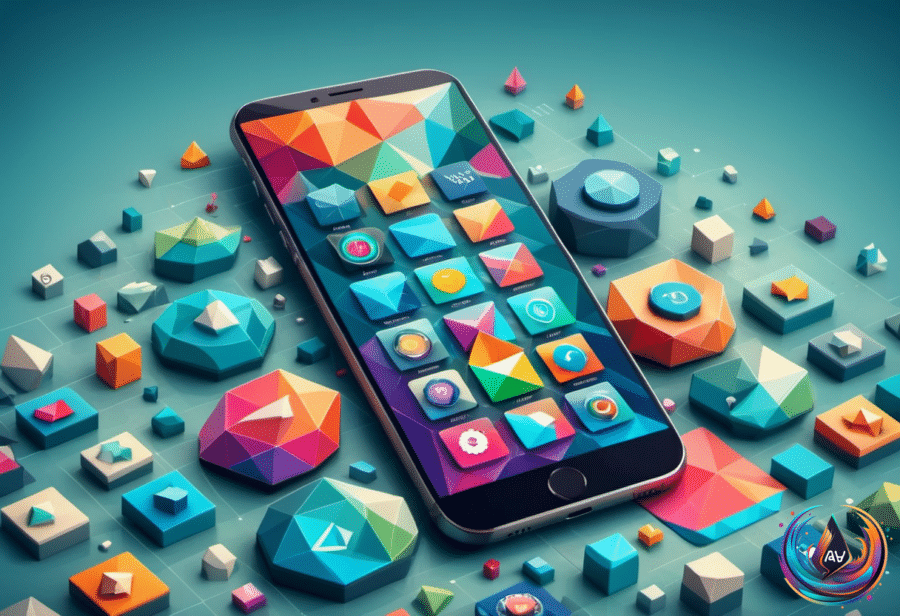
Your Samsung Galaxy phone does not have to look the same every day. With Samsung’s Themes app, color palette tools, Good Lock add-ons and One UI settings, you can change the way app icons, system apps, menus and even the Quick Panel look.
You can pick from different icon sets and themes, change colors to match your wallpaper, or build a setup that fits your current mood or outfit. Samsung also includes options for people who prefer an older navigation style, while newer features bring more control over photos, privacy and personal information.
Change app icons and themes on a Galaxy phone
Start on the Home screen, right after unlocking your Galaxy phone. Hold an empty area, then tap Themes. From there, look through the available options and download the ones you like.
After downloading a theme or icon set, press Menu and head to My stuff. This section gives you access to your saved icons and themes. Select the ones you want, then tap Apply to make the changes.
Themes do more than replace app icons. They can also change the color scheme on system apps such as Contacts, Settings and Messages. Swipe down from the top of the screen and you will see some of those colors appear in the Quick Panel too.
There is one limit: Samsung does not let you use your own images as app icons through this method. The Themes app still offers many icons to download from its Icons section, giving you plenty of ways to change the appearance of your home screen and app drawer.
If you do not want to download a complete theme, use the phone’s color palette instead. Open Settings, select Wallpaper and style, then tap Color palette and turn on the switch beside it.
You can choose from Wallpaper colors and Basic colors. As you select them, previews at the top show how the interface will look. Tap Apply when you are ready, and the chosen color will appear across the phone’s interface, including menu switches and buttons inside system apps.
The color palette might not affect every app icon, but it can change most app icon colors without requiring a completely different theme. It is a simple way to give the home screen and app drawer a new look.
More ways to customize One UI
Galaxy devices running One UI 9 offer more controls, starting with the redesigned Quick Panel. Swipe down from the top-right corner to open it, then resize elements, move them around or delete them to create a layout that suits you.
Samsung’s official Good Lock suite adds even more options. Download it from the Play Store, then explore add-ons such as Theme Park. Theme Park lets you change the colors of individual keys, notifications and Quick Panel switches, including the switch for Airplane Mode.
Good Lock also includes motion wallpapers, lock screen designs and home screen tools. Its Home Up application expands the setup with stickers, flexible placement for apps and widgets, and custom gesture animations. You can also adjust the speed and vibration settings to change how the phone feels during use.
For one-handed use, Good Lock offers diagonal swipes for actions such as opening Recent Apps or returning to the Home screen.
Samsung’s Galaxy Wearable app adds a similar personal touch to its Watch lineup. It lets you change watch faces by snapping pictures of your outfit.
Bring back the all apps button
Modern versions of Android, including Samsung’s One UI, normally open the app drawer when you swipe up on the home screen. For years, many Android versions instead used an “all apps” button on the home screen, but Samsung stopped showing that button by default in recent One UI updates.
Samsung still leaves the option available. In One UI 9, find an empty space on the home screen and long-press it, or pinch the screen as if you were zooming out on a photo. Tap the Settings button, shown with a gear icon in the bottom-right corner.
Scroll down and turn on Show Apps screen button on Home screen. Return to the home screen and the button should appear on the right side of the favorite apps dock at the bottom.
The button takes up space that could hold another favorite app. It is useful if you do not want to swipe up, but switching it on means giving up one spot in the dock.
New One UI features to watch
Samsung is also expected to add a Galaxy AI-powered app called Memory as part of One UI 9.5. The app is said to work in a similar way to Google’s Pixel Screenshots, or Samsung’s Collection app, which is only available in the Chinese market.
Memory is designed as a searchable personal archive of activity on the device. It can pull together screenshots, voice notes, links and text, then use AI to create titles, summaries and tags. It is also expected to group related items into collections and provide context.
The app may detect a webpage inside a screenshot and grab the link. Users may also be able to reorganize and delete items, change titles created by AI, mark content as a favorite and add material manually through a share sheet. Pasting links and text or recording voice notes directly in Memory may also be supported.
Screenshots indicate that Memory could process AI tasks entirely on the device. The app may also include an option to disable it, though it remains unclear whether Memory will be opt-in or opt-out.
A One UI 9.5 beta is expected soon. The One UI 8.5 beta emerged in early December 2025, and the full version of One UI 9.5 will likely arrive when the Galaxy S27 lineup debuts, probably in early 2027.
Gallery sync and the blue location dot
Samsung Gallery can now sync photos and videos with a Google account on select Galaxy devices running One UI 9. Samsung ended Gallery’s Microsoft OneDrive integration in September, and before this update, users who wanted Google storage usually had to use Google Photos instead of, or alongside, the native Gallery app.
To turn on the feature, tap the Cloud icon in Gallery or open Gallery Settings and enable Sync photos and videos. Sign in with the same Google account on another Samsung Galaxy device and turn on sync there to see previews of the synced media. Select and download an item when you want the original file.
The settings also include Free up space. This removes original files from the phone while keeping thumbnails visible in Gallery. Sync uses Google account storage, which includes 5GB for free. That can expand to 15GB if you verify a valid phone number, while Google One offers 100GB for $2 per month or 200GB for $3.
One UI 9 also uses a blue location dot to show when an app is accessing location data. The indicator appears near icons for Wi-Fi, battery and signal strength. It can reflect location use that is active or happened within the last 10 seconds for foreground apps.
Swipe down and tap the indicator to see which app triggered it. Choose See recent access, then Location, to view when apps checked your location and whether they did so in the foreground or background. From there, you can open an app’s permission settings and choose whether it can use location at all or only while you are using it.
Based on
- How to change and customize your app icons on Samsung Galaxy — engadget.com
- Samsung One UI Removed The All Apps Button, But You Can Easily Get It Back — engadget.com
- Samsung Is Taking A Page Out Of Pixel’s Playbook With One UI 9.5 — engadget.com
- Samsung Gallery Now Syncs With Google To Back Up Your Photos — engadget.com
- What The Tiny Blue Dot On Your Android Phone Is Telling You — engadget.com