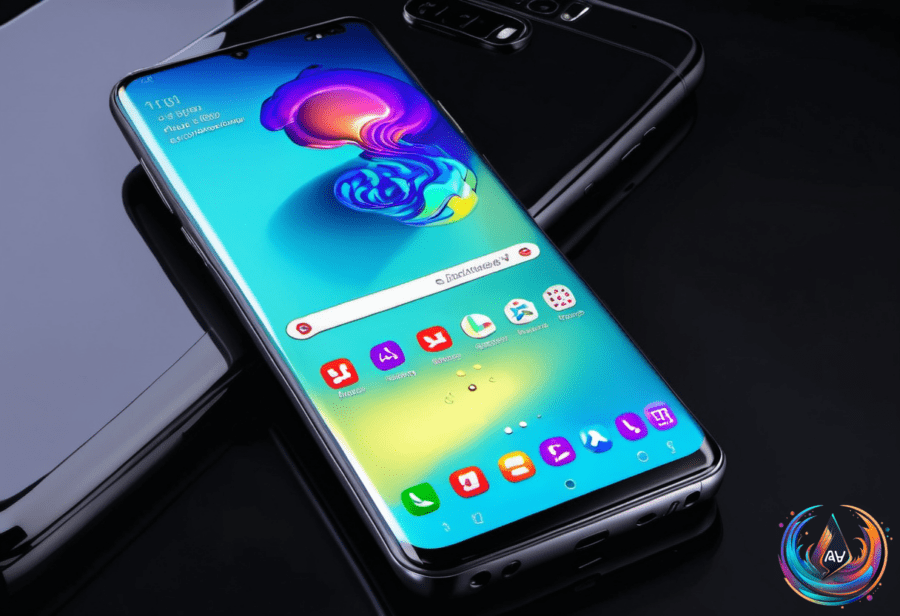
The button beneath the volume controls on a Samsung Galaxy phone does much more than turn the screen on and off. Samsung stopped making phones with traditional power buttons in 2019, and the replacement is a multifunctional side button that can handle several shortcuts.
Its default actions are simple to learn, but you do not have to keep them that way. Samsung lets you remap nearly every action tied to the side button from the phone’s settings, with no secret menu or code. That means the same button can open an app, launch an assistant, start a recording, or bring up the power menu.
What the side button does by default
A short press on the side button turns the screen on and off. A long press activates Samsung’s Bixby assistant, while a double press opens the camera. These actions give the button three separate jobs without requiring you to open the Settings app or search through an app drawer.
The side button also works with the volume-down button. Long-pressing both buttons opens the power menu, and a short press of the same buttons takes a screenshot. Those combinations remain useful when you want to reach a system function without changing the side button’s main shortcuts.
For Galaxy Z Flip owners, the side button can work differently depending on whether the device is open or closed. That gives the phone another layer of button behavior, since the same physical control can have a different function in each position.
How to change the side button
To customize the button, open Settings > Advanced features > Side button. This is the main control panel for the side button, and it lets you change the double-press and long-press actions.
The double-press option offers the widest range of choices. You can set it to open Camera, Flashlight, Magnifier, Voice Recorder, Samsung Notes, Modes and Routines, Samsung Capture, or a chosen app. If you want the button to do something more useful than launch the camera, this is the setting to change.
Voice Recorder is a practical choice when you need to begin recording with as few steps as possible. Assigning it to a double press turns the side button into a direct recording shortcut. You can also choose a specific app, which lets the button lead straight to the tool you use most.
The long-press option has a shorter list. It can open assistant apps such as Bixby, Google Gemini, ChatGPT, and Claude. You can also set the long press to pull up the power-off menu instead of opening an assistant.
The side button’s double-press and single-press functions can be customized, but not both at the same time. The settings page shows the available controls, so you can decide which shortcut matters more before saving your choice.
What about older Bixby buttons?
Some Samsung phones from the Galaxy S8 to S10 era still have a dedicated physical Bixby button. That button can be customized too, although its controls are found in a different place.
To remap it, go to Settings > Advanced features > Bixby Key. The Bixby Button on phones from this era gives you options for its press actions, allowing you to change how the physical control responds.
There is one firm limit: a long press on a separate physical Bixby button will always open Bixby Voice. The remapping options do not remove that behavior, so the button remains tied to Bixby Voice for that press.
Using Modes and Routines for more useful shortcuts
Modes and Routines can take the side button beyond opening one app. You can use it to automate actions such as turning on Driving Mode, starting hands-free calling, opening maps, reading messages aloud, and auto-replying to texts.
That makes the button useful as a trigger for a group of actions instead of a single destination. A double press could launch a routine that handles several driving-related tasks, while another setup could focus on reading messages or managing calls.
The available choices still depend on the controls shown in your phone’s settings. The key point is that Samsung built the side button as a customizable control, not just a replacement for the old power button.
Start with the shortcut you use most, then change it if the button does not fit your routine. Camera, Flashlight, Voice Recorder, Samsung Notes, an assistant, and the power-off menu are all available paths, while the volume-down combinations continue to handle screenshots and power controls.