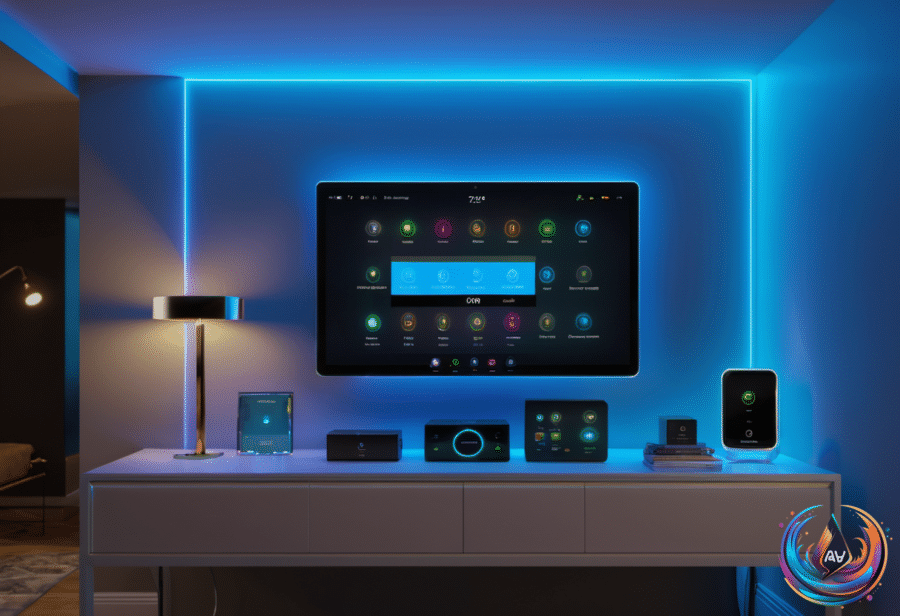
Getting all your smart home devices to talk to each other does not have to be hard. The challenge is choosing a setup that gives you useful features without turning every new purchase into a compatibility puzzle.
On paper, the easiest plan is to choose one brand with a broad range of accessories and stay with it. A single-brand system can simplify setup and control, but an omnibrand approach is usually impossible. Most companies focus on one product category, or a handful of them, so the company that makes a smart lamp probably will not make robot vacuums too. Staying loyal to one brand can also leave you stuck if a competing product offers better features or pricing.
Choose the platform before the accessories
The smart home industry has built several ways to connect products from different manufacturers. The simplest route is to choose one of three major platforms: Amazon Alexa, Google Home, or Apple Home, which includes HomeKit. These platforms are designed for multi-brand pairing, and most accessories explain compatibility with a “Works With” label on the box.
After checking that label, you can follow the platform’s pairing instructions. There may still be extra requirements, such as support for a specific wireless standard. Alexa and Google Home have the broadest support, while HomeKit ranks a distant third. Alexa, Google Home, and other platforms offer apps for iOS and Android, but HomeKit is exclusive to Apple devices.
Many accessories can join two or more platforms, with or without Matter. Matter is a universal pairing protocol, so an accessory that supports it can connect to any of the platforms mentioned here. You will need a Matter controller on your chosen platform, most often a hub, smart speaker, or smart display.
Matter makes pairing easier, but it can limit an accessory to basic functions instead of the complete feature set offered by a specific brand or platform. Most essential product categories support Matter, from light bulbs through to EV chargers, though not every category is available. Unless you enjoy troubleshooting technology, picking one platform and staying with it remains the simpler choice.
When hubs and wireless standards matter
Home Assistant offers another path. It is open-source and can unite other multi-brand platforms under one large umbrella, making it a choice for more tech-savvy users. You can buy a premade Home Assistant hub, and Raspberry Pi is also mentioned as a device concept for installing a Home Assistant hub. Homey is another hub-centric platform for people who need more wireless pairing flexibility.
Hubs built around mesh protocols such as Zigbee, Z-Wave, and Thread can unite accessories from multiple brands. The catch is that the hub must support the right pairing method. If a hub lacks Matter pairing, it may not connect accessories from other brands. The Philips Hue Bridge, for example, can pair only select third-party Zigbee bulbs, and those bulbs may not receive every available feature.
Thread is probably the best bet for many newer setups. It is a low-power, mesh-based standard that extends its reach and reduces the burden on Wi-Fi. It also tends to be faster and more reliable than relying on Wi-Fi for every accessory. Thread cannot carry enough data for audio, video, or vacuuming, so it is mostly limited to bulbs, locks, plugs, and sensors.
Thread requires a Wi-Fi-enabled border router accessory. Some routers, speakers, displays, and Nanoleaf light panels include border router features. Zigbee and Z-Wave also require a Wi-Fi hub. Hub-based products, such as Philips Hue Zigbee lights, can keep running some automations when the internet is down.
Your Wi-Fi network can make or break the experience
Some accessories drop out of apps, fail during setup, or stop responding after they worked correctly. A home fixture you cannot count on is all but worthless. If you are still using a Wi-Fi 5 router, the practical limit for simultaneous connections sits around 10 to 25 devices, or perhaps 30 if you are lucky. A stacked smart home with cameras, sensors, plugs, and speakers can push a cheap router beyond its comfort zone.
Wi-Fi 6 handles many devices at once more gracefully than older standards, while Wi-Fi 7 is the newest standard. Its headline feature is 320MHz channels in the 6GHz band, and the Wi-Fi Alliance says it doubles throughput compared with Wi-Fi 6. Your devices must support Wi-Fi 7 to see that speed, and the numbers printed on a router box are theoretical maximums, not what you will always measure in your living room.
Mesh Wi-Fi systems can create another problem for smart home setup. They use one unified network ID with automatic band steering, so your phone may end up on 5 or 6GHz while an accessory requires 2.4GHz. That can stop an app from detecting new gear, and later detection failures can still happen after a successful setup. If you use a standalone router, separate 2.4GHz and 5GHz network IDs may help, or you can move smart home accessories to the longer-range 2.4GHz band.
Range is another reason accessories drop out. If you cannot reposition the router or devices, a mesh system may help. The best long-term approach is to move as many accessories as possible to Thread, Zigbee, or Z-Wave, while accepting that some Wi-Fi reliance is unavoidable.
Build in control and power fallbacks
The brain of a smart home is its assistant or hub. It can control many devices from one central location, check a calendar, update a grocery list, and show whether packages were delivered. The Echo Show 11 has Alexa+ built in, a full-HD touchscreen, and voice controls for recipes, Christmas music, shopping lists, and carts. The Google Home Speaker offers 360-degree sound, is powered by Gemini, and can handle multiple actions in one request.
Other useful devices include the Ring Floodlight Cam 4K Pro, with two ultra-bright floodlights and a 4K video camera; the Blink Battery Doorbell 2K, with two-way audio and noise cancellation; and the Wyze Cam Pan, with 360-degree pan and 180-degree tilt coverage. The EcoSmart 60-watt A19 bulb powered by Hubspace can be set up in under 60 seconds and offers 16 million colors, while the Govee Permanent String Light includes 75 scene modes.
HomeKit can show “No Response” errors in situations where Alexa and Google Home work normally, though Apple has tried to improve the framework. A reliable Apple setup may need two or more home hubs for control redundancy, using a mix of HomePods, HomeViews, or Apple TV 4Ks. Pairing HomePods with an Apple TV 4K is another option.
Power outages need their own backup plan. A router or Wi-Fi mesh system goes silent when the power fails, even if a laptop keeps running on its battery. An uninterruptible power supply, or UPS, sits between the outlet and networking equipment and switches to battery automatically. A modest UPS that keeps a router running for an hour or longer costs well under $100.
Inverters can cost as little as $30, but they require you to plug in the networking gear after the outage begins and wait for it to restart. With either option, connect only the networking equipment, not a television or game console. This works only when your internet provider’s connection remains active. For a complete internet outage, your phone’s mobile hotspot or a mobile hotspot device is the better fallback.
Based on
- Building a smart home across different brands? Here’s what you should know — engadget.com
- What To Do If Your Smart Home Devices Keep Disconnecting From Wi-Fi — engadget.com
- How to Build the Ultimate Smart Home | WIRED — wired.com
- Why You Don’t Really Need An Expensive, High-End Router — engadget.com
- You Can Easily Keep Your Home Network Running During A Power Outage — Here’s How — engadget.com