That glass wall on a gaming PC is not there by accident. It turns expensive hardware, RGB lighting, and careful cable management into part of the room, but the same design can add risks that have nothing to do with frame rates.
Then comes the performance trap: a monitor connected to the wrong video output can leave a powerful graphics card underused. Add the choice between integrated graphics, a desktop GPU, or an external GPU, and everyday computer hardware starts asking a bigger question: where should your graphics power live?
Why PC Cases Put Glass on the Side
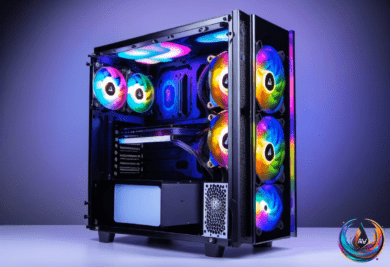
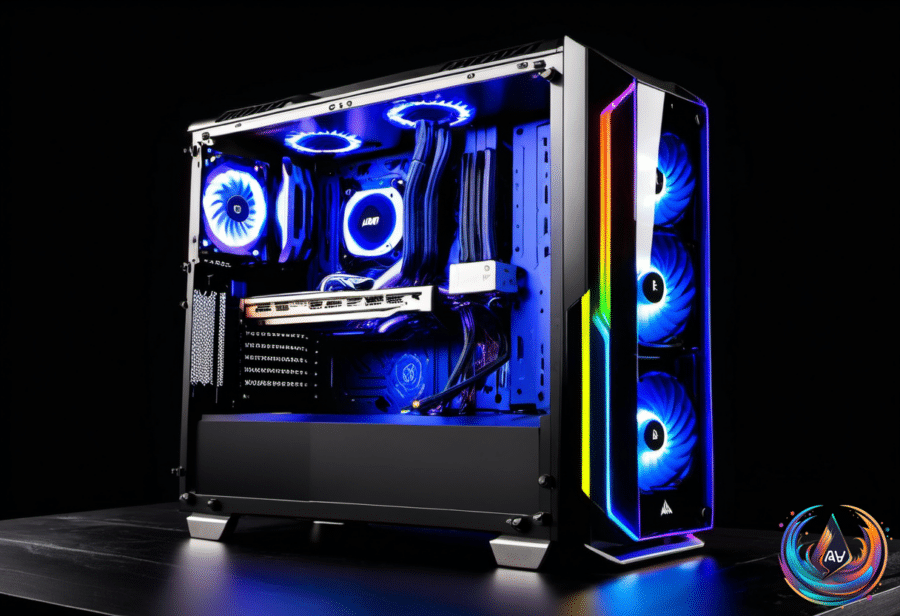
Many modern PC cases use tempered glass because hardcore gamers want to show off their expensive parts. A discrete graphics card is often the most expensive component in a gaming-focused desktop, and the fastest consumer GPU has an MSRP of $1,999. A transparent side panel also puts other components on display, including RGB lighting and liquid coolers such as the NZXT Kraken Elite 360, which allows custom animations.
Glass does not improve performance or cooling, but it gives you a direct view inside the machine. You can spot dust buildup, check whether a fan has unexpectedly stopped spinning, or see whether a motherboard cable is getting too close to a GPU’s spinning fans. That visual access can make troubleshooting easier before a small problem becomes a larger one.
There are trade-offs. Airflow issues can appear when a glass panel sits too tightly against the case, and tempered glass can break if you are careless around the rig. Regular upgrades create another risk because the panel may come off often. Anyone building a glass-panel gaming PC also needs strong cable management to get the best aesthetic benefit.
Typical ATX towers mount the motherboard on the case’s right side, with the components facing the left panel. Reversible cases let you flip that layout, but unless your setup requires a right-sided glass wall, the traditional position should not cause trouble. The panel is mainly a display window, not a performance upgrade.
The Cable Swap That Can Unlock Your GPU
Your monitor may be connected to the motherboard instead of the graphics card, and the fix takes only a cable swap. Many desktops place HDMI, DisplayPort, and USB-C monitor connections in two locations: the motherboard and the dedicated graphics card.
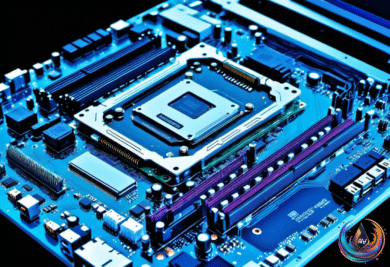
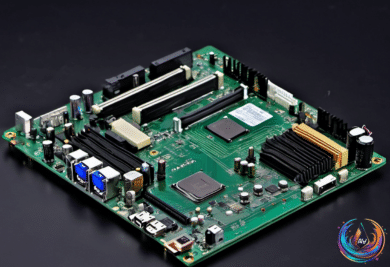
The motherboard video outputs sit beside the USB, Ethernet, and audio ports. The graphics card has its own outputs on a separate expansion bracket, usually lower on the back of a conventional tower. Those ports are often horizontal, but the layout is not universal, so check which connections belong to the card.
If a desktop has a dedicated graphics card, the monitor should normally connect to that card’s outputs. Using a motherboard port can route games through less capable integrated graphics or produce a blank screen. If Windows runs a game on integrated graphics, you are missing the performance of the dedicated GPU; in some configurations, the dedicated card can still render the game and pass frames through integrated graphics, adding overhead.
Microsoft does not state a single percentage for the performance loss because the impact depends on the hardware. Motherboard video outputs also will not work with Intel desktop processors carrying an F or KF suffix, since those chips lack integrated graphics. Some PCs disable the integrated GPU when a dedicated card is installed, so a blank screen does not prove that the graphics card has failed.
- Turn off the PC, move the monitor cable to the graphics card, and select the matching monitor input.
- Both HDMI and DisplayPort support high-refresh-rate gaming when the card, monitor, and cable support the chosen resolution and refresh rate.
- DisplayPort comes standard on most modern gaming monitors, but a working HDMI cable needs no replacement if it delivers the required resolution and refresh rate.
- In Windows 11, check the refresh rate at Settings > System > Display > Advanced display.
- A 100Hz monitor set to 60Hz shows only 60 updates per second, no matter what the graphics card renders.
If the screen goes black after the change, try another GPU port or cable. Shut down and unplug the PC before checking power connectors or the card’s seating. If integrated graphics remain enabled, a second monitor may connect to the motherboard output, depending on system compatibility.
Choosing Between Integrated, Dedicated, and External Graphics
A dedicated GPU makes sense for high-resolution video editing, local LLMs, high-fidelity games, and other demanding workloads. It has its own VRAM, creating a separate memory pool with much higher bandwidth for graphics tasks. An integrated GPU shares system memory with the CPU, so RAM speed, configuration, and capacity can create bottlenecks.
For web browsing, media streaming, casual games, light productivity, and media encoding and decoding, integrated graphics can offer a solid desktop experience. The AMD Radeon 780M in the AMD Ryzen 7 8700G has 12 compute units, while the basic Radeon Graphics in the AMD Ryzen 7 9800X3D has only two. The 9800X3D is faster for CPU workloads, yet the 8700G is stronger in GPU-intensive scenarios.
TechSpot found performance drops across several games when switching the Ryzen 7 8700G from DDR5-6400 to DDR5-5200. That shows how much an iGPU depends on system memory. If your workload shifts toward high-resolution editing, high-fidelity gaming, heavy LLMs, or 3D rendering, adding a discrete card can provide the needed horsepower, provided your power supply, PCIe compatibility, and case clearance support it.
An eGPU can bring desktop-class graphics to a laptop, but the connection changes the equation. Thunderbolt 4 offers 40 Gbps of overall bandwidth and 32 Gbps of PCIe data throughput. Thunderbolt 5 raises the base speed to 80 Gbps and the PCIe requirement to 64 Gbps, with a 120 Gbps Bandwidth Boost mode; Intel says PCIe data throughput remains 64 Gbps.
A built-in laptop GPU uses an internal PCIe connection, while an eGPU sends data through Thunderbolt or USB4. A USB-C-shaped port alone does not guarantee eGPU support because the laptop, enclosure, drivers, GPU, and power requirements must work together. Using the laptop’s built-in display can add another penalty as rendered frames travel back through the same connection, which is why an external monitor connected directly to the eGPU can deliver better performance.
The hardware gap is clear. The RTX 5090 Laptop GPU has 10,496 CUDA cores, 24GB of GDDR7 memory, and a 95W to 150W GPU subsystem power range. The desktop RTX 5090 has 21,760 CUDA cores, 32GB of GDDR7 memory, 1,792GB/s of memory bandwidth, and a 575W total graphics power rating, compared with 896GB/s for the laptop GPU.
Cost also matters. Razer’s Thunderbolt 5 Core X V2 supports full-size NVIDIA and AMD desktop cards up to four slots wide and includes a 120mm cooling fan, but it includes neither a GPU nor the required ATX power supply. Those expenses come on top of approximately $350 for the enclosure. The laptop GPU remains inside the computer, avoids the external cable, and preserves portability.
Why Laptop Fans Spin When Nothing Looks Open
Laptops generate heat, and fans may spin even after every visible app closes. Background processes still use the processor, RAM, and storage, while Windows Update and search indexing continue working. Microsoft says the initial indexing process can take a few hours.
Review startup apps in Task Manager by pressing Ctrl + Shift + Esc, selecting Startup apps, and disabling anything non-essential. Windows power modes can also favor energy efficiency, performance, or a balance between them. Performance mode raises power use under load, creates more heat, and makes fan activity more likely; these options appear at Settings > System > Power & battery > Power mode.
Some Dell laptops offer ultra performance mode, which raises processing power and fan speeds, while quiet mode reduces performance and raises temperatures during use. Heat can also come from blocked vents, dust, or a warm room. A hard, flat desk gives air more room to move, and raising the laptop can improve circulation.
Dust gathers around vents, cooling fans, and fan blades, forcing the system to work harder. Compressed air can help, and removing the bottom panel may allow a deeper clean. Persistent grinding or rattling points to a worn or damaged fan, which cleaning cannot fix; check the warranty or replace the fan.
Install BIOS updates and manufacturer tools such as Dell Power Manager, while HP recommends current BIOS, chipset, and graphics drivers. Dell diagnostics are available by restarting, pressing F12 when the Dell logo appears, and selecting Diagnostics. Apple users with heavy fan activity on an Intel MacBook can reset the System Management Controller; newer Apple silicon MacBooks may only need the lid closed and reopened or a restart.
Fans are not automatically a warning. Background tasks can start them, and normal noise is usually fine when the laptop is not overheating. The smart approach is to match the hardware to the workload, connect the monitor to the right GPU, keep airflow clear, and treat every glass panel as a viewing feature with real maintenance costs.
Based on
- Why so many desktop PC cases have glass walls (and why you might not want that) — engadget.com
- One Cable Mistake Could Be Killing Your Desktop PC’s Gaming Performance — engadget.com
- Here’s When A Dedicated Graphics Card Is Worth It — engadget.com
- What Are The Limitations Of eGPUs Vs Onboard Graphics Cards For Laptops? — engadget.com
- Why Your Laptop Fans Spin Up Even When You’re Not Doing Anything — engadget.com