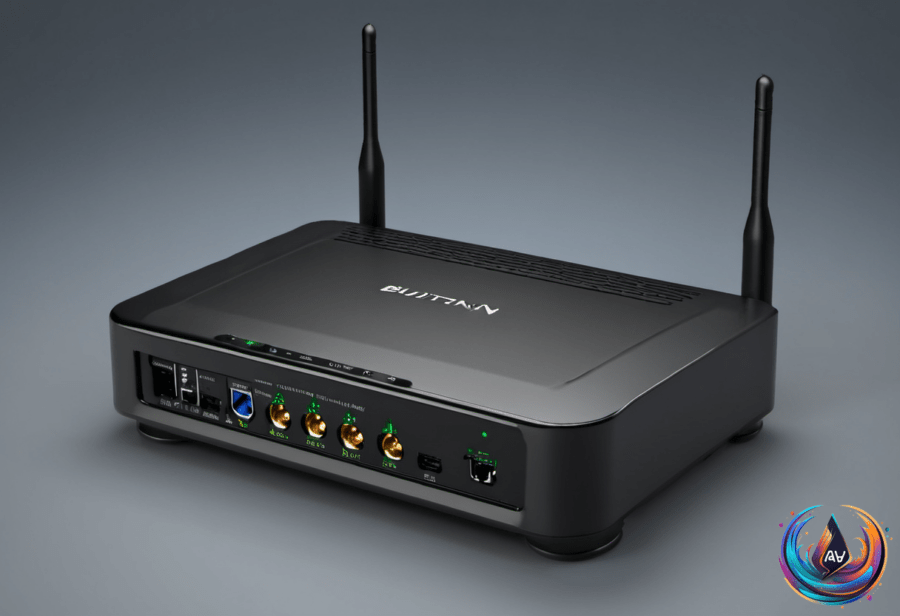
That router USB port is not decorative. Next to the row of WAN and LAN ports on the back of most routers, you will often find a USB port, and it can handle more than charging a forgotten gadget.
Depending on the router, that port can create a file server, share a printer, connect a cellular dongle, or turn a USB storage device into a networked drive. Some routers also support Android phone tethering, giving your home a backup internet connection when your internet provider suffers an outage.
What the USB port can actually do
Plug in a USB storage device and the router may expose its files across the local network. Support for SMB, Samba, or FTP determines how devices access that storage, so the feature depends on the router’s software as much as the port itself.
Newer router models have more performance headroom and faster USB 3.x ports, which makes shared storage more practical than it was on older hardware. A dedicated NAS still offers better stability and performance than a simple drive plugged into a router, but the USB option can provide basic network storage without buying another device.
Printer sharing follows the same principle, though it may involve extra setup. Some routers require utility software such as Asus’ EZ printer sharing app before computers on the network can use the connected printer. Because apparently plugging in a printer was too straightforward.
A compatible router can also share an Android phone’s internet connection through USB tethering. That removes the need for a dedicated USB dongle, but the phone must be plugged in each time, which makes this a useful backup rather than a hands-off replacement for your main connection.
WAN, LAN, Wi-Fi, and the extra ports
The Ethernet ports on a router do not all serve the same purpose. The WAN port connects to a separate modem or optical network terminal, while LAN ports connect devices inside the home, including PCs, game consoles, smart TVs, and NAS hardware.
Some routers mark ports as WAN/LAN, allowing either role, while others use auto-sensing Ethernet ports. The number of LAN ports you need depends on how many devices you plan to wire directly to the router; an Ethernet switch can add more connections without requiring another router.
Port speed also varies. A router might offer LAN ports rated at 1G, 2.5G, 5G, or 10G, and some models include four 2.5Gbps LAN ports. A 10Gbps port does not grant every connected device a 10Gbps link—the device hardware must support that speed too.
Copper Ethernet hardware uses auto-negotiation to select a link configuration supported by both ends. Cable labels create plenty of confusion here: Cat5e, Cat6, and Cat6A describe cable types, not the speed of the router port.
Why dual-band still matters
A dual-band router broadcasts Wi-Fi on two radio frequencies: 2.4GHz and 5.0GHz. The 2.4GHz band reaches farther and passes through walls more effectively, but it is slower and more crowded.
The 5.0GHz band provides more capacity and faster speeds, though its range is shorter and dense obstacles weaken it. Most dual-band routers connect compatible devices to the best frequency band, balancing range and speed as the number of devices and bandwidth demands grow.
That balance is the point of dual-band networking. It reduces bottlenecks instead of forcing every device onto one radio band, a small architectural decision that matters when phones, televisions, consoles, computers, and storage devices compete for airtime.
To check whether your router supports dual-band or tri-band Wi-Fi, inspect the model specifications online. Router stickers also list the supported bands or identify the product with a dual-band or tri-band label.
Splitters are not all switches
Passive Ethernet splitters are simple devices with no networking hardware to distribute traffic between multiple devices. They can carry only 10/100Mbps Ethernet connections, and a single cable run requires two splitters, one at each end.
Active or powered Ethernet splitters are different. They contain networking hardware, include a power input, manage traffic between multiple RJ45 ports, and support Gigabit speeds. In practice, they are compact switches that take one Ethernet connection and provide several ports.
A proper network switch remains the more versatile option for expanding wired connections. Switches offer multiple RJ45 ports and support Gigabit Ethernet, while higher-end models can provide 2.5Gbps ports and enterprise-grade hardware can add 10Gbps ports.
A 2.5Gbps switch is a sensible middle ground for future-proofing a home network, especially when NAS devices need faster transfers within the local network. The basic rule is simple: use the router’s USB port when its limits fit the job, use a switch for more wired devices, and do not confuse a passive splitter with networking hardware.
Based on
- Stop wasting your Wi-Fi router’s USB port — try this instead — engadget.com
- Are You Using The Right Ethernet Port On Your Router? Here’s How To Know — engadget.com
- What Is A Dual-Band Router And Why Is It Important For Good Wi-Fi? — engadget.com
- Ethernet Splitter Vs Switch: What’s The Difference And How Do You Use Them? — engadget.com